
- Login to your Chatling account.
- From the “My agents” page, click the
Createbutton.

- Choose
AI Chatbotas the type.
To learn the difference between AI Agents and Chatbots, refer to this page.

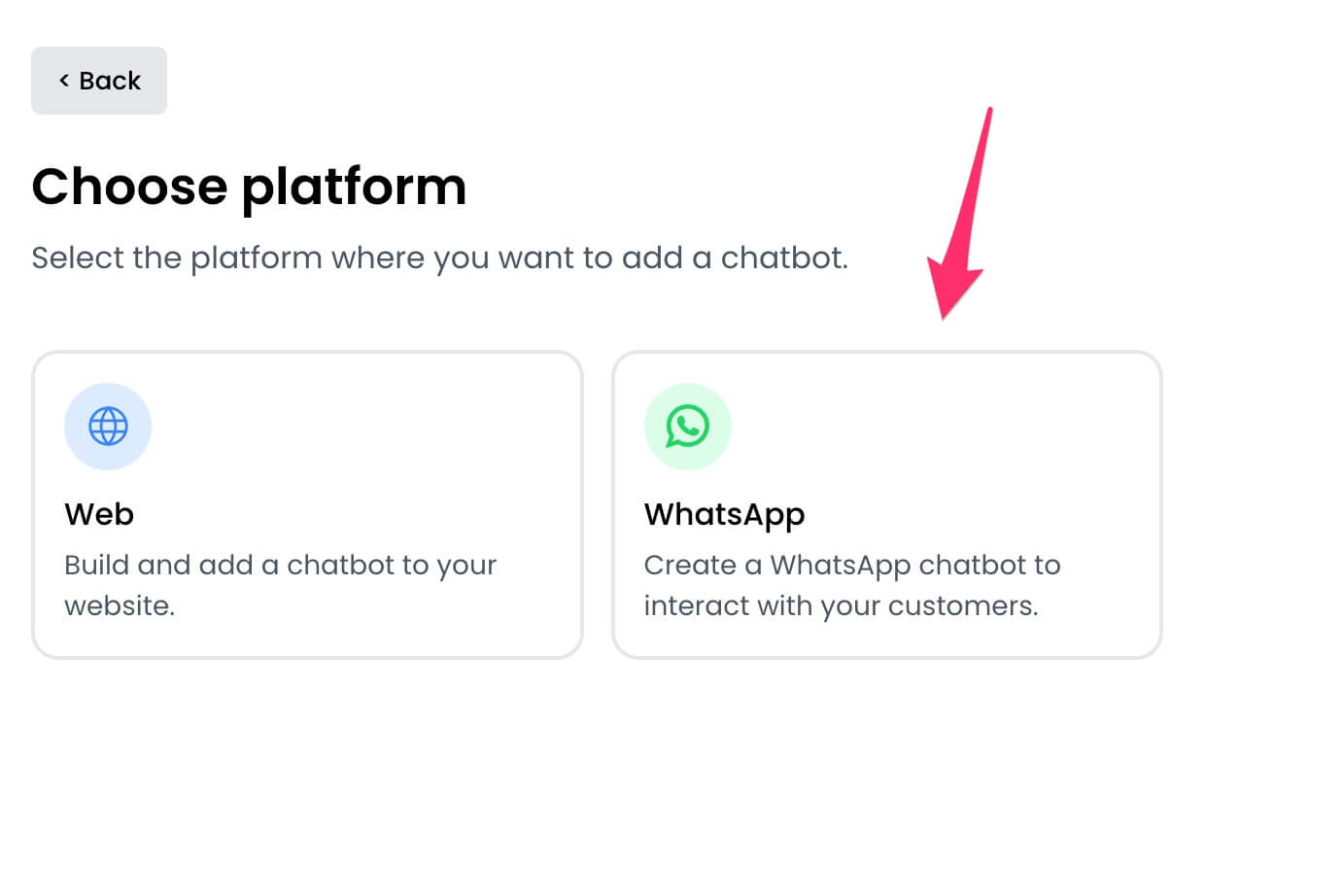
- Select
WhatsAppas the platform.
- You can choose to create a chatbot from scratch or use a template. Templates help you get started quickly with pre-built flows.
-
Enter a name for your chatbot and click the
Create chatbotbutton.

- A setup wizard will open to guide you through connecting your WhatsApp Business account.
Already use this number in the WhatsApp Business app? You can keep your account and continue using the same number in both the app and Chatling. Do not delete your WhatsApp Business account. See WhatsApp Coexistence for details.
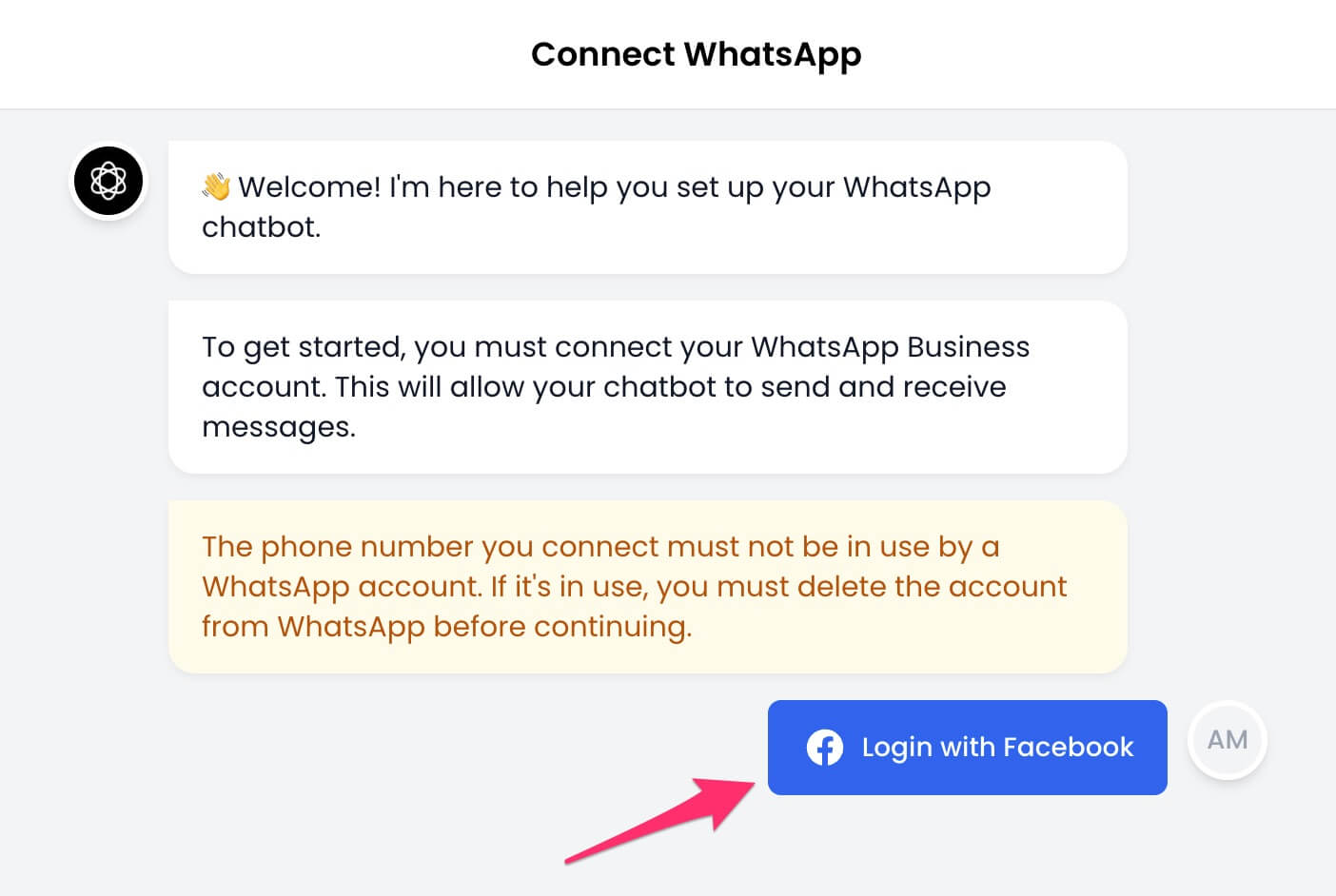
- Click the
Login with Facebookbutton to continue.
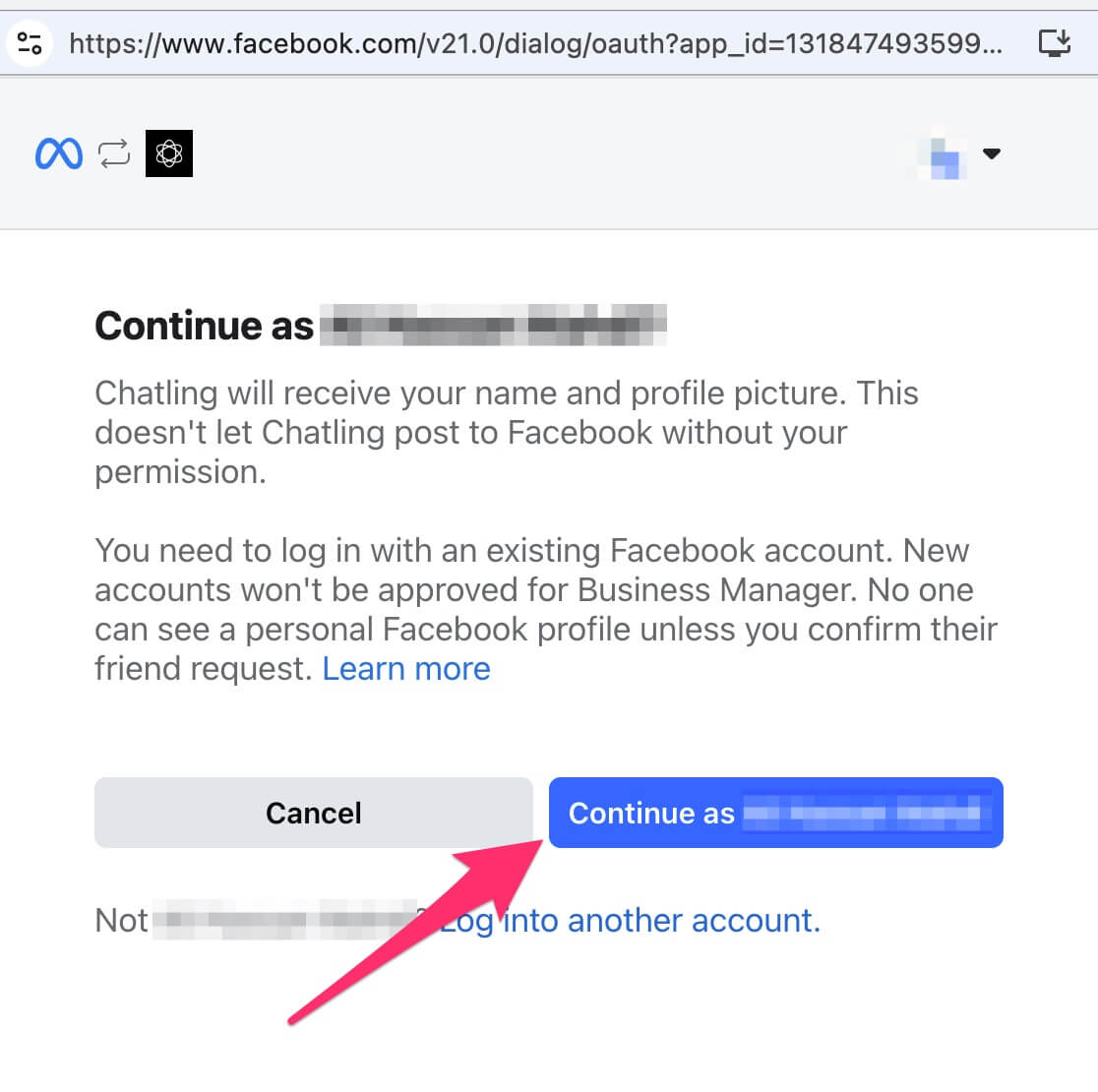
- The Facebook authentication window will open. Sign in to your Facebook account and click the
Continuebutton.
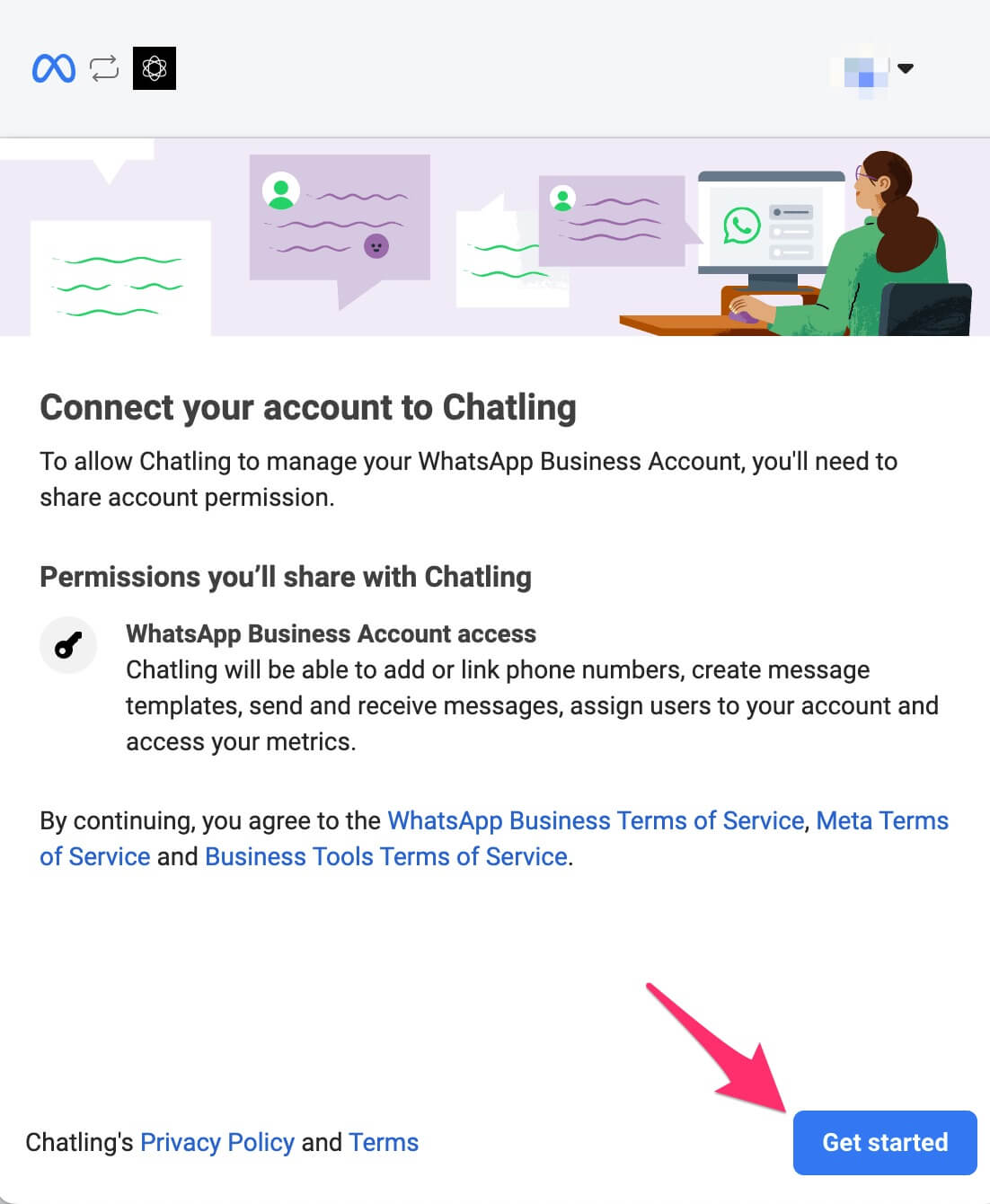
- Select
Get started.
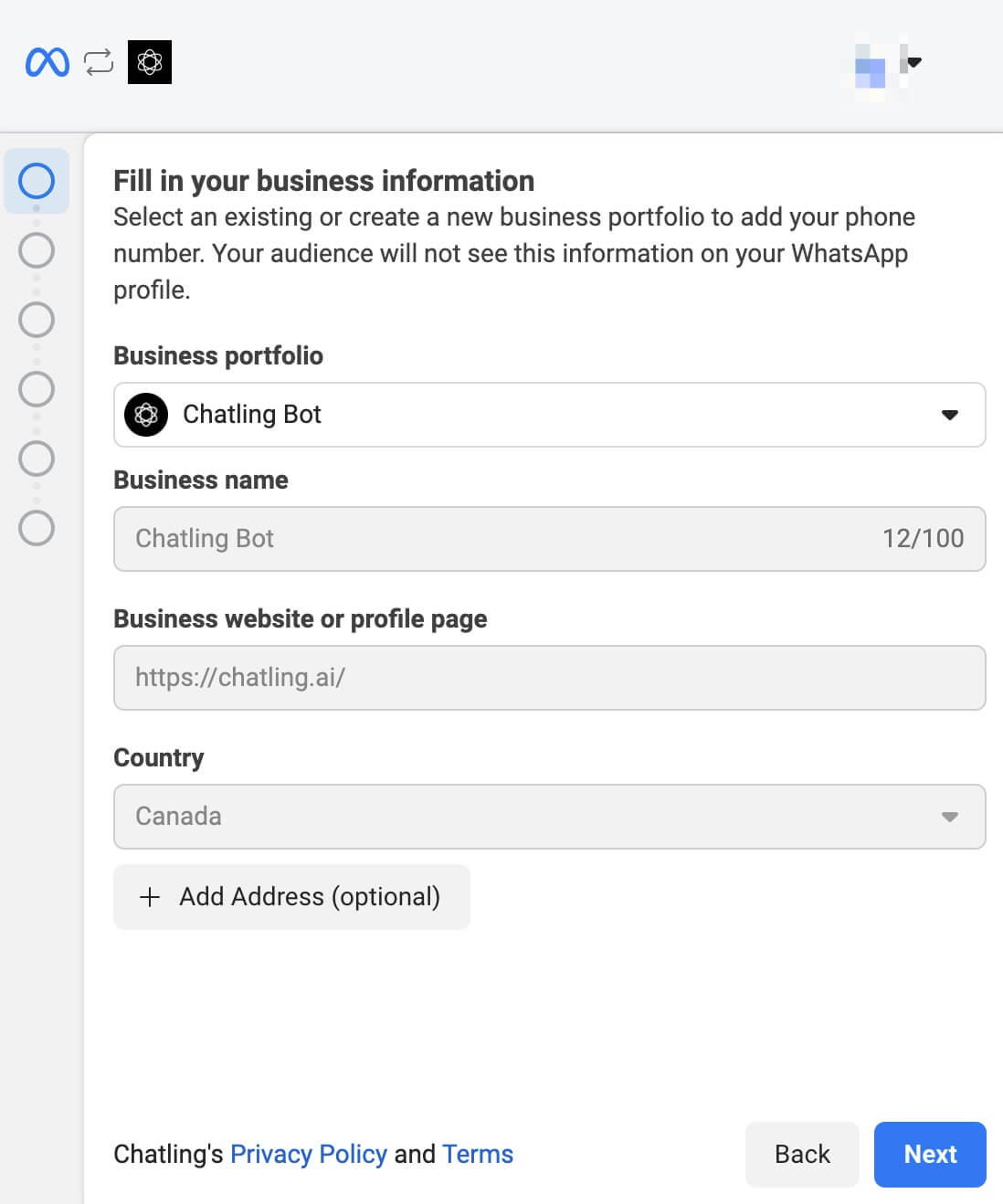
- Choose or create a new business profile.
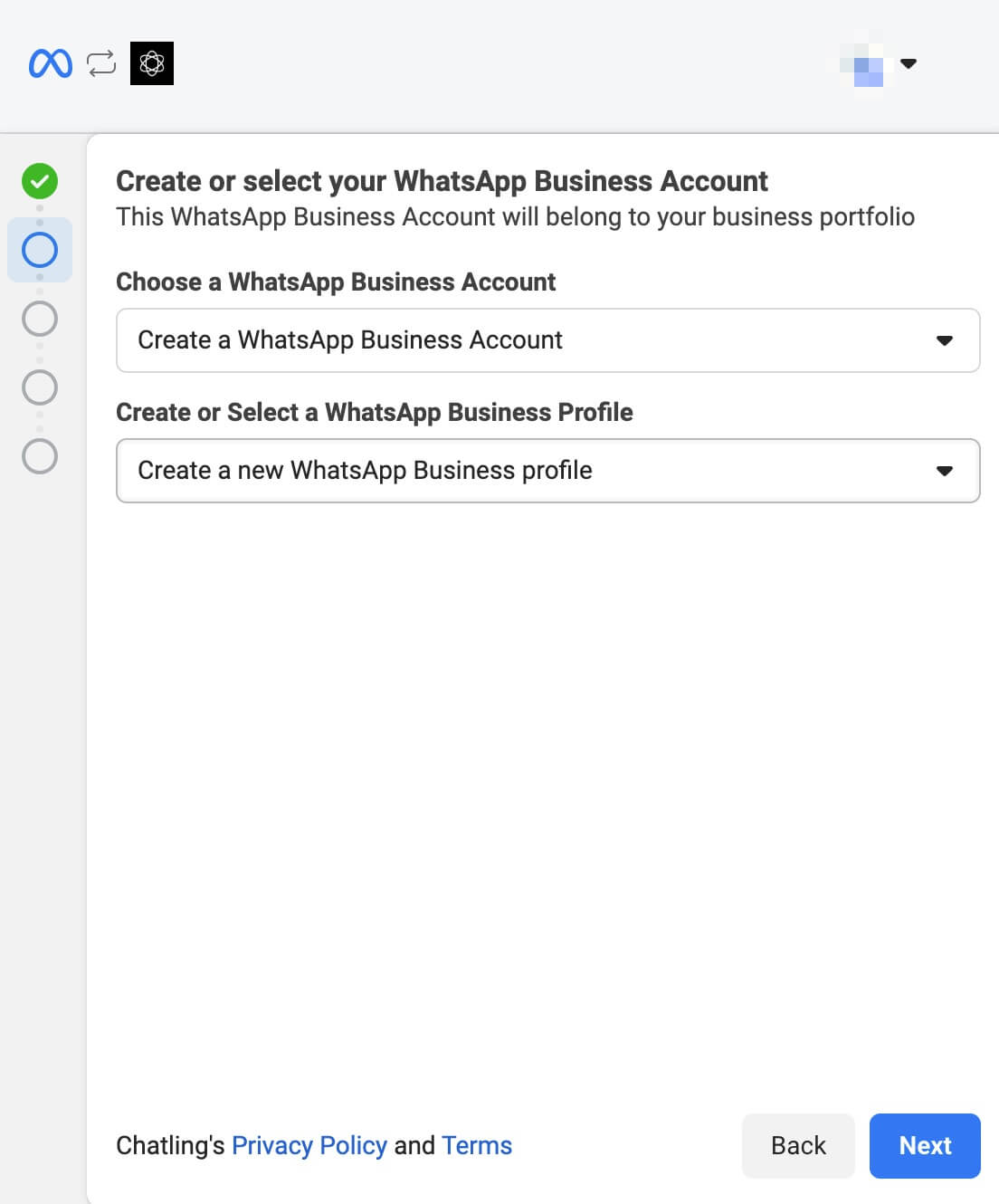
- Choose or create a new WhatsApp Business account and profile.
- If you chose to create a new profile:
- Enter the required information for the profile.
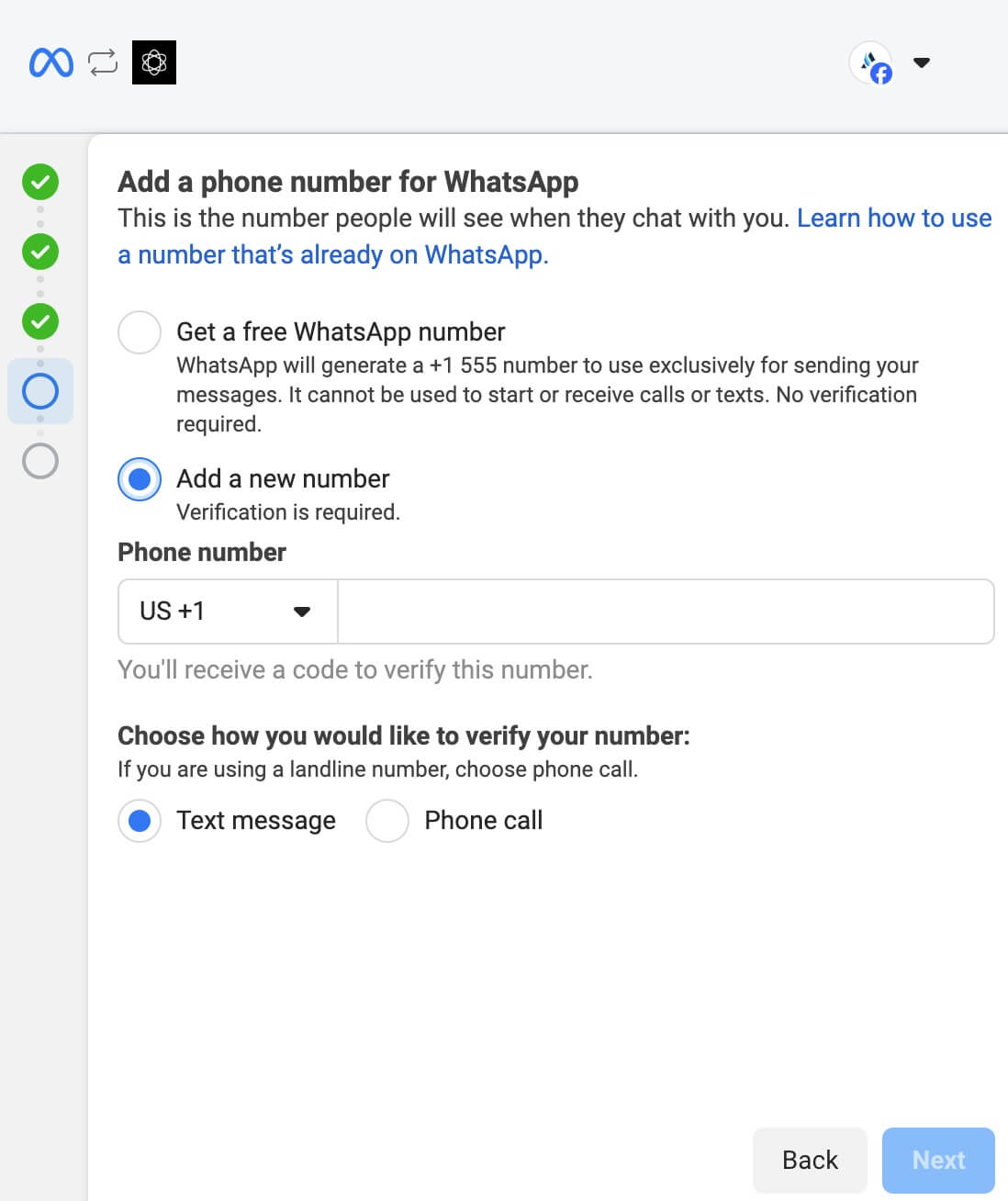
- When prompted to add a phone number, select
Add a new phone number. Do not selectGet a free WhatsApp numberas it will not work with Chatling.
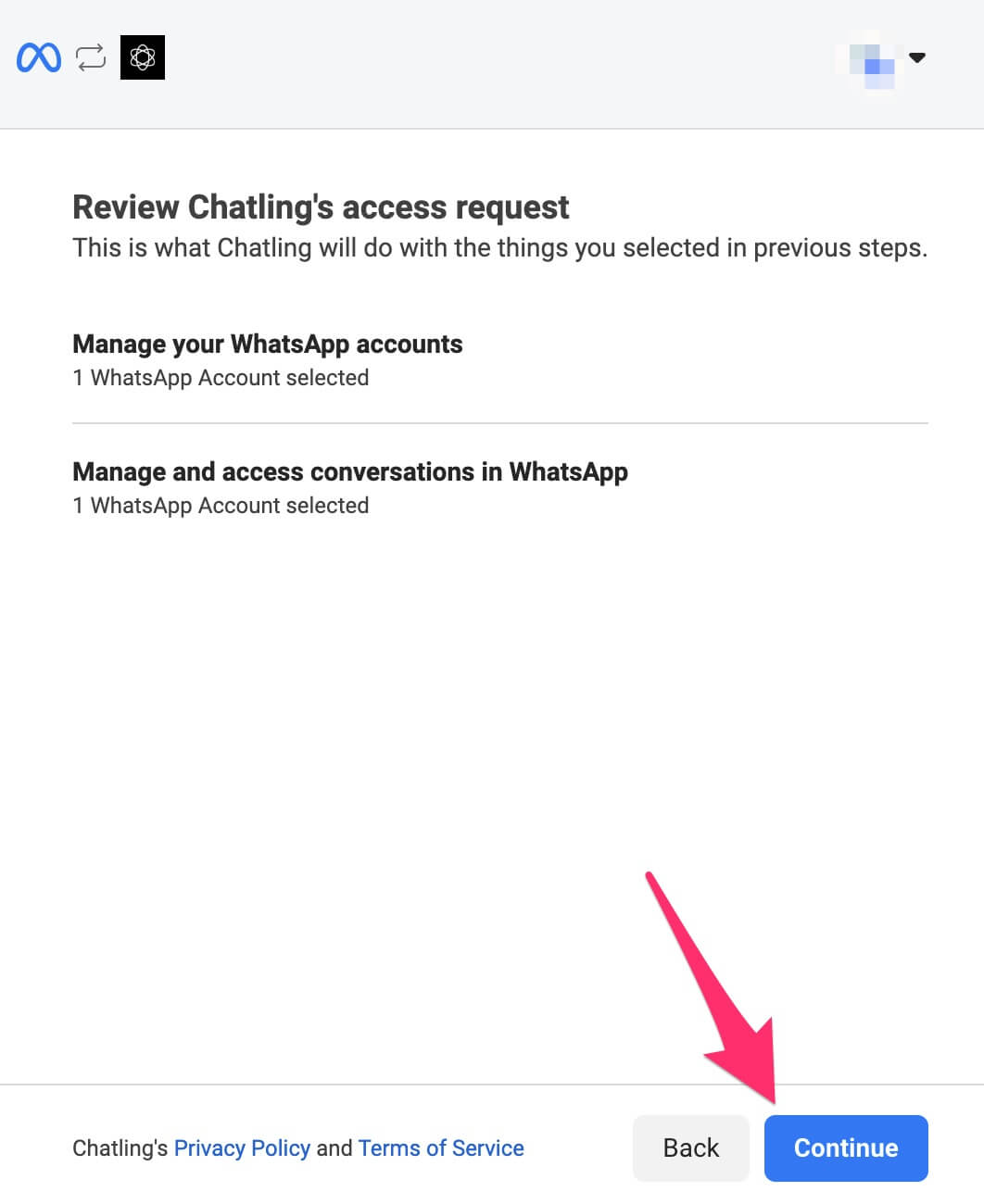
- Facebook will display the permissions required by Chatling. Review and click the
ContinueorConfirmbutton.
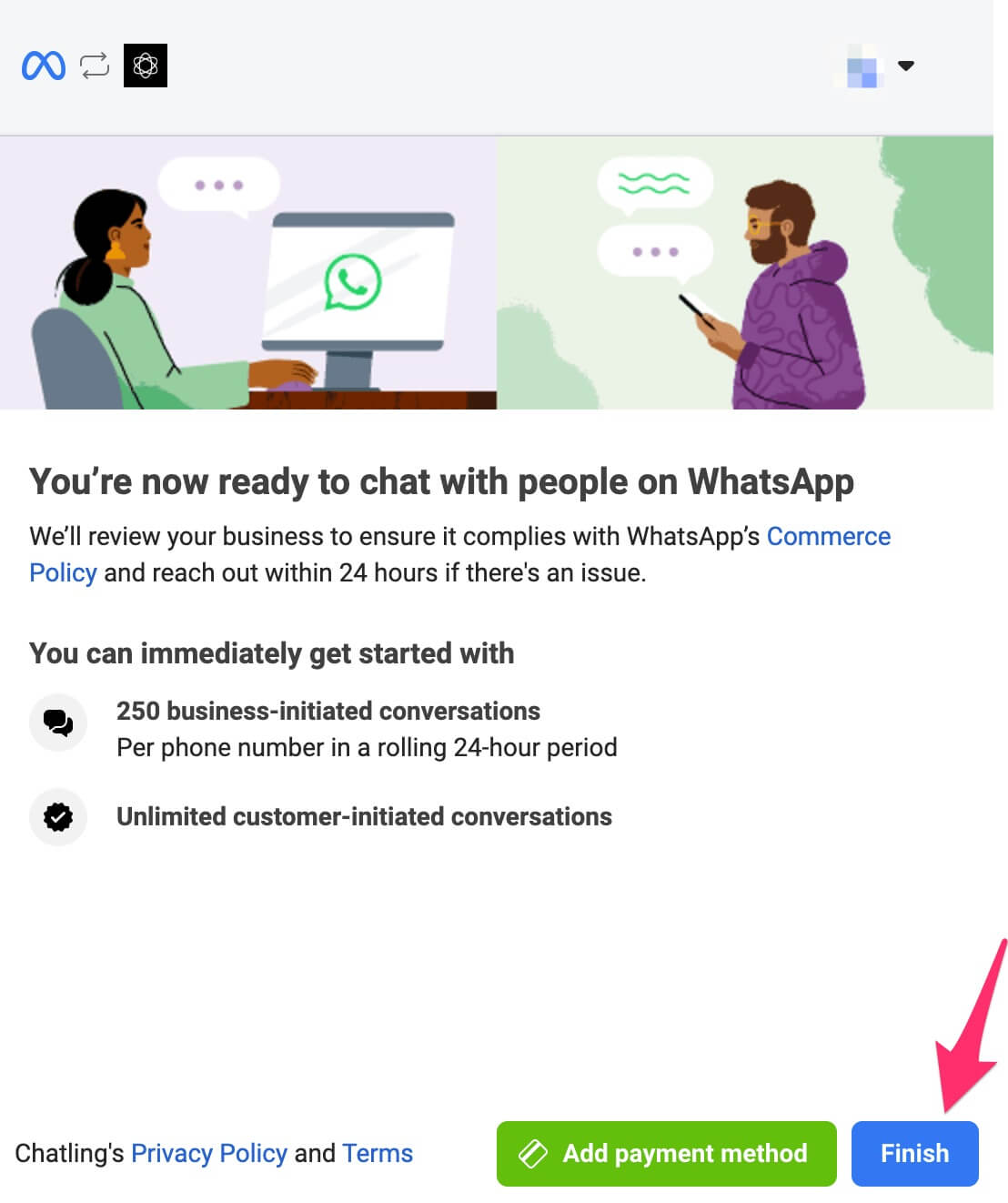
- Facebook begins verifying the information you provided. Once it’s completed successfully, you should see a message similar to below. Click the
Finishbutton.
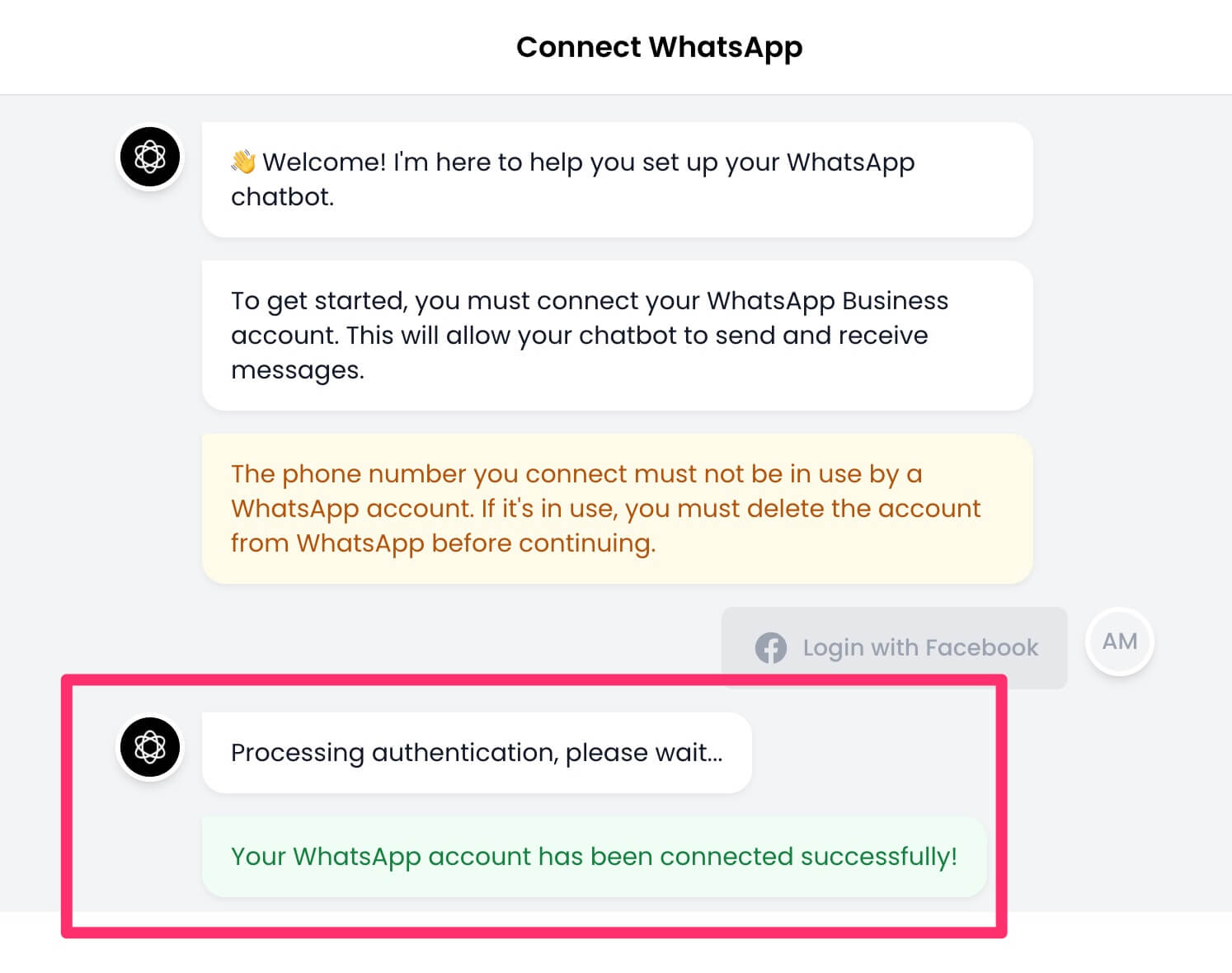
- Go back to Chatling and a message will be displayed that your authentication is being processed. If successful, you should see a message similar to below.
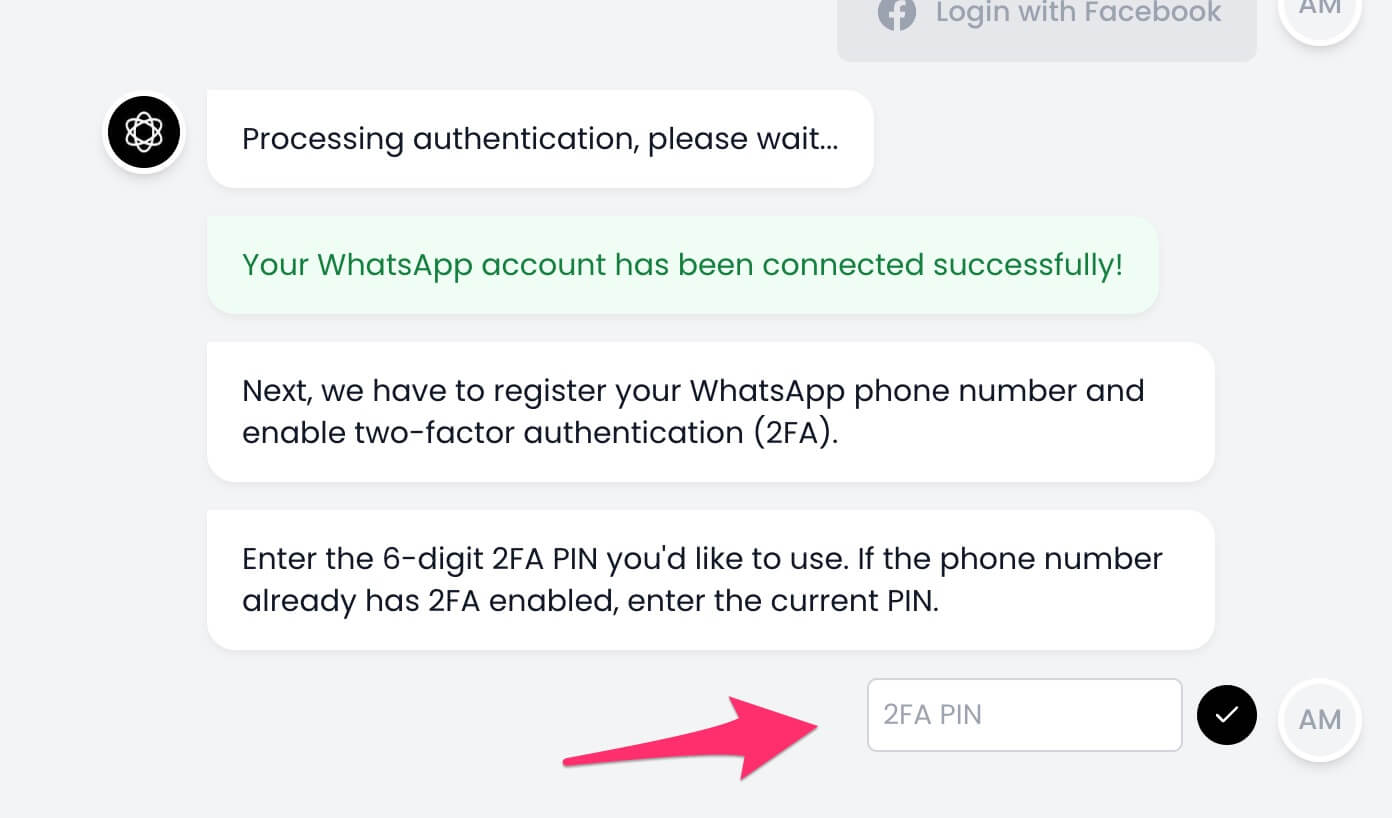
- Next, you must enter a 6-digit code for two-factor authentication so your phone number can be registered with WhatsApp. If the number already has 2FA enabled, enter the same code you had set up.
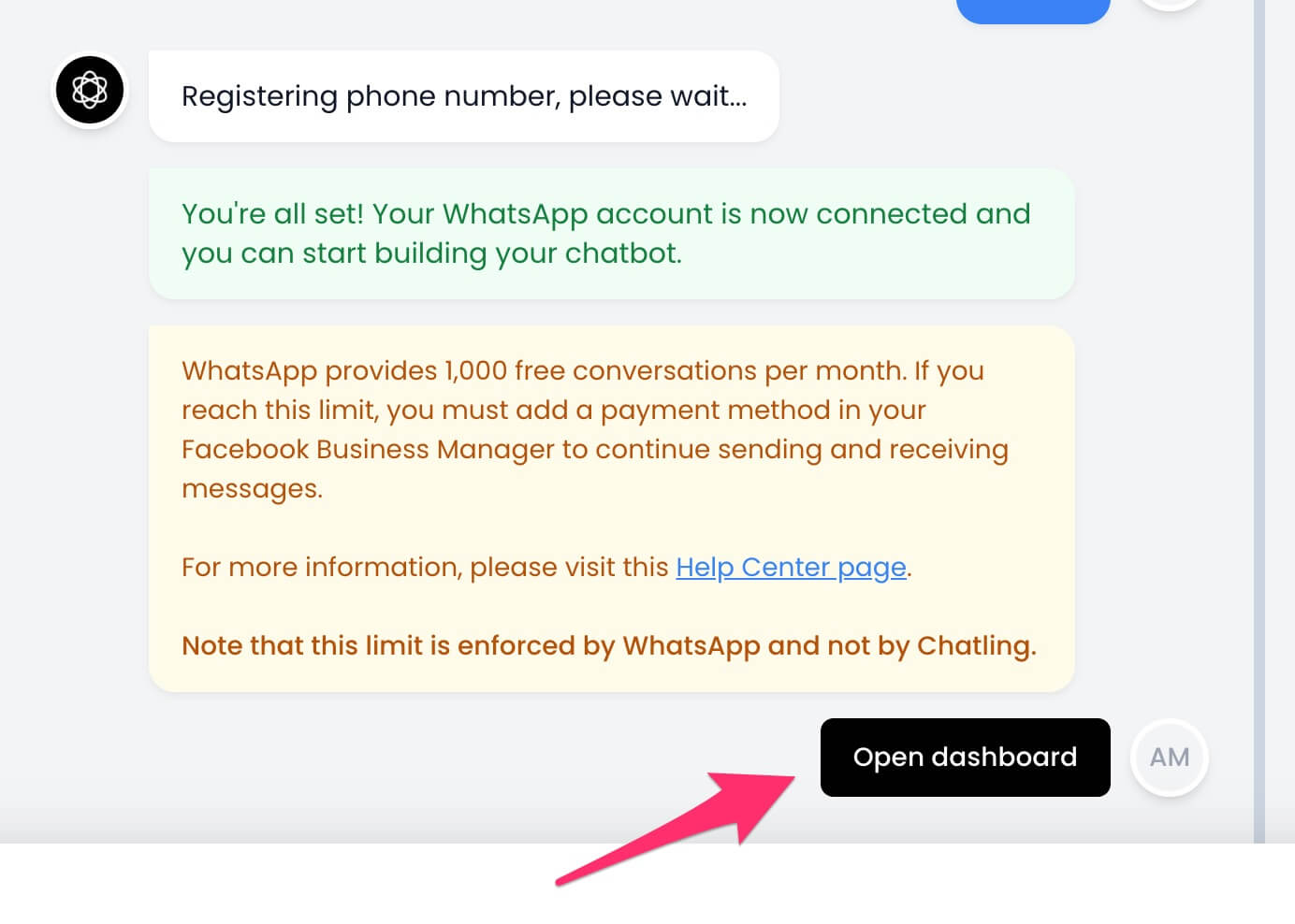
- Once the phone number is registered successfully, you’re all set and your WhatsApp Business account is connected to Chatling. Click the
Open Dashboardbutton to continue.