

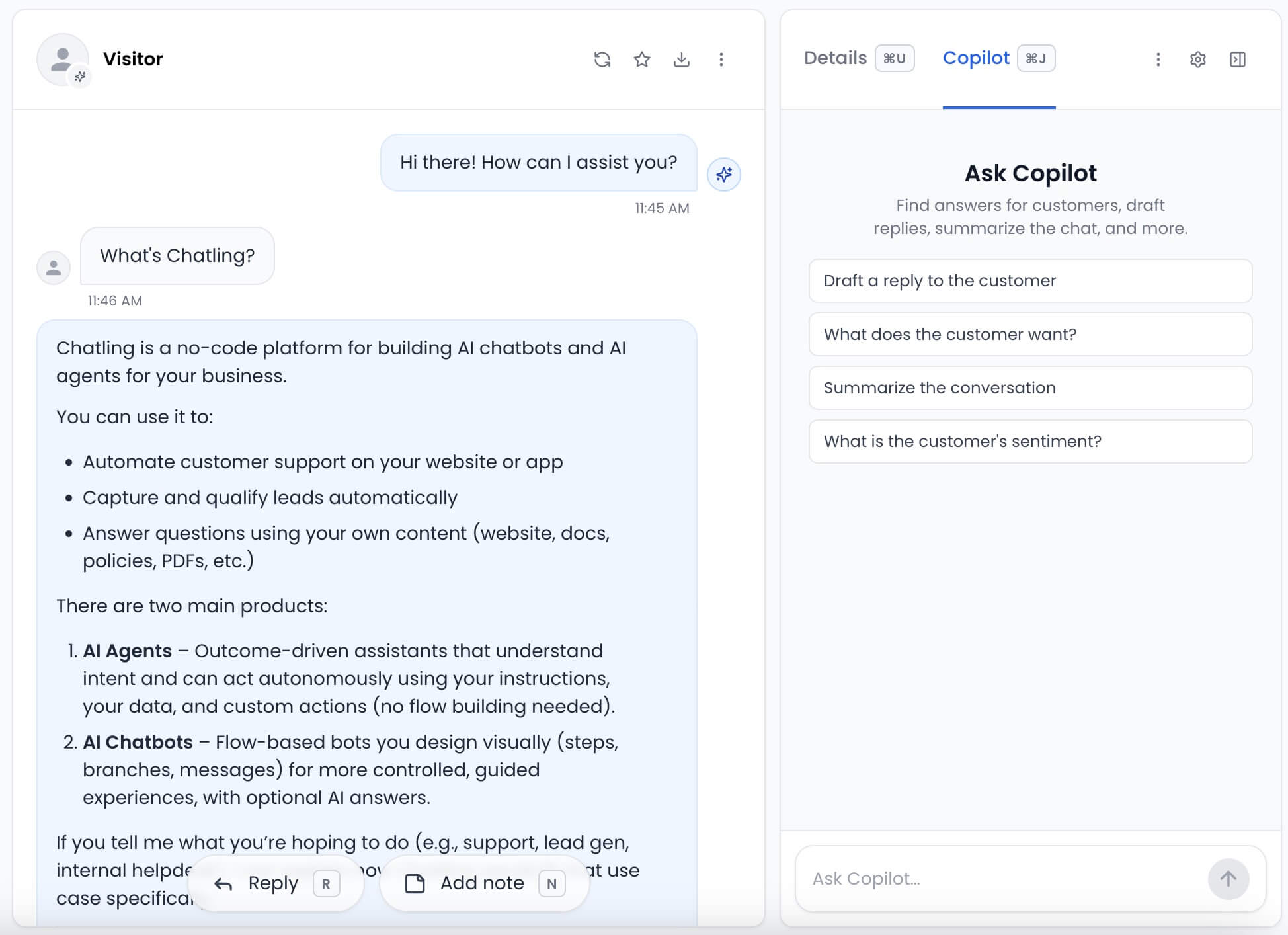
Copilot usage consumes AI credits. Each message costs 3 credits and is consumed from your account’s AI credit pool.
Opening Copilot
In any conversation, open the right panel and select the Copilot tab, or press ⌘ + J (Ctrl + J on Windows) to toggle it.
Asking Copilot
Type a question in the composer at the bottom of the panel and press Enter. You can ask questions like:- Draft a reply to the customer
- Summarize the conversation
- What is the customer’s sentiment?
Drafting and using replies
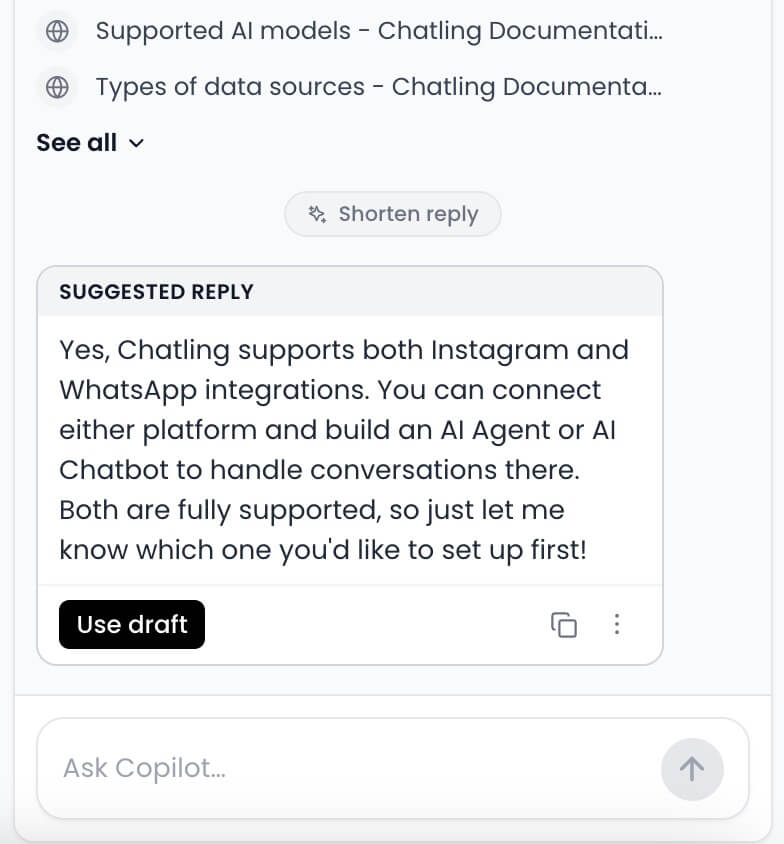
When you ask Copilot to draft a reply to the customer, it searches your knowledge base for relevant information and automatically writes a reply for you. Once the reply is drafted, it appears in a Suggested reply card. You can use it by clicking the Use draft button, which inserts the text straight into the live-chat composer, where you can edit it before sending.Refining a draft
You can also use the three-dots menu on a draft card to refine it without retyping your request.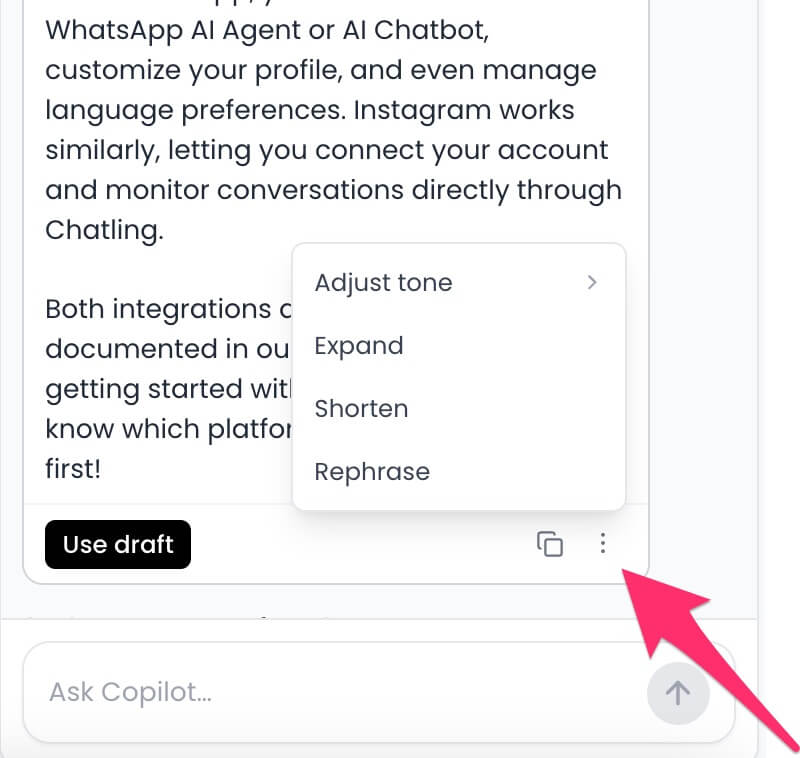 The following actions are available:
Each refinement produces a new draft so you can compare and pick the best version.
Settings
Click the settings icon at the top of the Copilot panel to open the Copilot settings. You can configure the following:- Tone - controls how Copilot phrases drafted replies. This setting is yours only and doesn’t affect your teammates.

Managing the thread
The three-dots menu at the top of the Copilot panel allows you to manage the thread.- Restart Copilot chat - clears the current Copilot thread and starts fresh.
- Manage knowledge - opens your knowledge base in a new tab so you can fix or add content.
