> ## Documentation Index
> Fetch the complete documentation index at: https://docs.chatling.ai/llms.txt
> Use this file to discover all available pages before exploring further.
# Disconnect WhatsApp account
> Learn how to disconnect your WhatsApp account in Chatling.
The guide below will walk you through the process of disconnecting your WhatsApp account from your chatbot or AI agent in Chatling.
The steps differ for chatbots and AI agents. We've created separate guides for each below.
Disconnecting your WhatsApp account will prevent Chatling from sending and receiving messages from WhatsApp. To restore this functionality, you must reconnect your WhatsApp account.
## How to disconnect WhatsApp from your chatbot
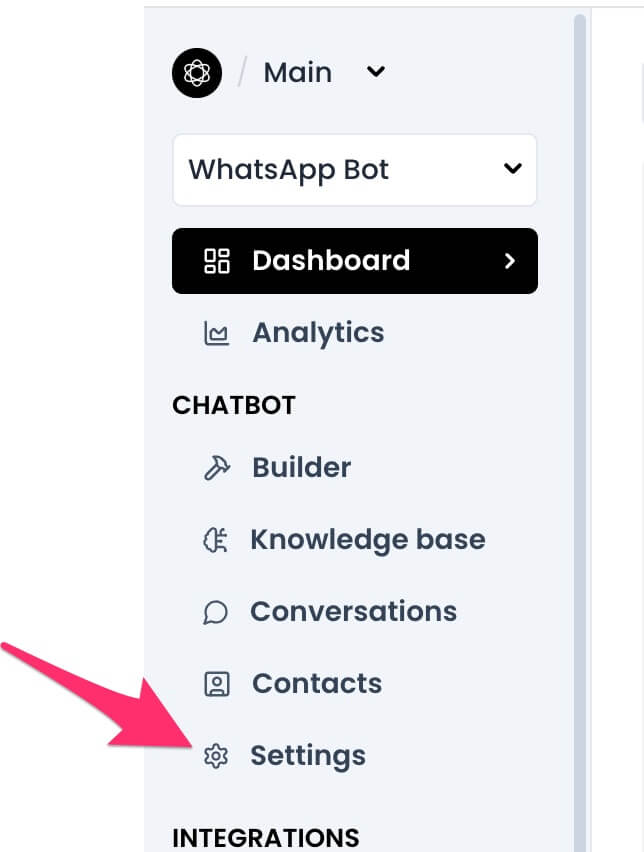
1. From your chatbot's dashboard, click the `Settings` button under the Chatbot menu.
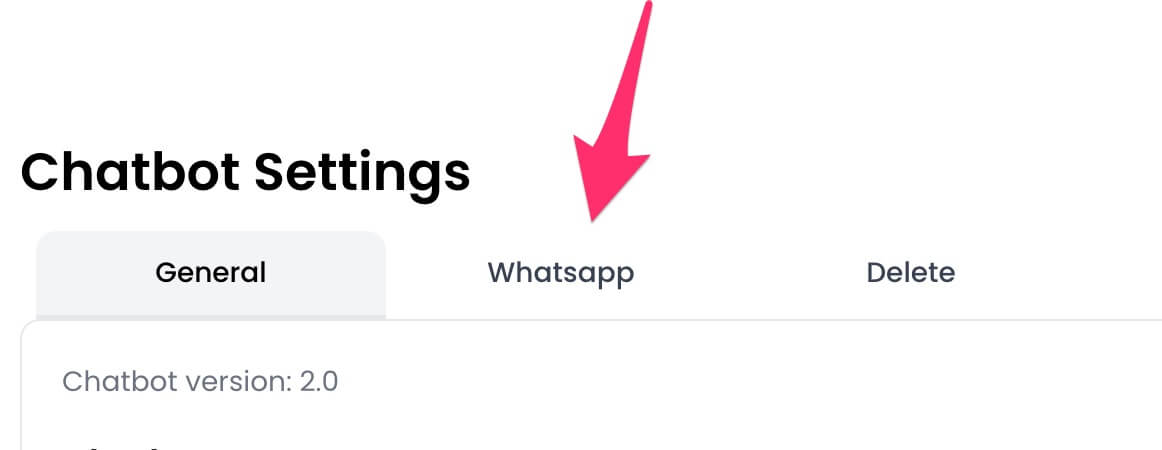
 2. Go to the `WhatsApp` tab.
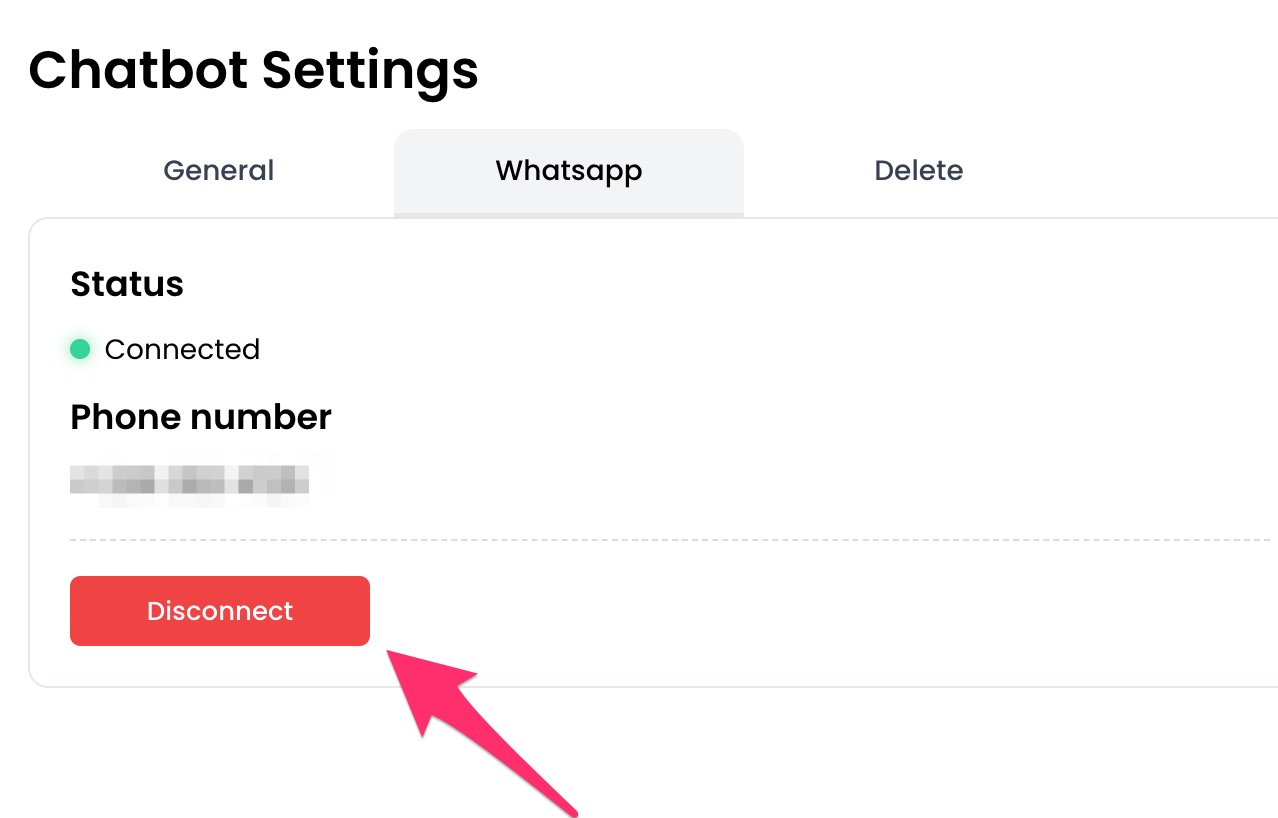
 3. Click the `Disconnect` button.
 ## How to disconnect WhatsApp from your AI Agent
1. From your agent's dashboard, click the `Deploy` button in the sidebar.
## How to disconnect WhatsApp from your AI Agent
1. From your agent's dashboard, click the `Deploy` button in the sidebar.
 2. Click the settings icon for `WhatsApp`.
 3. Click the `Disconnect` button.
