> ## Documentation Index
> Fetch the complete documentation index at: https://docs.chatling.ai/llms.txt
> Use this file to discover all available pages before exploring further.
# Create a WhatsApp AI Chatbot
> Learn how to create a WhatsApp AI chatbot in Chatling.
The steps below will guide you through the process of creating and connecting your WhatsApp to your **AI Chatbot** in Chatling.
1. Login to your [Chatling account](https://app.chatling.ai).
2. From the "My agents" page, click the `Create` button.
 3. Choose `AI Chatbot` as the type.
To learn the difference between AI Agents and Chatbots, refer to [this page](/introduction#difference-between-ai-agents-and-ai-chatbots).
3. Choose `AI Chatbot` as the type.
To learn the difference between AI Agents and Chatbots, refer to [this page](/introduction#difference-between-ai-agents-and-ai-chatbots).
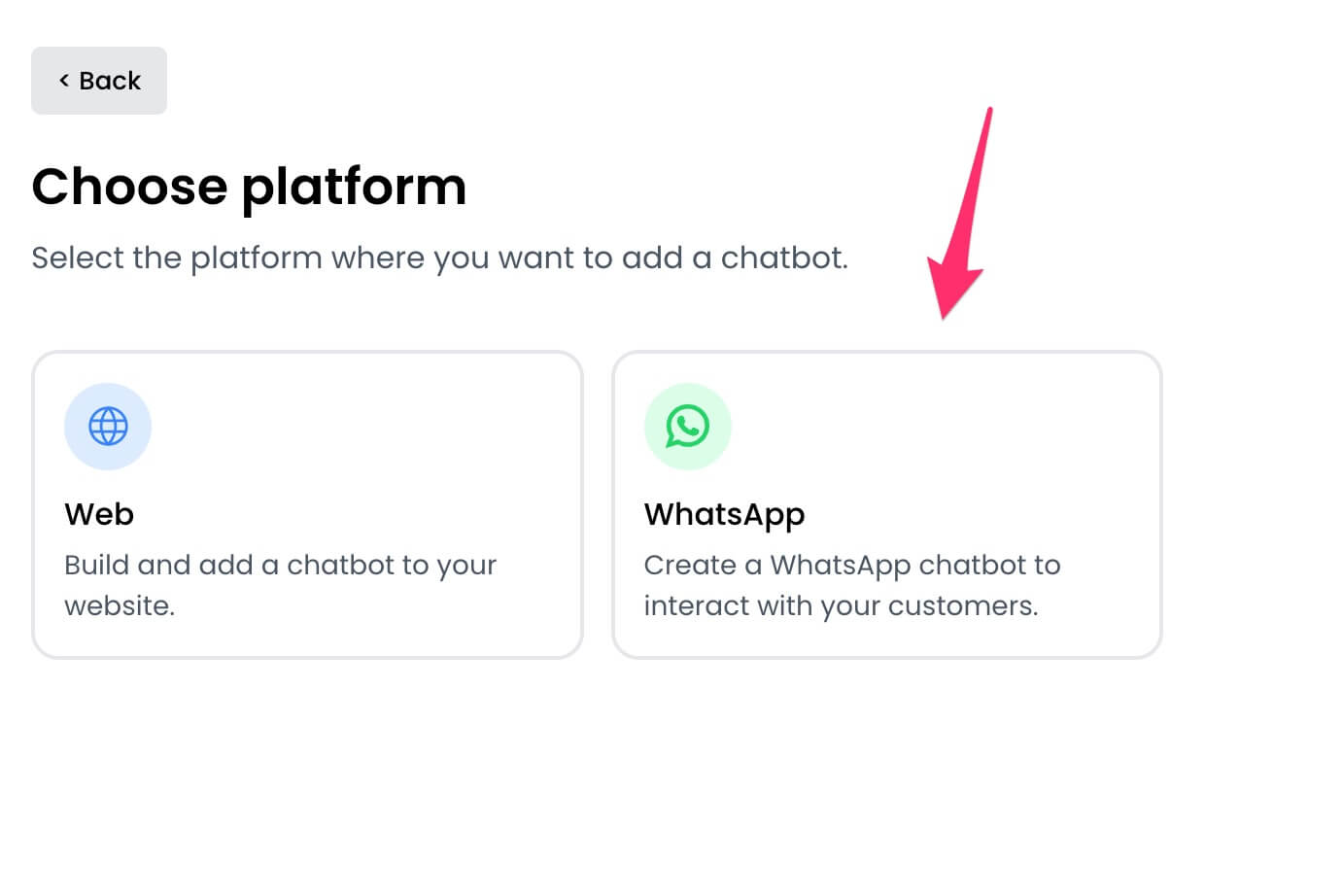
 4. Select `WhatsApp` as the platform.
 5. You can choose to create a chatbot from scratch or use a template. Templates help you get started quickly with pre-built flows.
6. Enter a name for your chatbot and click the `Create chatbot` button.
5. You can choose to create a chatbot from scratch or use a template. Templates help you get started quickly with pre-built flows.
6. Enter a name for your chatbot and click the `Create chatbot` button.
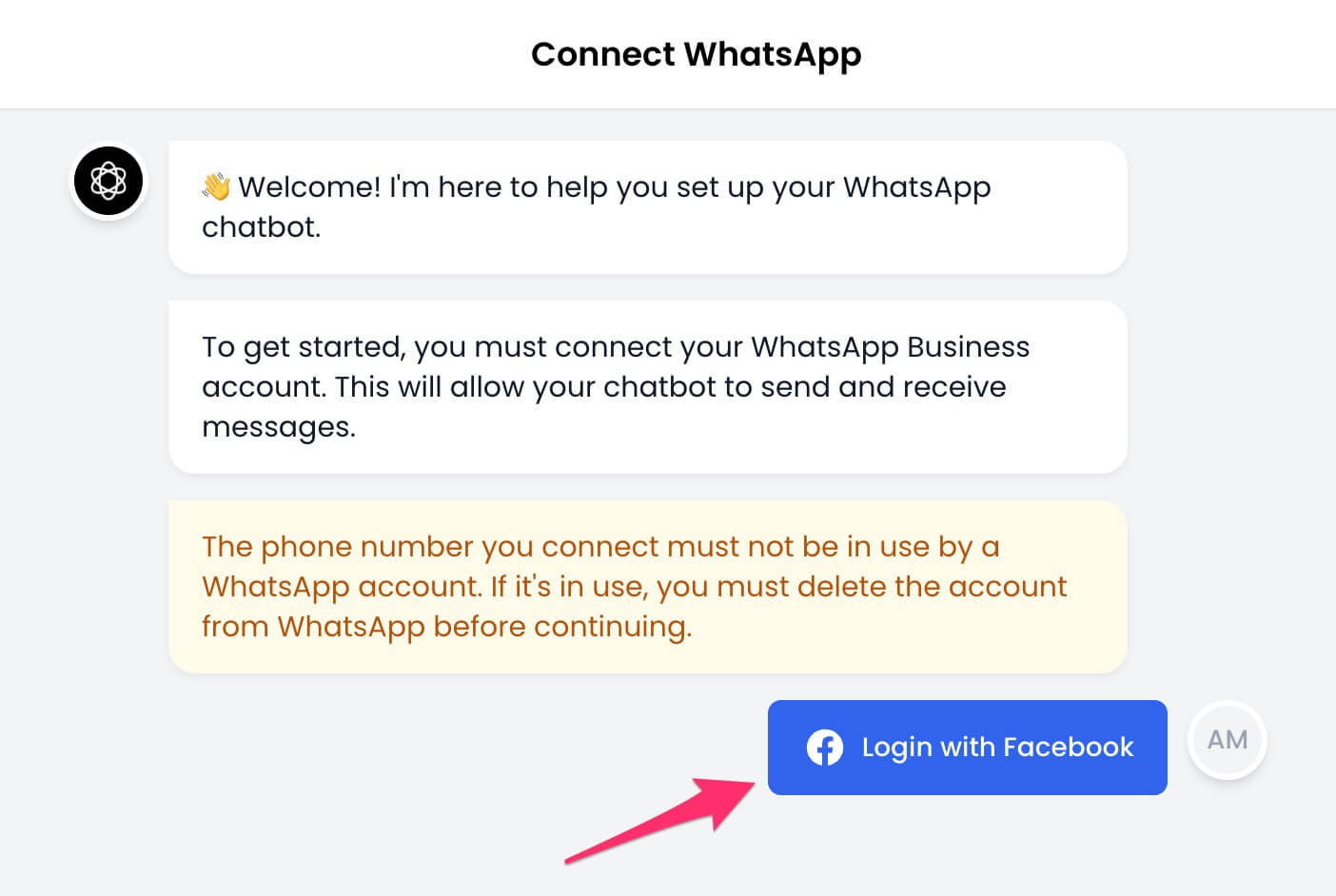
 7. A setup wizard will open to guide you through connecting your WhatsApp Business account.
Before continuing, note that the phone number you connect must not be in use by a WhatsApp account. If it's in use, you must delete the account from WhatsApp before continuing.
Here's how to delete a WhatsApp account:
1. Open the WhatsApp app.
2. Go to `Settings` > `Account` > `Delete my account`.
3. Type in your phone number for confirmation and tap on `Delete my account`.
Once deleted, the phone number can be used to create a WhatsApp Business account.
8. Click the `Login with Facebook` button to continue.
7. A setup wizard will open to guide you through connecting your WhatsApp Business account.
Before continuing, note that the phone number you connect must not be in use by a WhatsApp account. If it's in use, you must delete the account from WhatsApp before continuing.
Here's how to delete a WhatsApp account:
1. Open the WhatsApp app.
2. Go to `Settings` > `Account` > `Delete my account`.
3. Type in your phone number for confirmation and tap on `Delete my account`.
Once deleted, the phone number can be used to create a WhatsApp Business account.
8. Click the `Login with Facebook` button to continue.
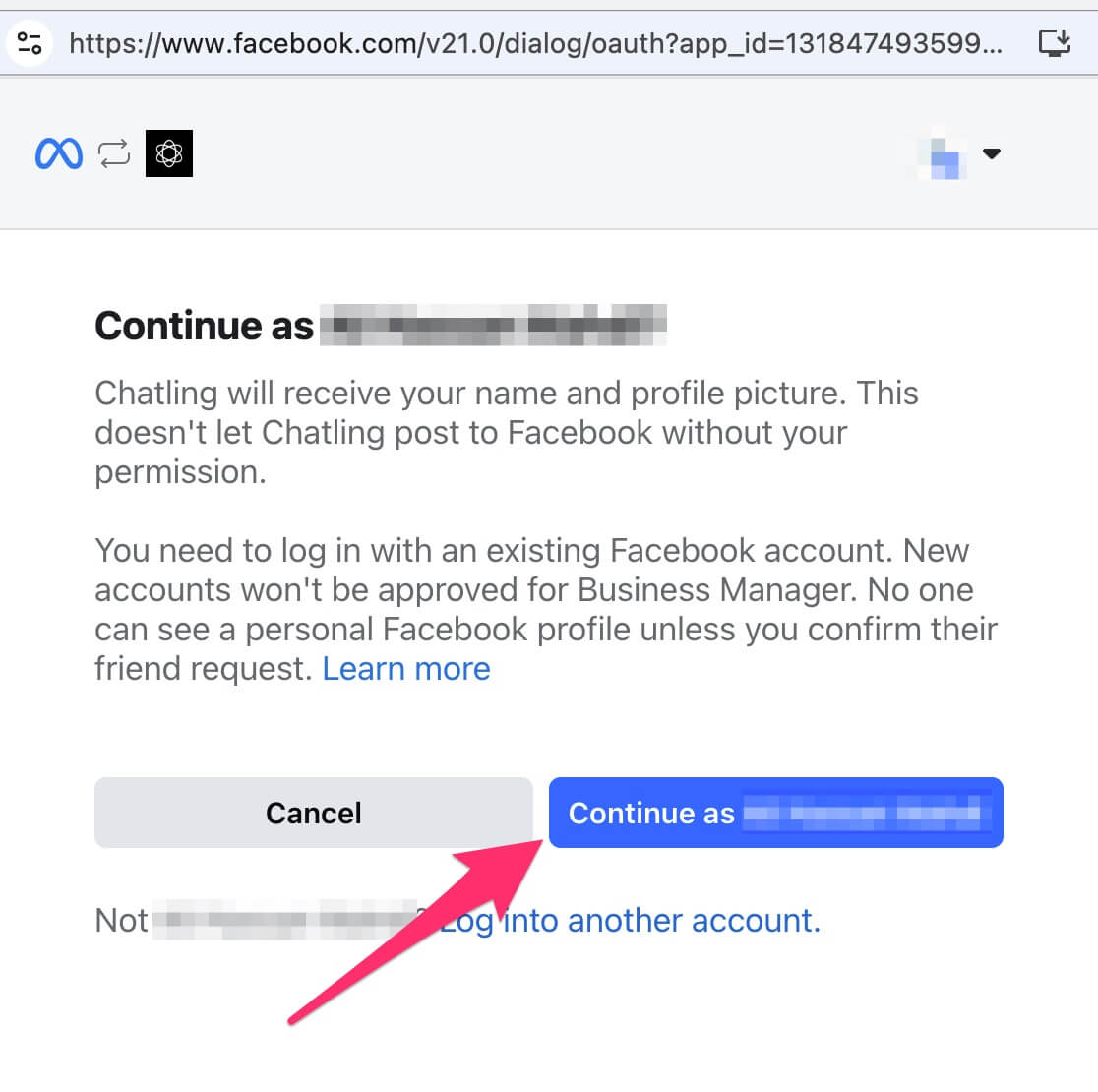
 9. The Facebook authentication window will open. Sign in to your Facebook account and click the `Continue` button.
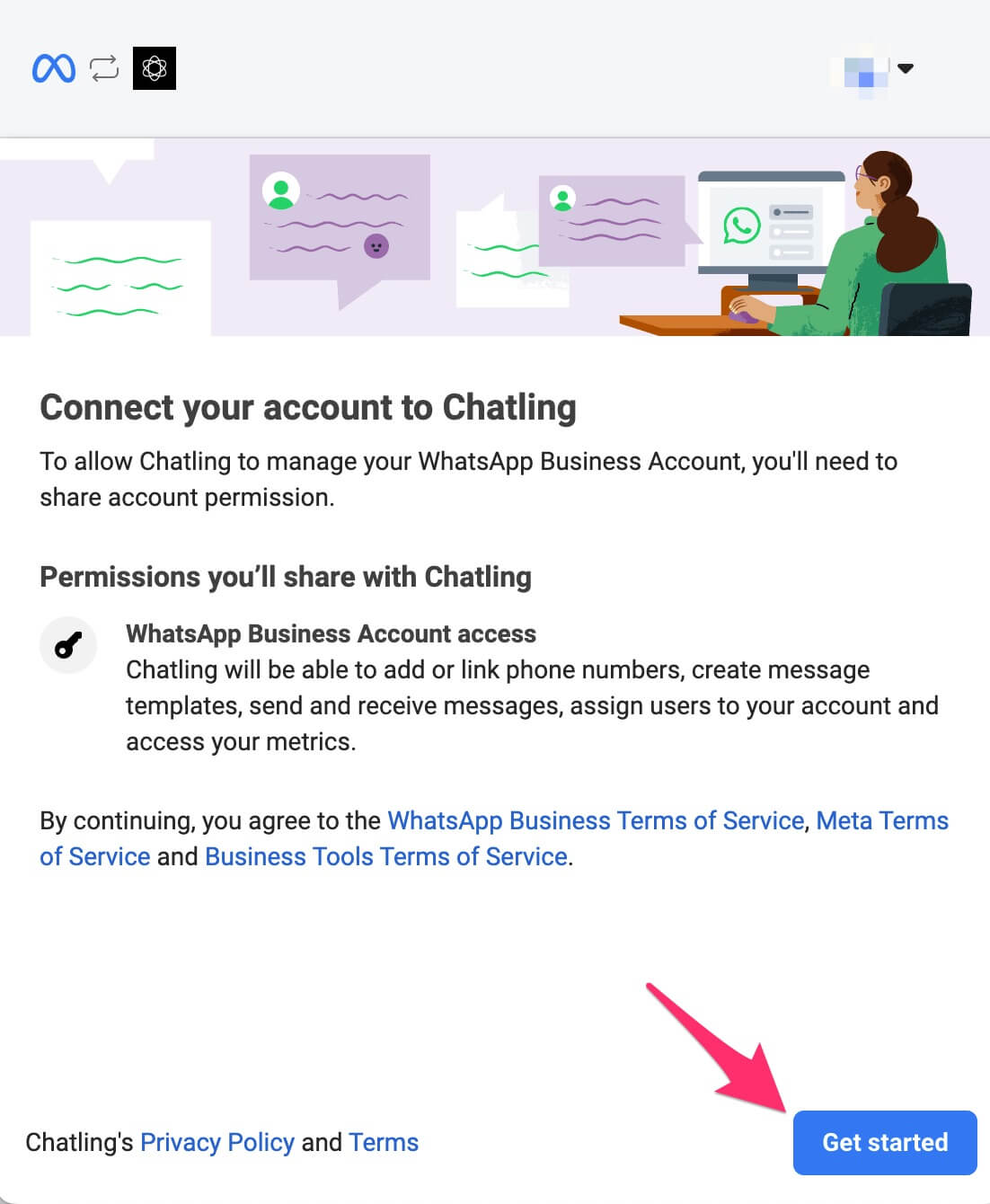
 10. Select `Get started`.
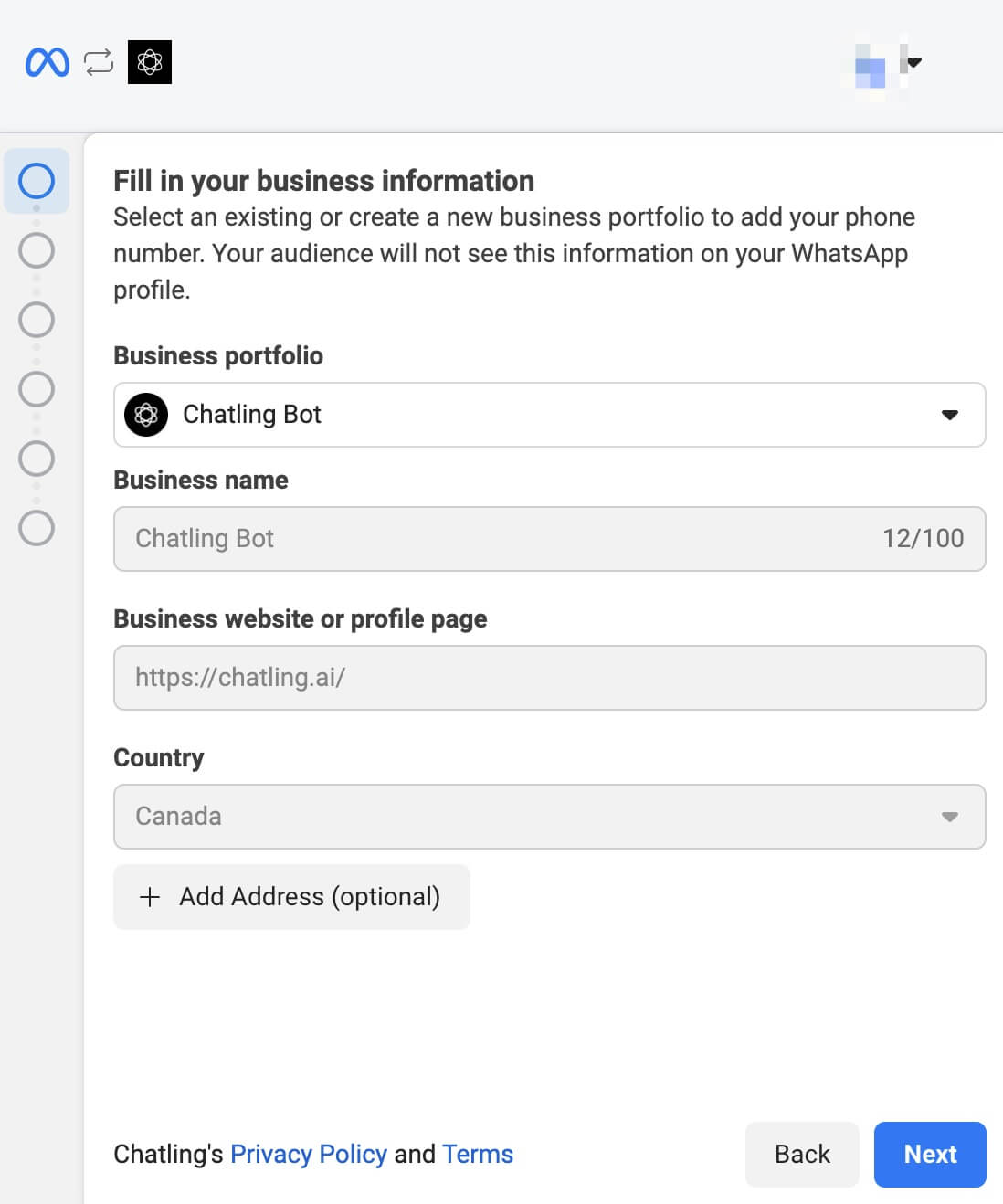
 11. Choose or create a new business profile.
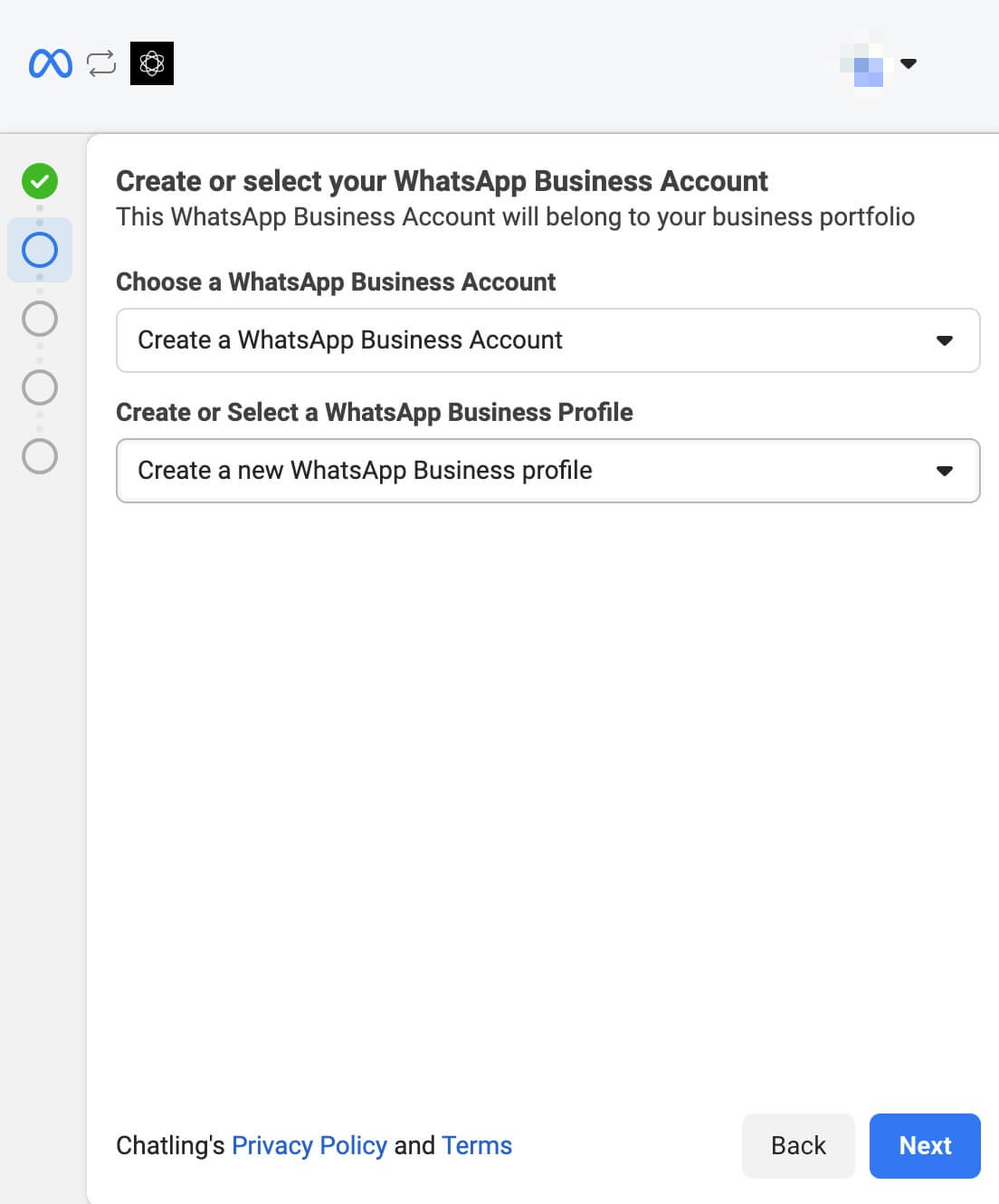
 12. Choose or create a new WhatsApp Business account and profile.
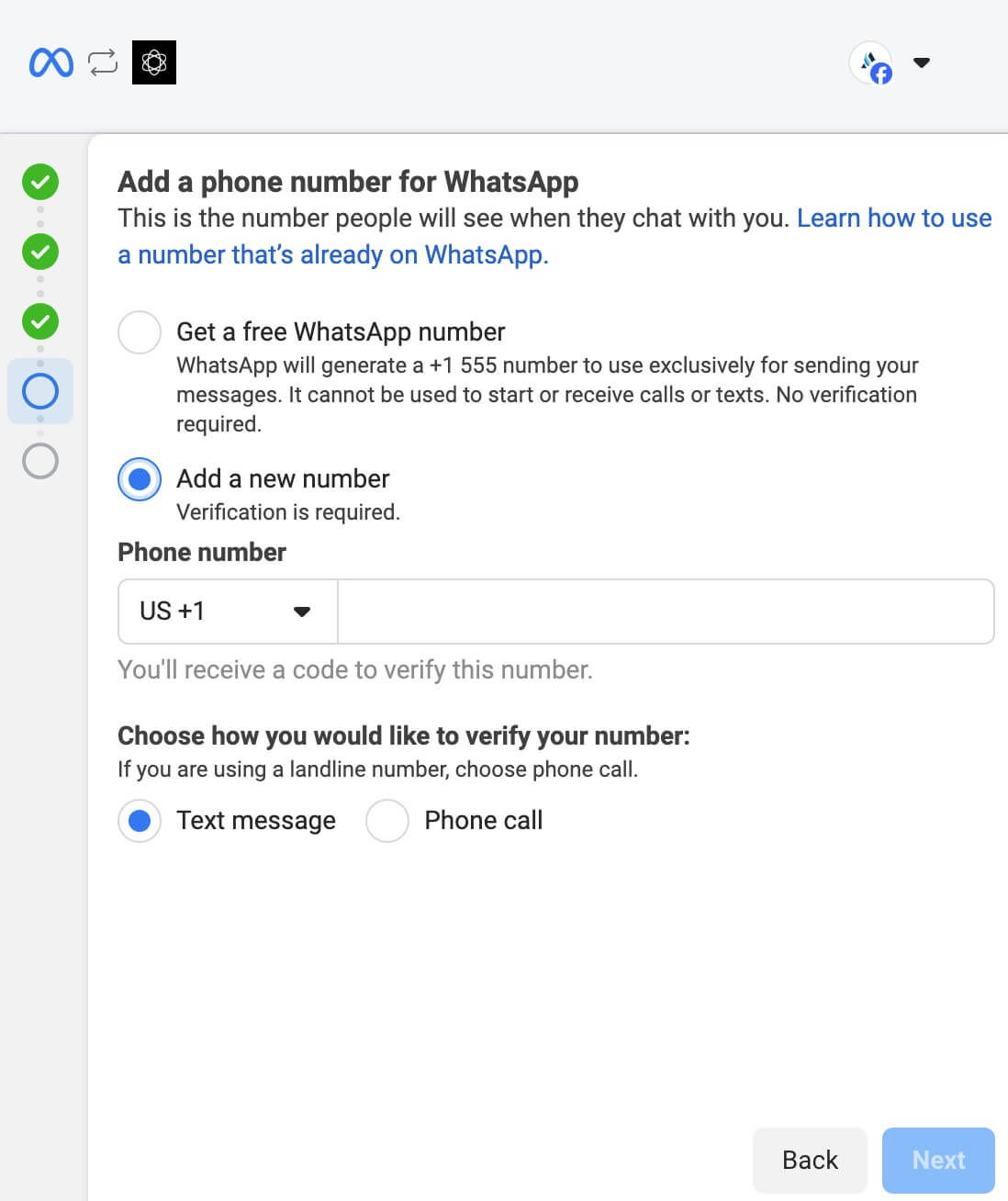
 13. If you chose to create a new profile:
* Enter the required information for the profile.
* When prompted to add a phone number, select `Add a new phone number`. Do not select `Get a free WhatsApp number` as it will not work with Chatling.
13. If you chose to create a new profile:
* Enter the required information for the profile.
* When prompted to add a phone number, select `Add a new phone number`. Do not select `Get a free WhatsApp number` as it will not work with Chatling.
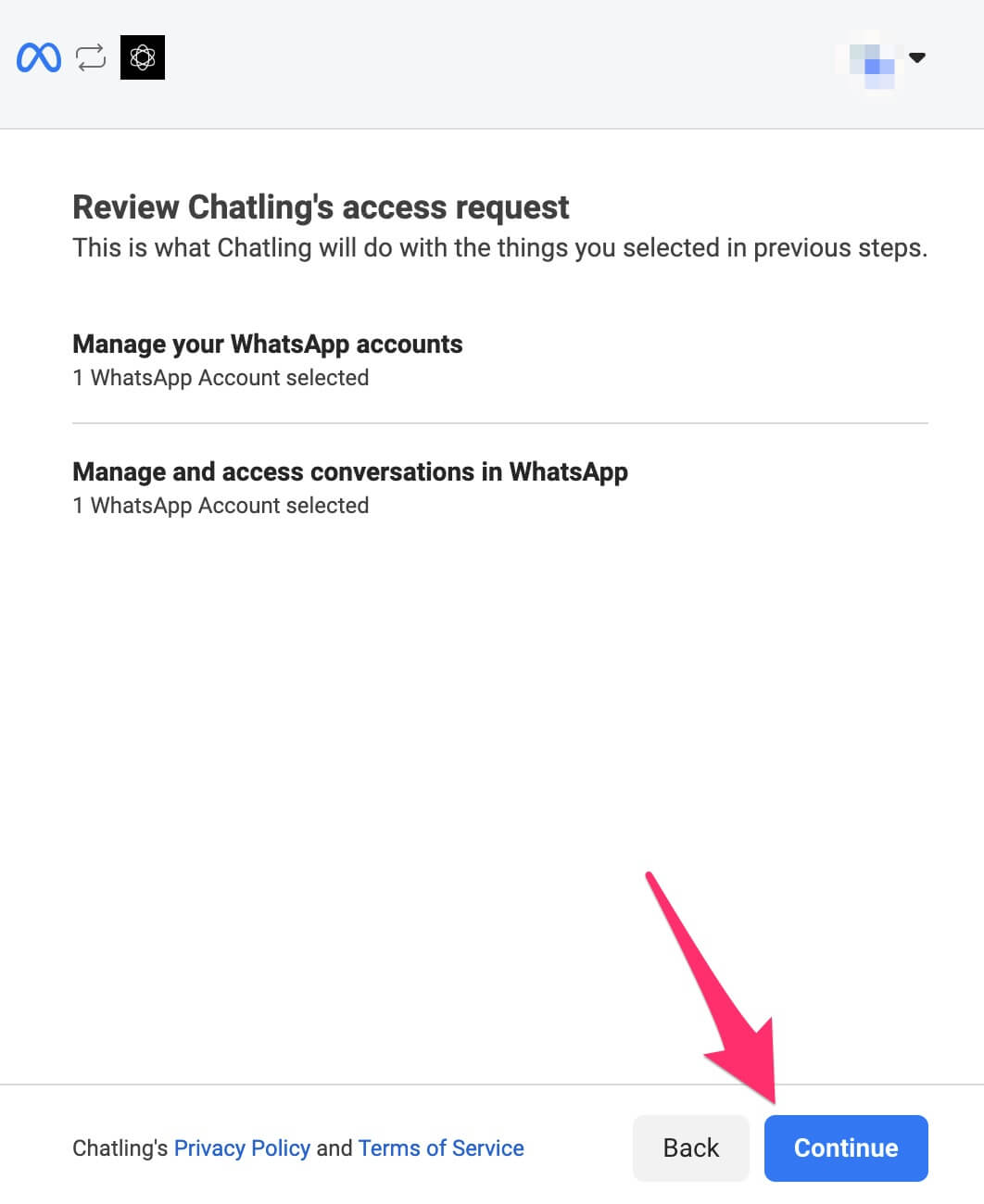
 14. Facebook will display the permissions required by Chatling. Review and click the `Continue` or `Confirm` button.
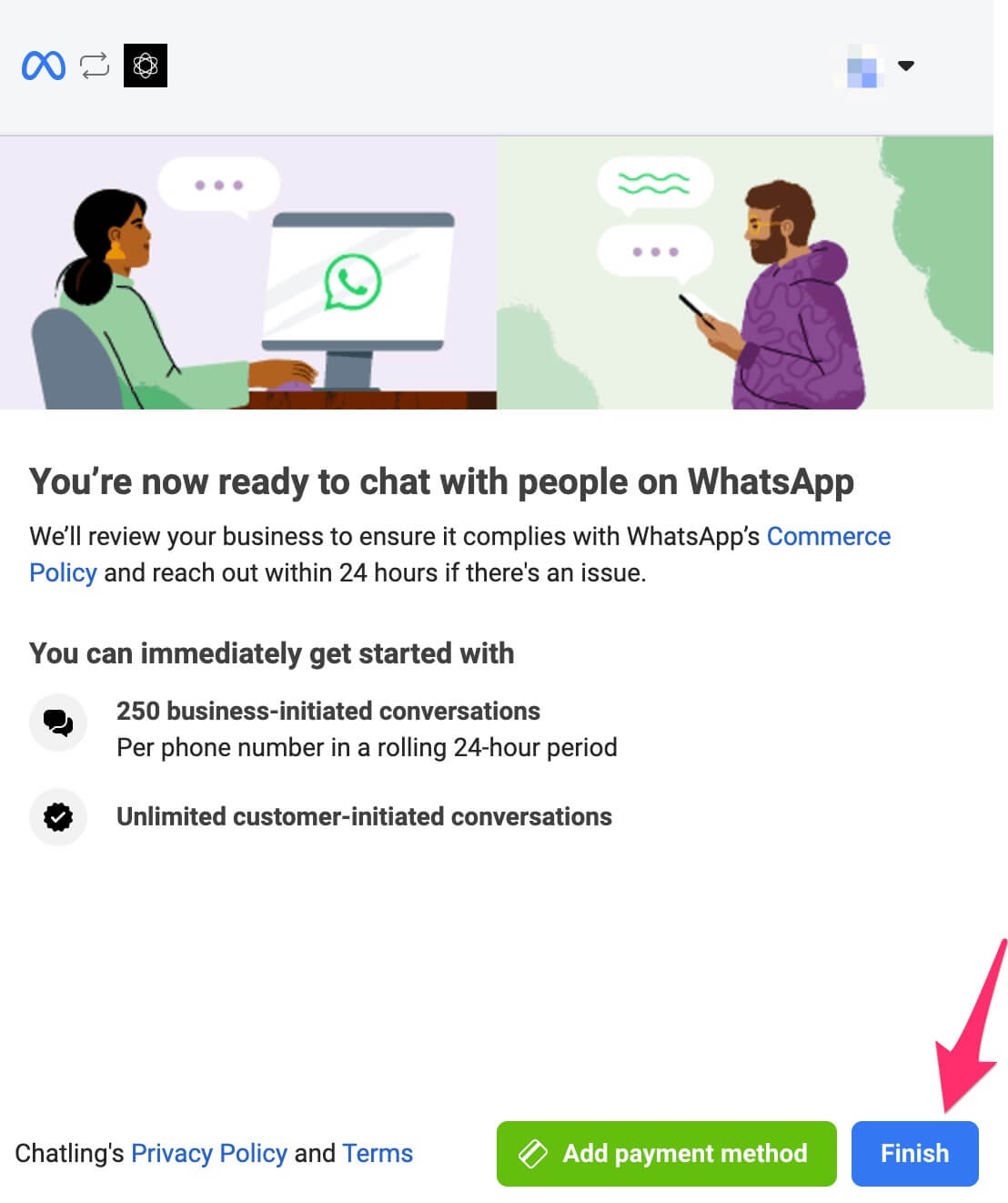
 15. Facebook begins verifying the information you provided. Once it's completed successfully, you should see a message similar to below. Click the `Finish` button.
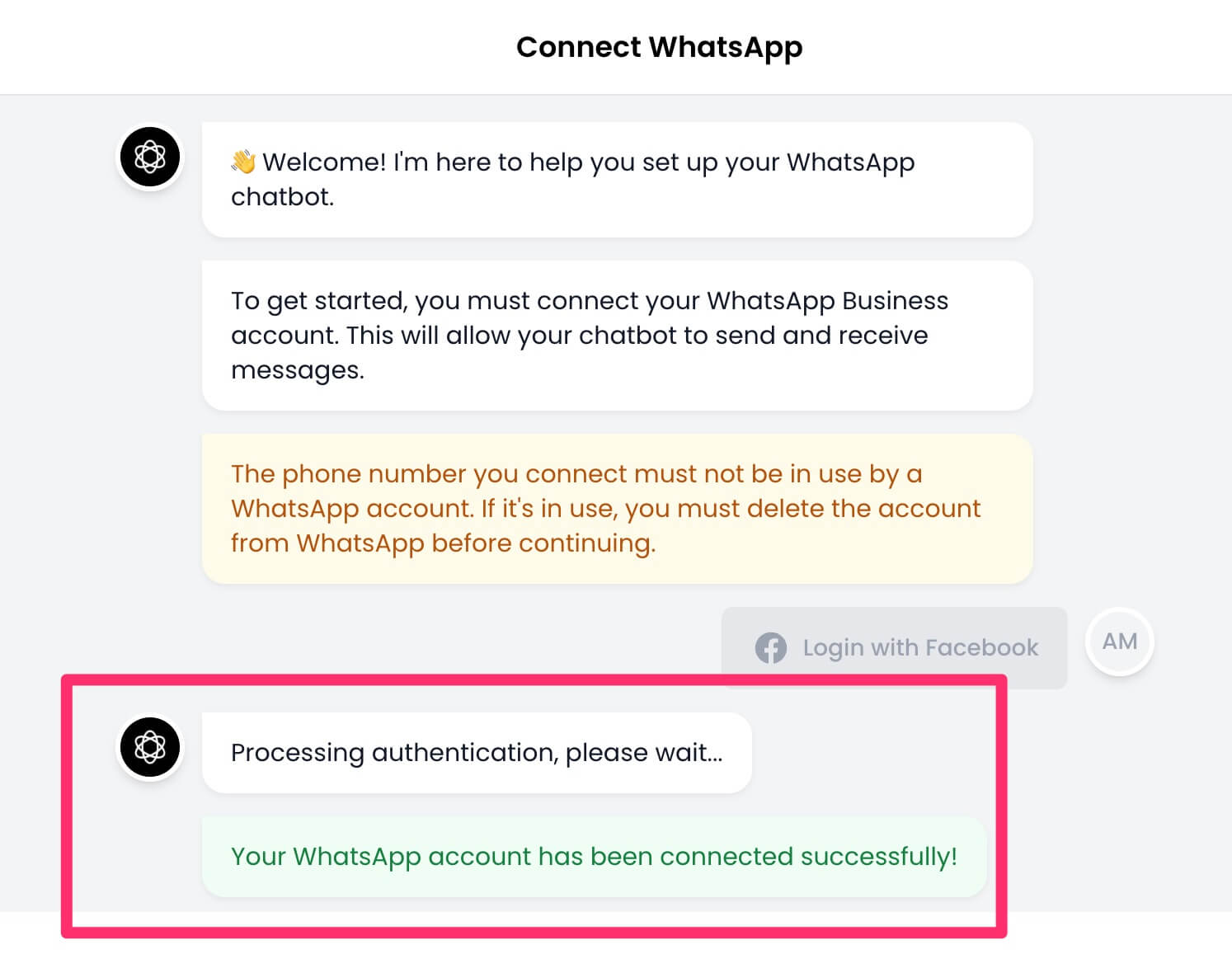
 16. Go back to Chatling and a message will be displayed that your authentication is being processed. If successful, you should see a message similar to below.
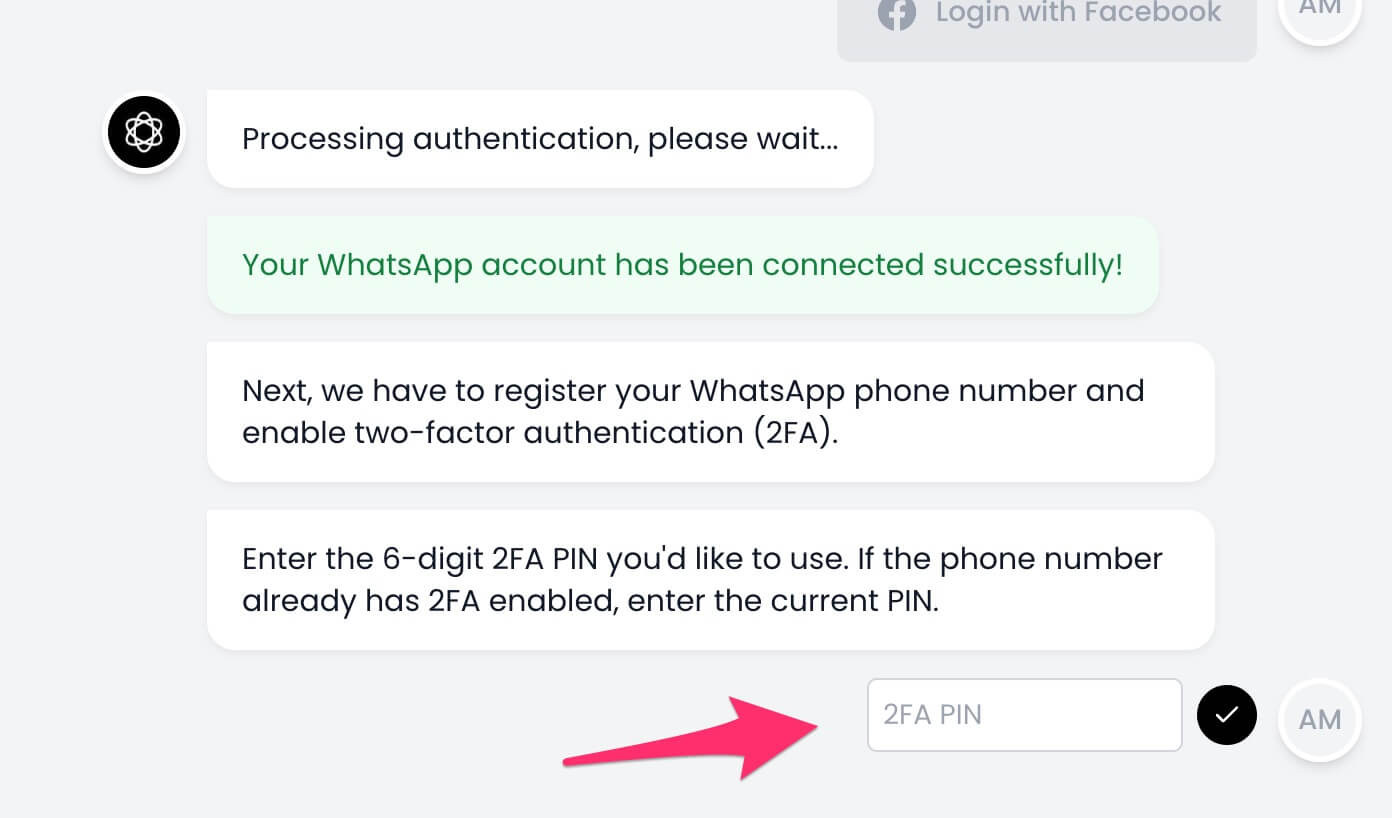
 17. Next, you must enter a 6-digit code for two-factor authentication so your phone number can be registered with WhatsApp.
If the number already has 2FA enabled, enter the same code you had set up.
17. Next, you must enter a 6-digit code for two-factor authentication so your phone number can be registered with WhatsApp.
If the number already has 2FA enabled, enter the same code you had set up.
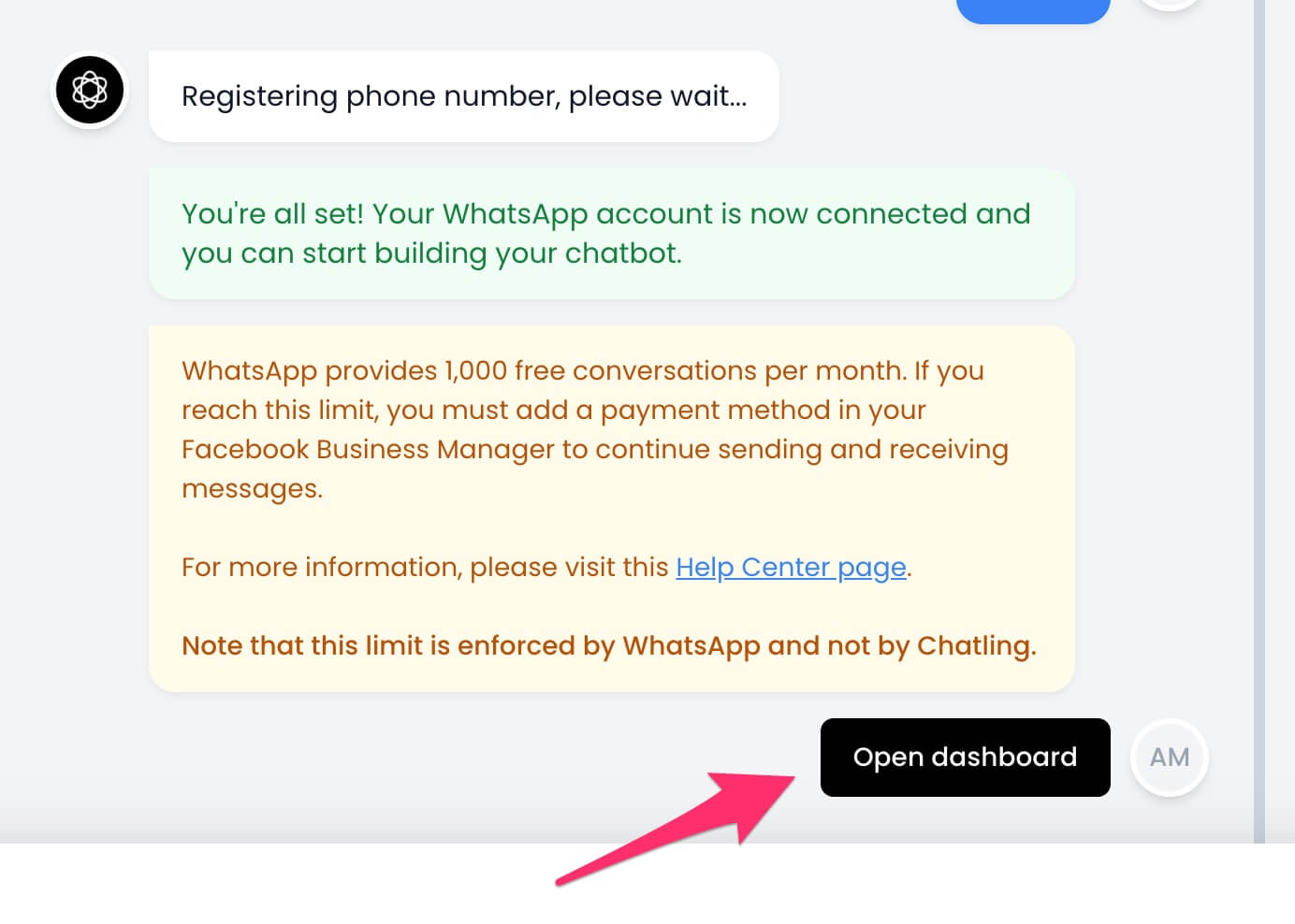
 18. Once the phone number is registered successfully, you're all set and your WhatsApp Business account is connected to Chatling. Click the `Open Dashboard` button to continue.
WhatsApp provides 1,000 free conversations per month. If you reach this limit, you must add a payment method in your Facebook Business Manager to continue sending and receiving messages.
18. Once the phone number is registered successfully, you're all set and your WhatsApp Business account is connected to Chatling. Click the `Open Dashboard` button to continue.
WhatsApp provides 1,000 free conversations per month. If you reach this limit, you must add a payment method in your Facebook Business Manager to continue sending and receiving messages.