> ## Documentation Index
> Fetch the complete documentation index at: https://docs.chatling.ai/llms.txt
> Use this file to discover all available pages before exploring further.
# Satisfaction survey
> A guide on how to set up and display satisfaction surveys.
You can collect feedback from users at the end of their chat by displaying a satisfaction survey. This can help you gain insights into user satisfaction, identify areas for improvement, and track the overall effectiveness of your chatbot over time.
## How to set up a satisfaction survey
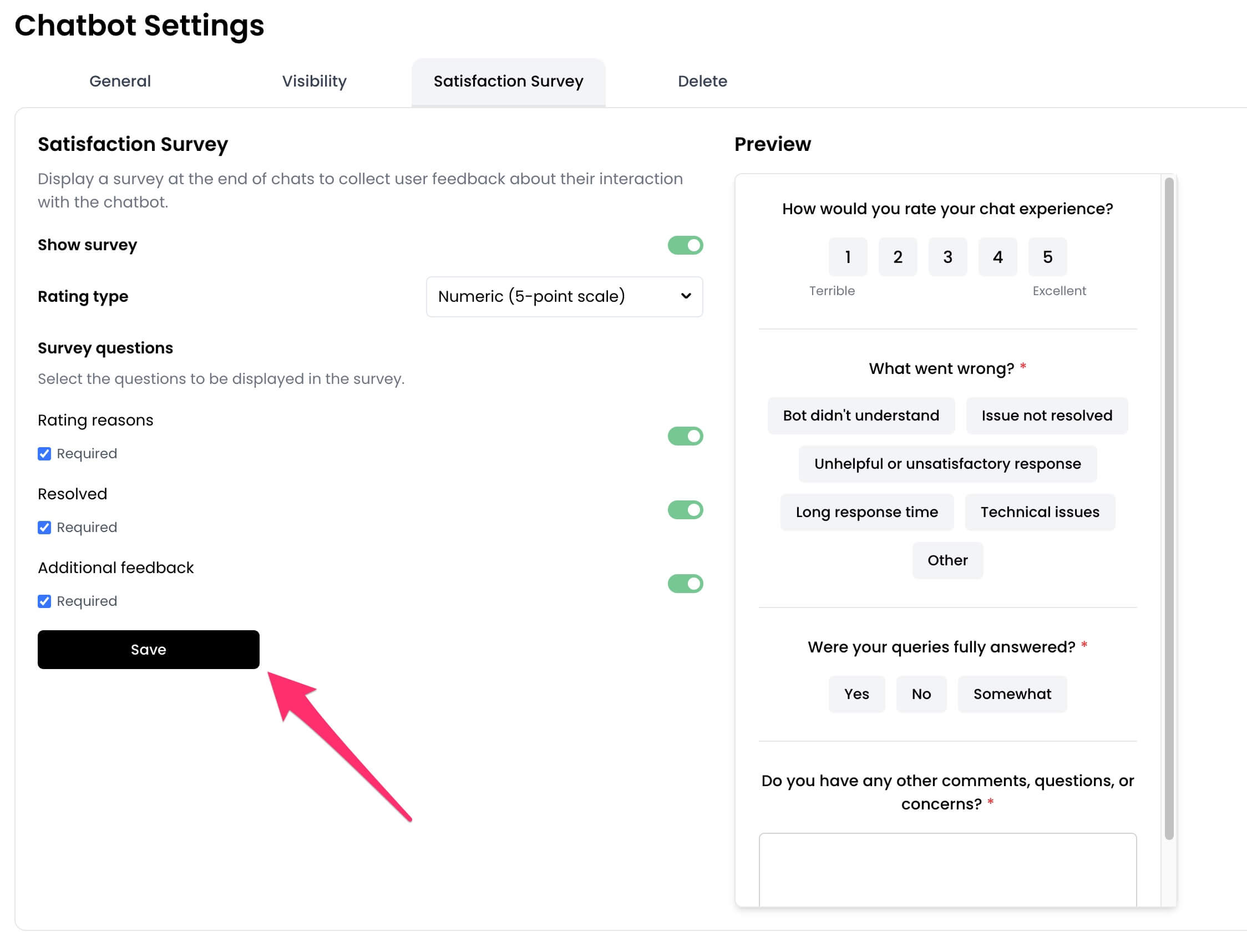
1. From the chatbot dashboard, go to `Settings`.
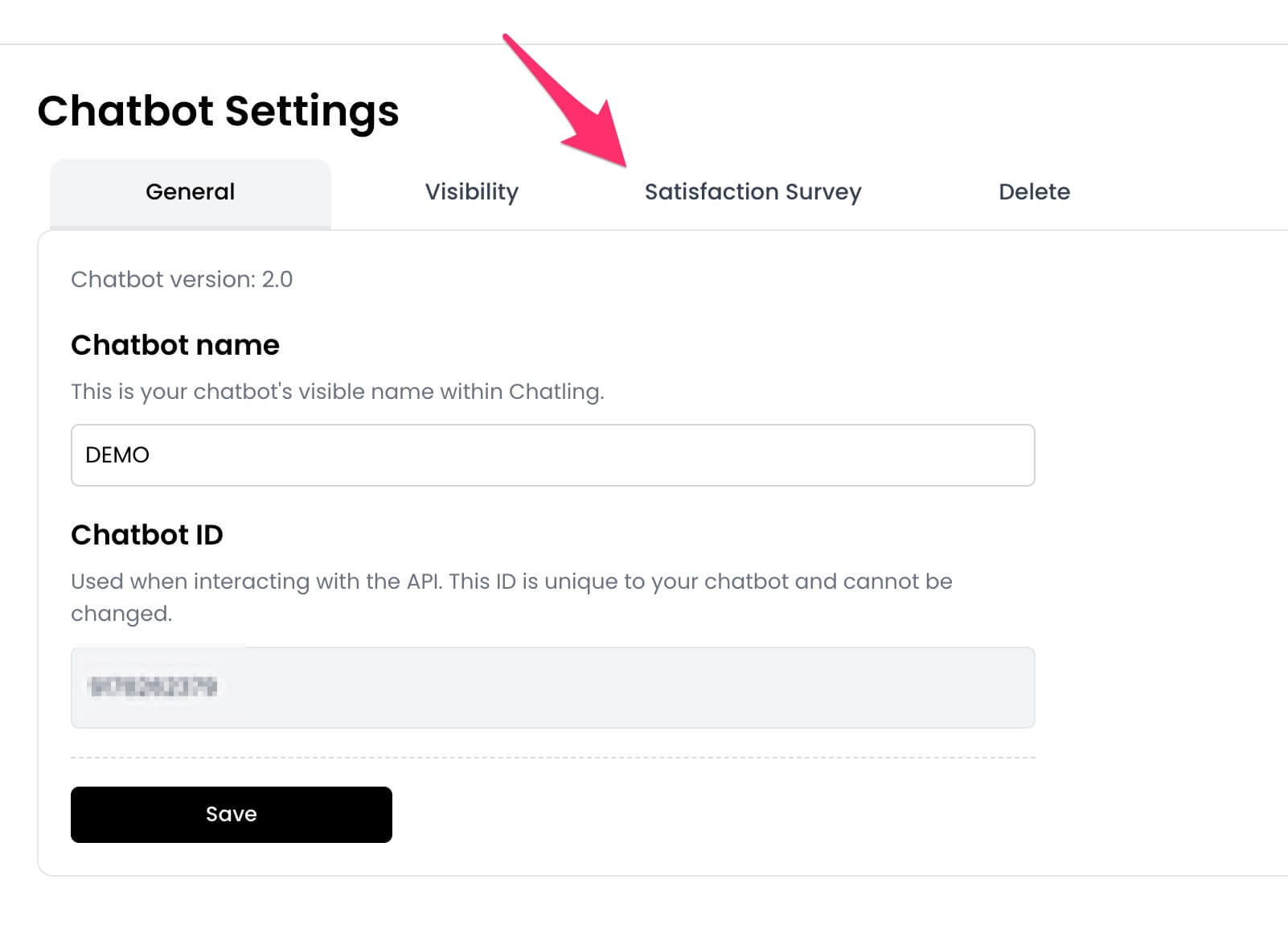
 2. Click the `Satisfaction Survey` tab.
 3. Toggle on the `Show survey` option.
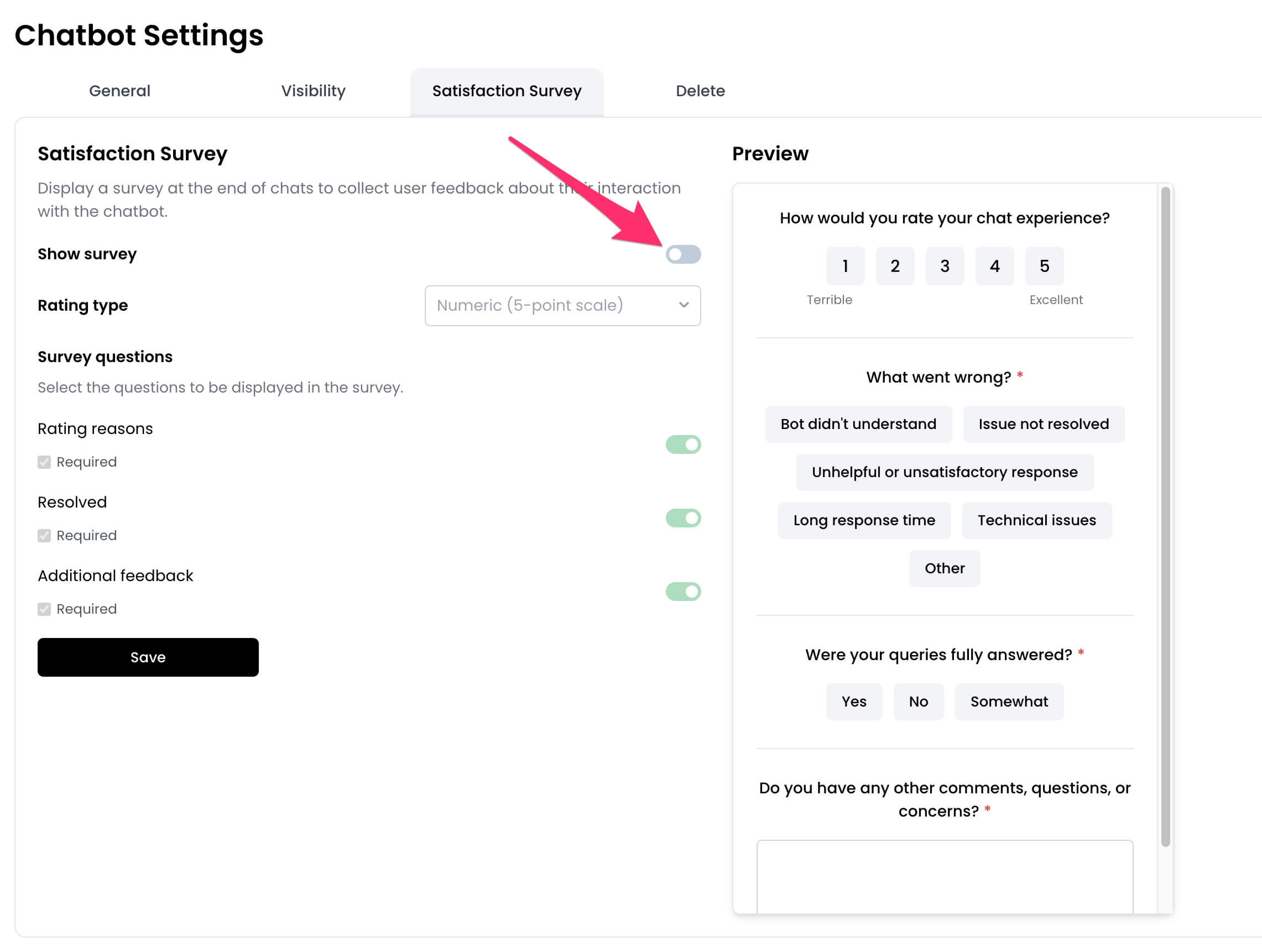 4. Customize the survey by selecting the rating type, questions to display, and more.
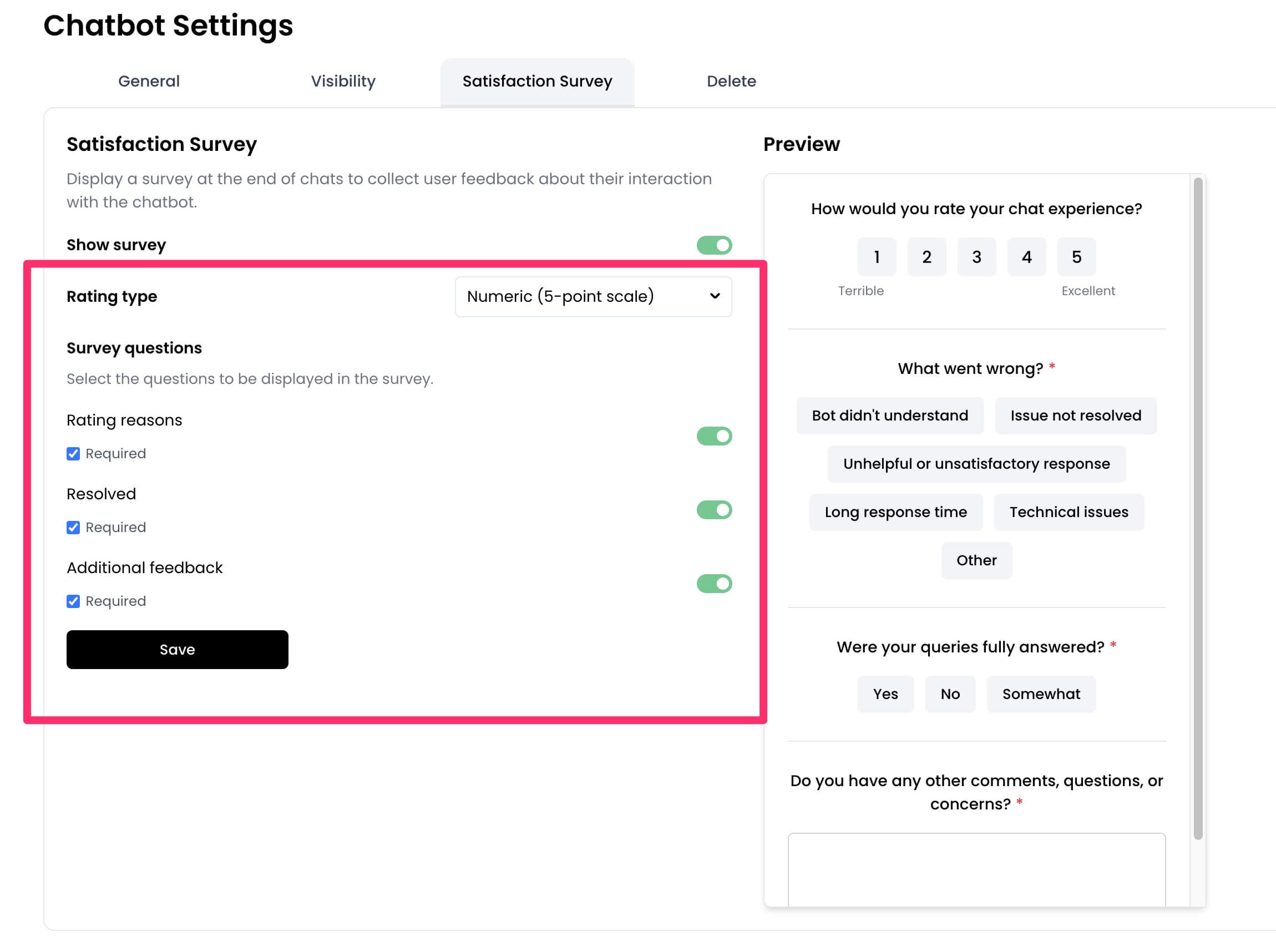 5. Click `Save` to apply the changes.
 ## View survey responses
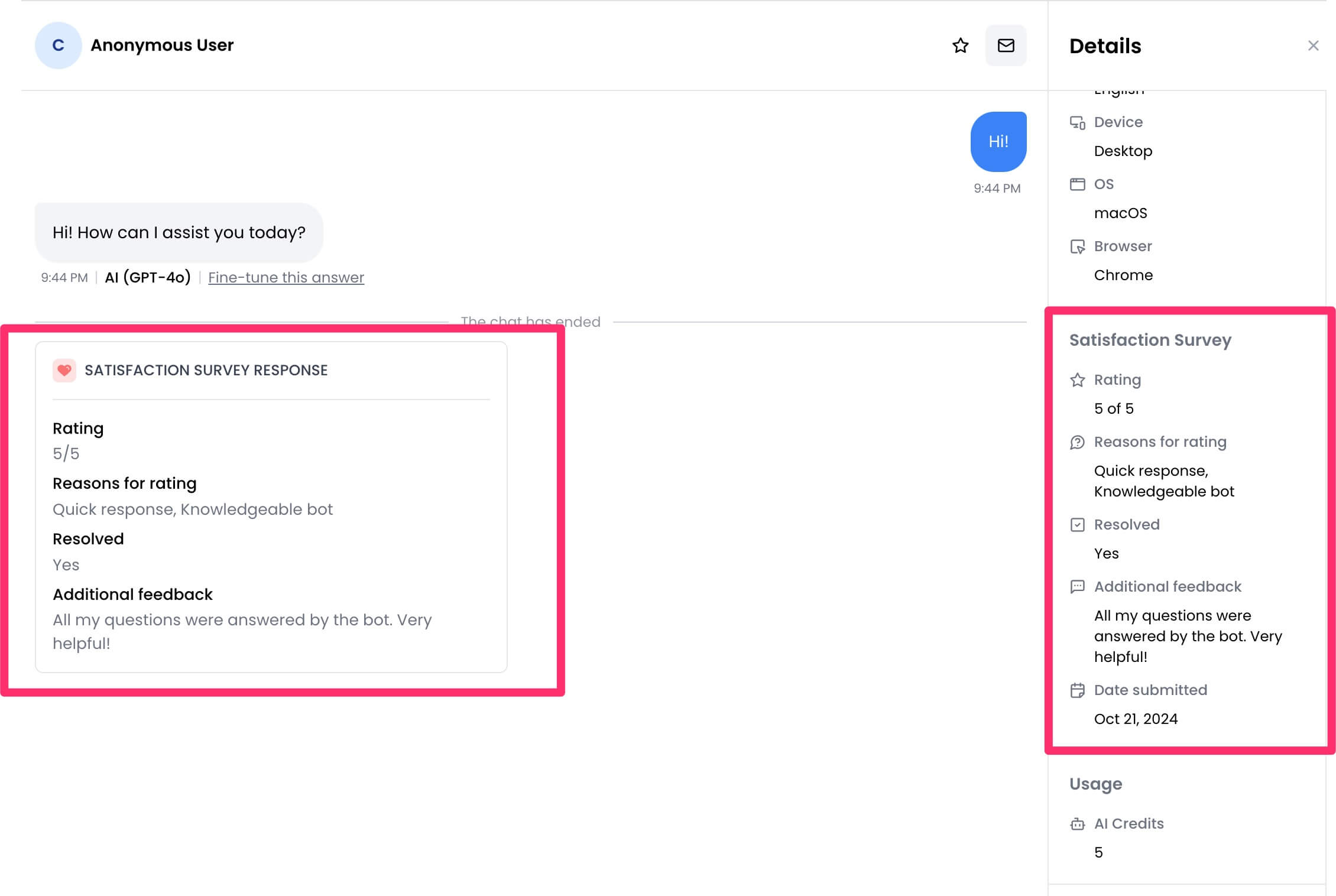
You can view survey responses from the `Conversations` page of your chatbot dashboard. If a conversation has a survey response, the result will appear within the conversation thread as well as on the `Details` section in the sidebar.
## View survey responses
You can view survey responses from the `Conversations` page of your chatbot dashboard. If a conversation has a survey response, the result will appear within the conversation thread as well as on the `Details` section in the sidebar.