> ## Documentation Index
> Fetch the complete documentation index at: https://docs.chatling.ai/llms.txt
> Use this file to discover all available pages before exploring further.
# Shopify
> Learn how to add Chatling to your Shopify store
## Method 1: Using theme.liquid
1. Go to your dashboard.
2. Click `Deploy` button in the sidebar menu.
 3. Click the `Manage` button under the `Website Widget` option.
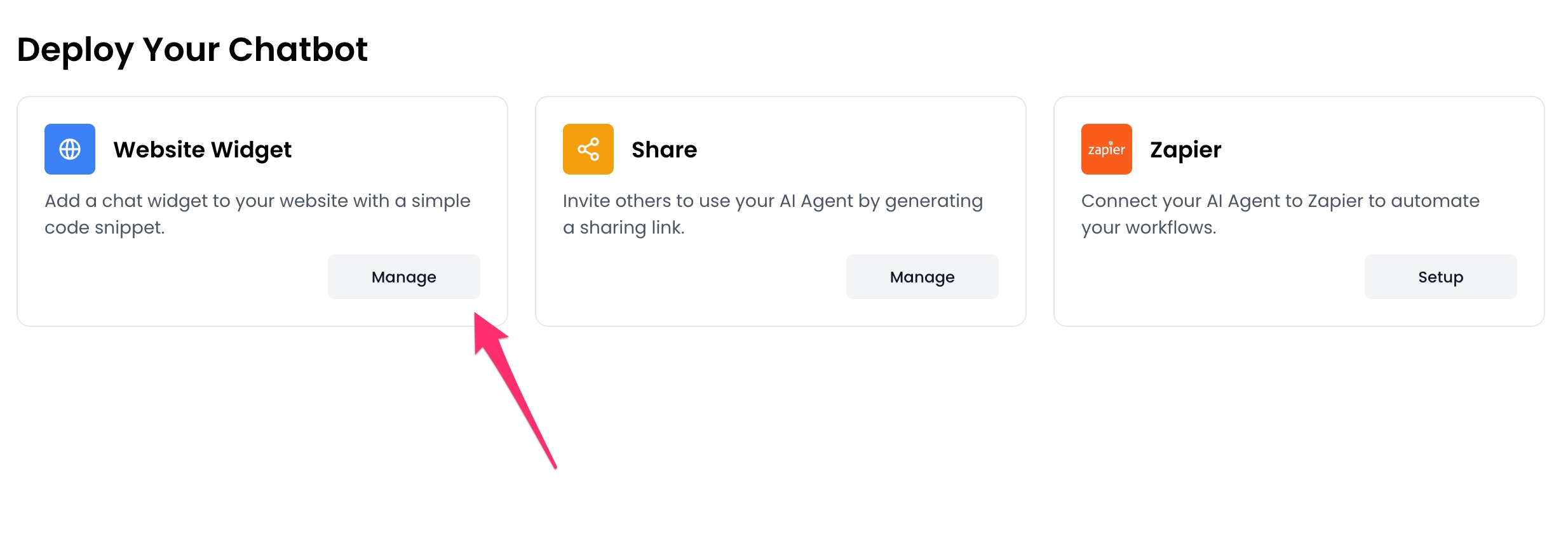 4. Design the appearance of the widget by clicking the `Open widget designer` button.
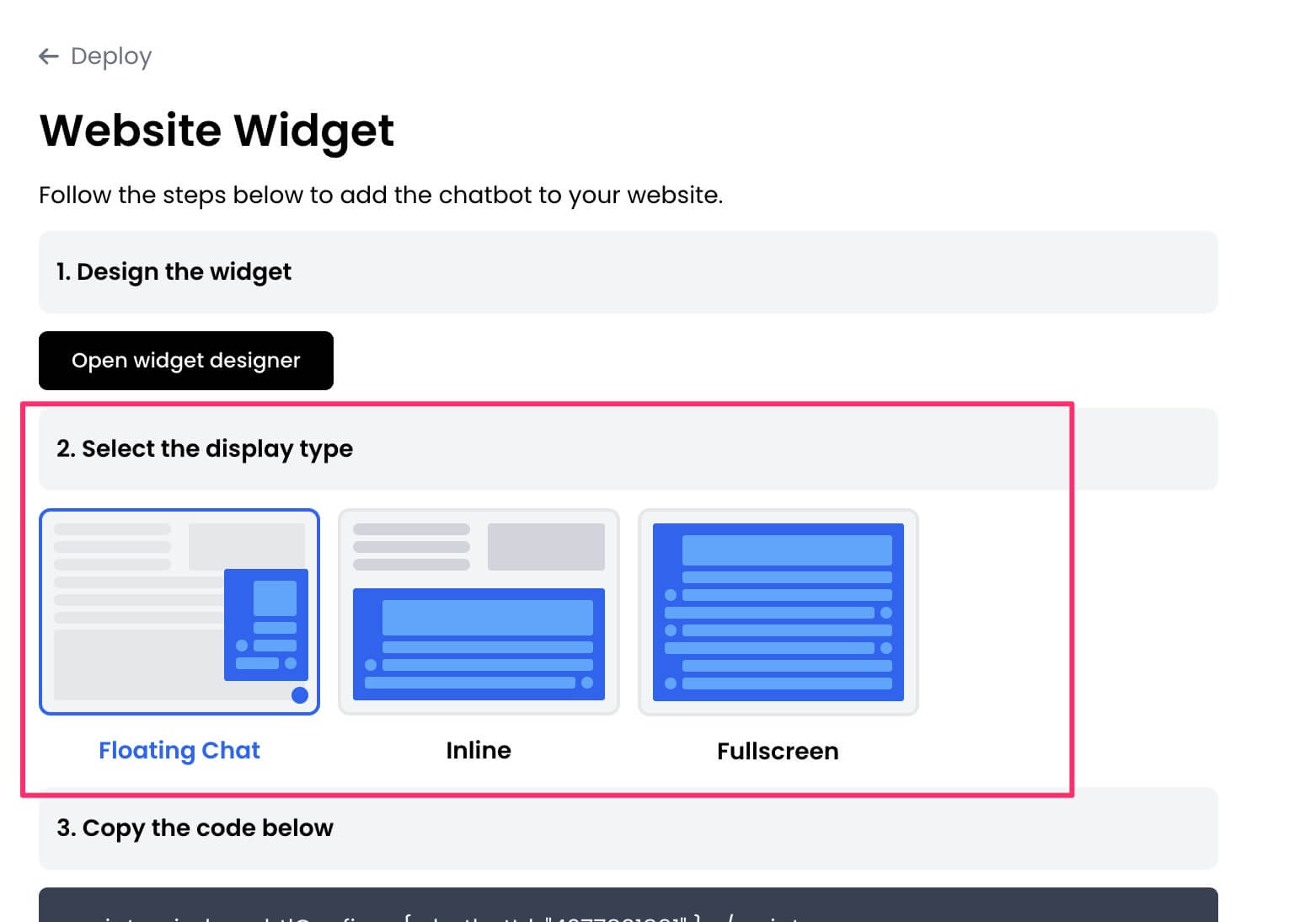
 5. Select the display mode for your chatbot, such as "Floating Chat", "Inline", or "Fullscreen".
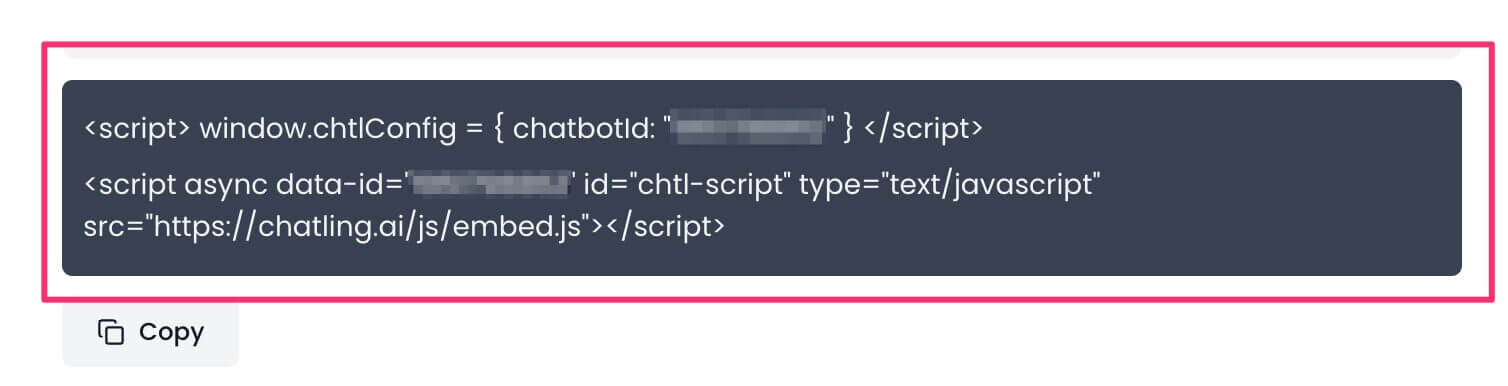
 6. Copy the widget code.
 7. Go to your Shopify dashboard and click on `Online Store` from the sidebar.
 8. Edit your theme by clicking the ellipsis icon next to your current theme and choosing `Edit code`.
 9. Find and open the `theme.liquid` file From the sidebar where the list of files is displayed.
 10. Paste the widget code in the `` section. You can paste it anywhere between the opening `` tag and the closing `` tag.
 11. Click the Save button.
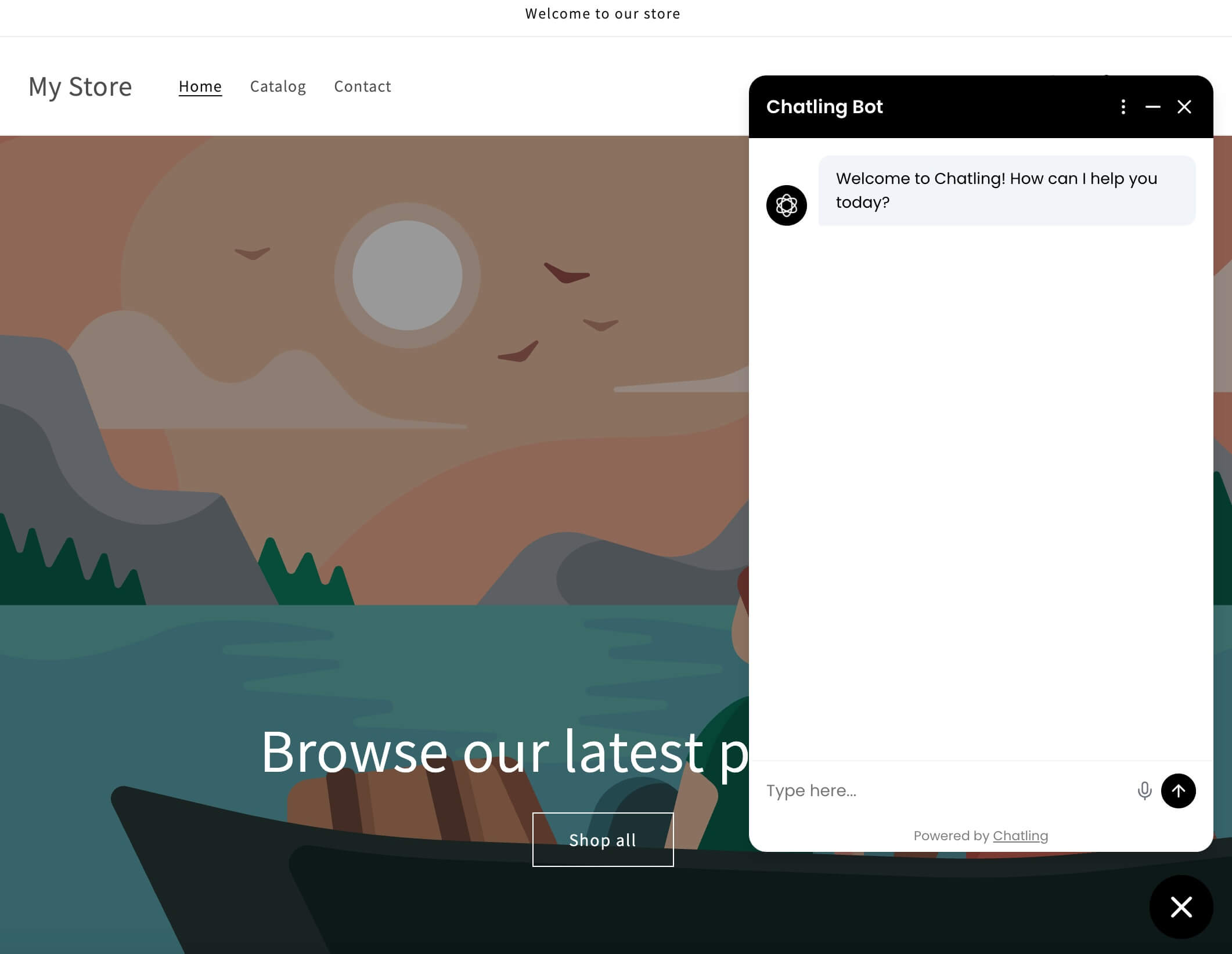
The chatbot will be live on your website and should appear across all your store's pages.
11. Click the Save button.
The chatbot will be live on your website and should appear across all your store's pages.
 ## Method 2: Using Customization
1. Follow steps 1-6 from Method 1 to copy the widget code.
2. From your Shopify dashboard, click on `Online Store` and go to `Themes`.
## Method 2: Using Customization
1. Follow steps 1-6 from Method 1 to copy the widget code.
2. From your Shopify dashboard, click on `Online Store` and go to `Themes`.
 3. Click on the `Customize` button next to your current theme.
 4. Under the `Header` section, choose `Add section`. Search for `Custom liquid` and add it.
 5. Open the `Custom liquid` editor and paste your widget code into the `Liquid code` field.
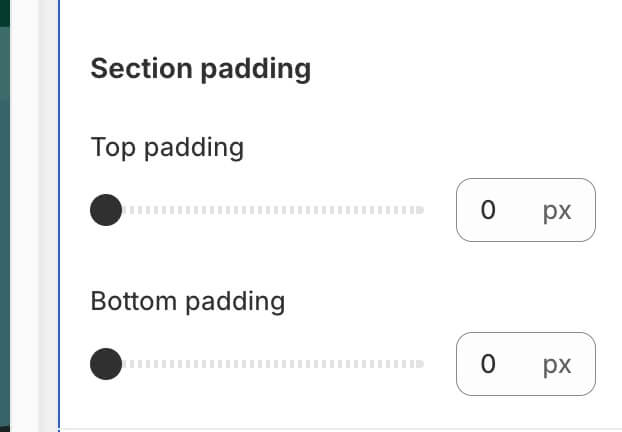
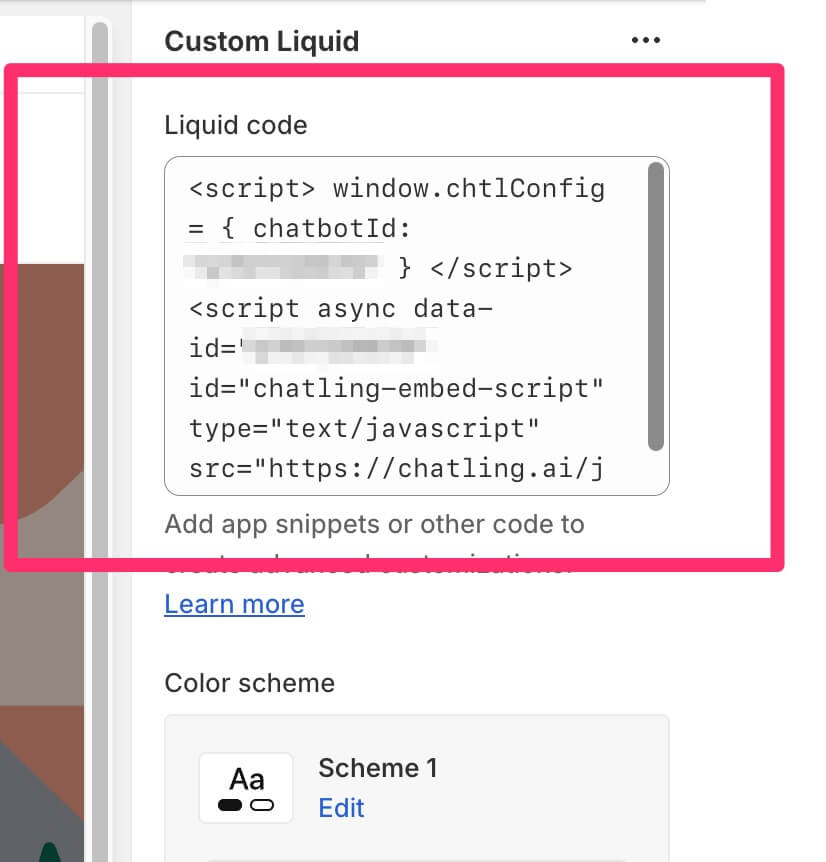 6. Set the `Top padding` and `Bottom padding` to `0` so the section doesn't create a blank space in your site's header.
 7. Click the `Save` button.
The widget will be live on your website and should appear across all your store's pages.
7. Click the `Save` button.
The widget will be live on your website and should appear across all your store's pages.