> ## Documentation Index
> Fetch the complete documentation index at: https://docs.chatling.ai/llms.txt
> Use this file to discover all available pages before exploring further.
# PrestaShop
> Learn how to add Chatling to your PrestaShop website
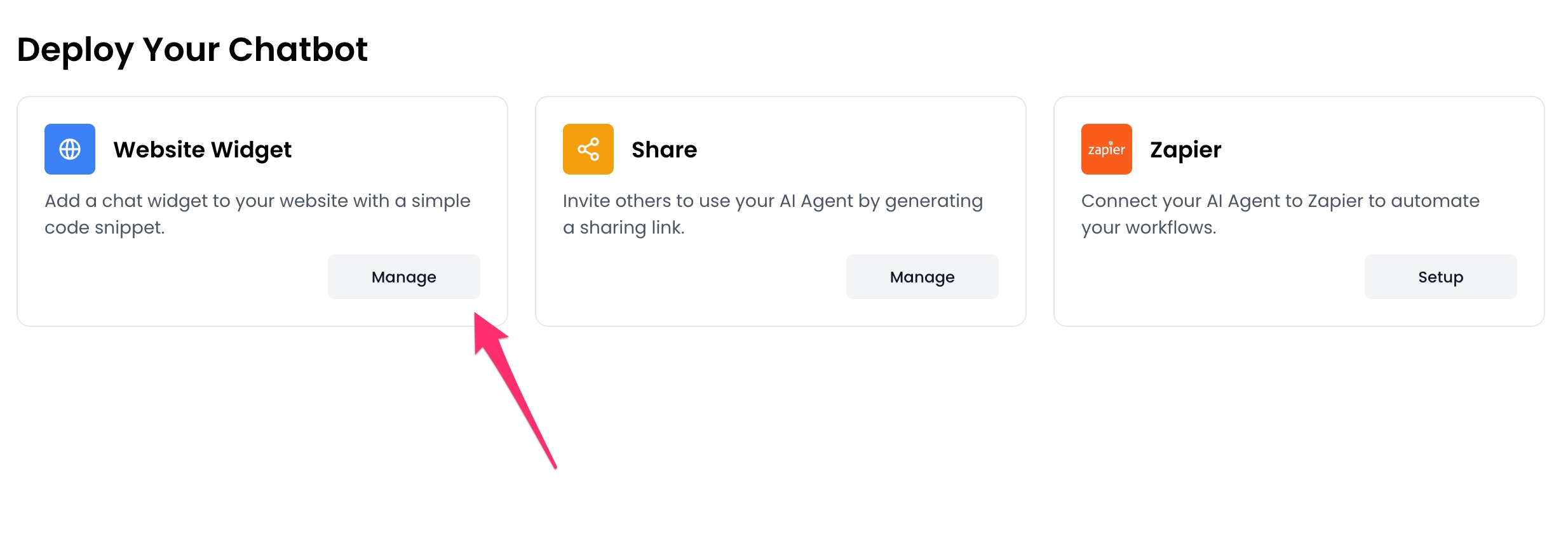
1. Go to your dashboard.
2. Click `Deploy` button in the sidebar menu.
 3. Click the `Manage` button under the `Website Widget` option.
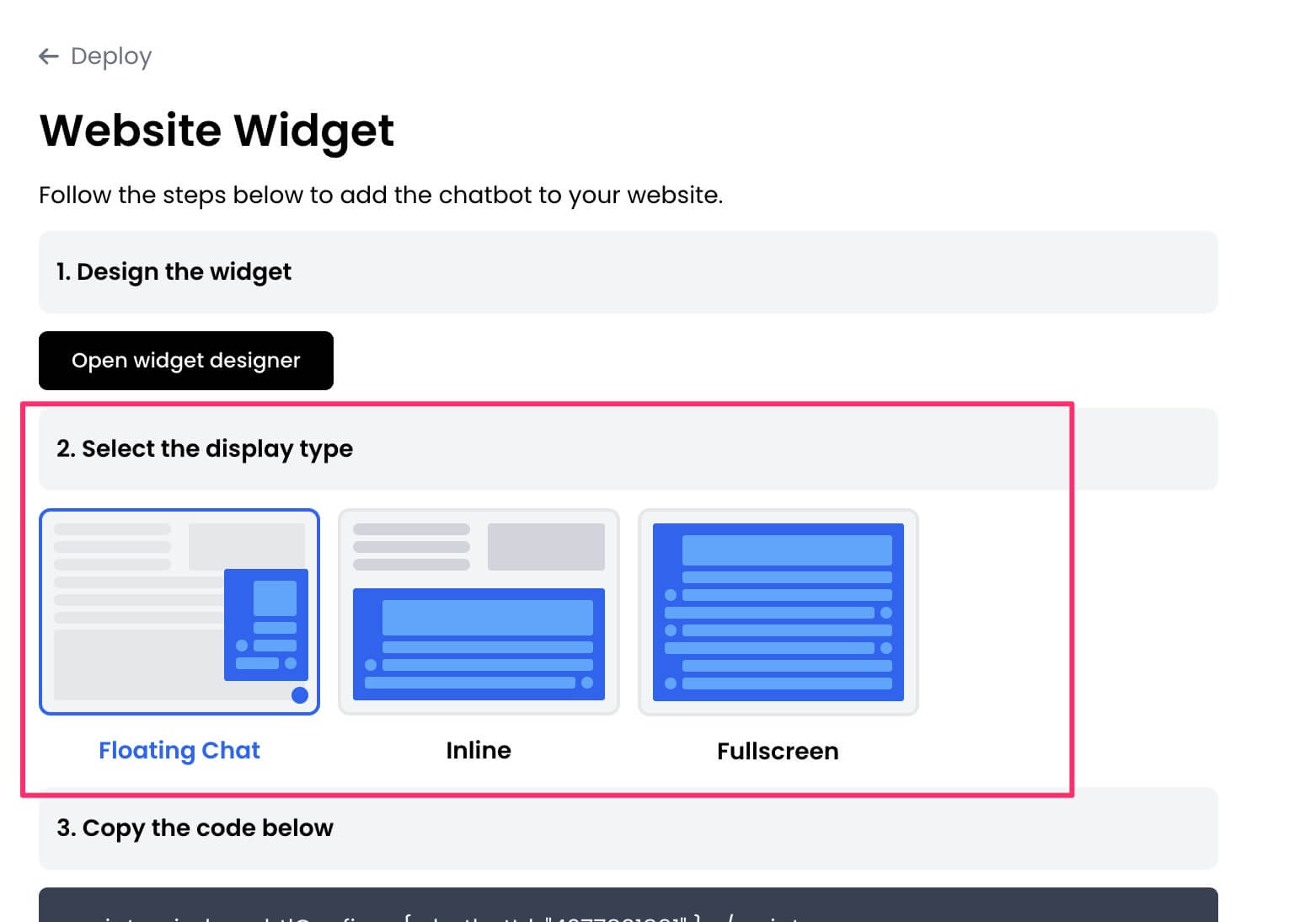
 4. Design the appearance of the widget by clicking the `Open widget designer` button.
 5. Select the display mode for your chatbot, such as "Floating Chat", "Inline", or "Fullscreen".
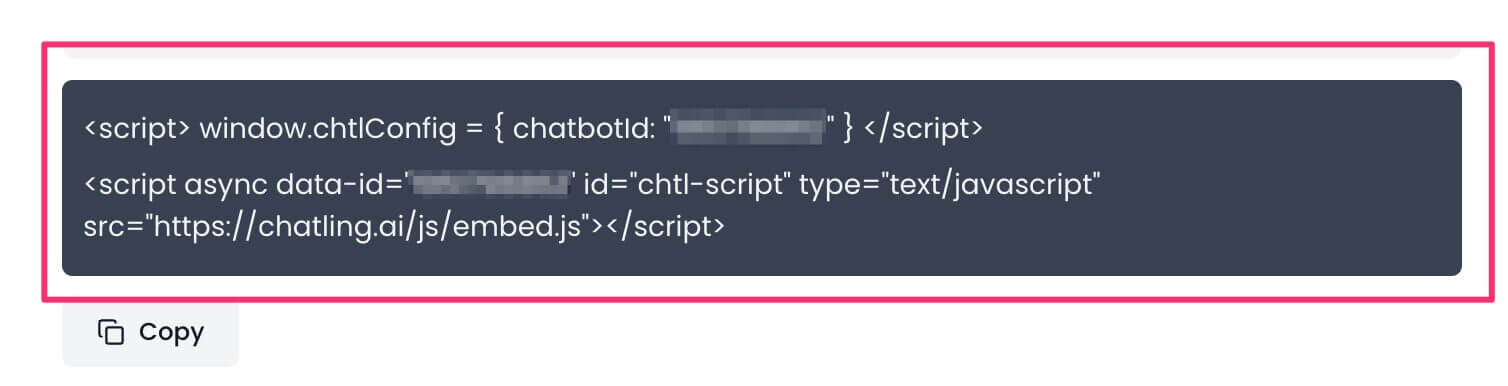
 6. Copy the widget code.
 7. Download our [PrestaShop module](https://static.chatling.ai/files/chatling-prestashop-v1-0.zip).
8. Extract the zip file and open the `chatling` folder.
7. Download our [PrestaShop module](https://static.chatling.ai/files/chatling-prestashop-v1-0.zip).
8. Extract the zip file and open the `chatling` folder.
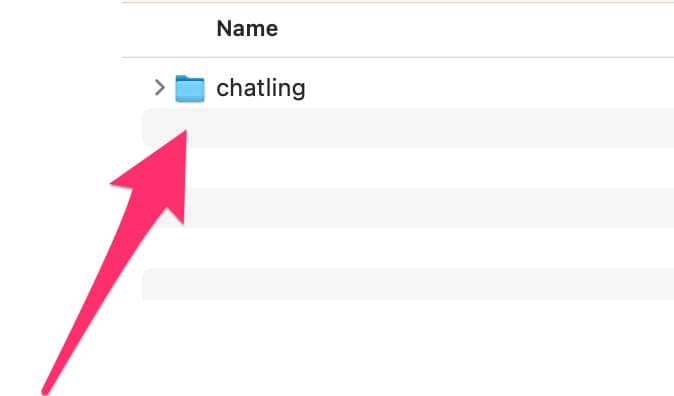 9. Inside the folder, open the `chatling.php` file using a text editor of your choice, such as Notepad on Windows or TextEdit on macOS.
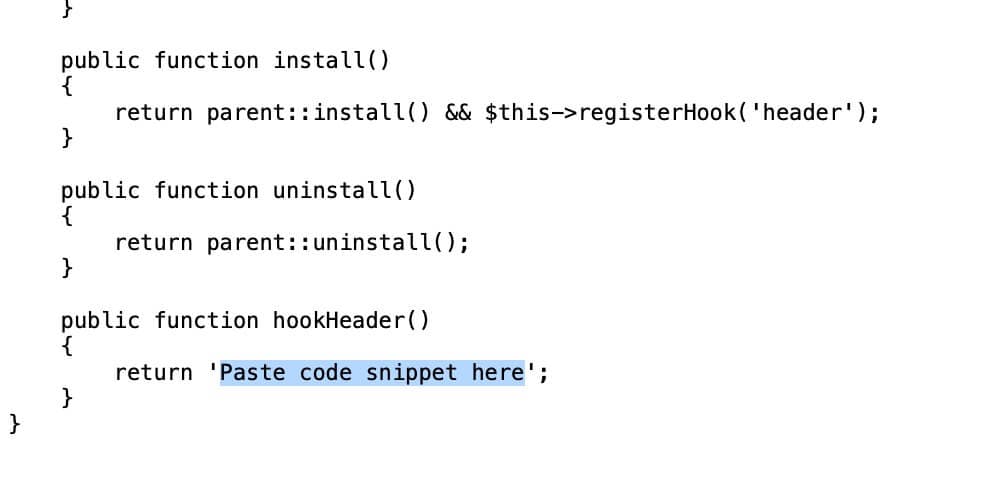
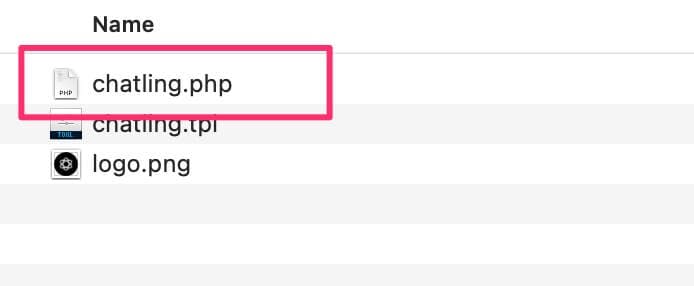 10. Go to the bottom of the file and find the line that says `Paste code snippet here`.
 Replace it with the code snippet you copied in step #2, as shown below.
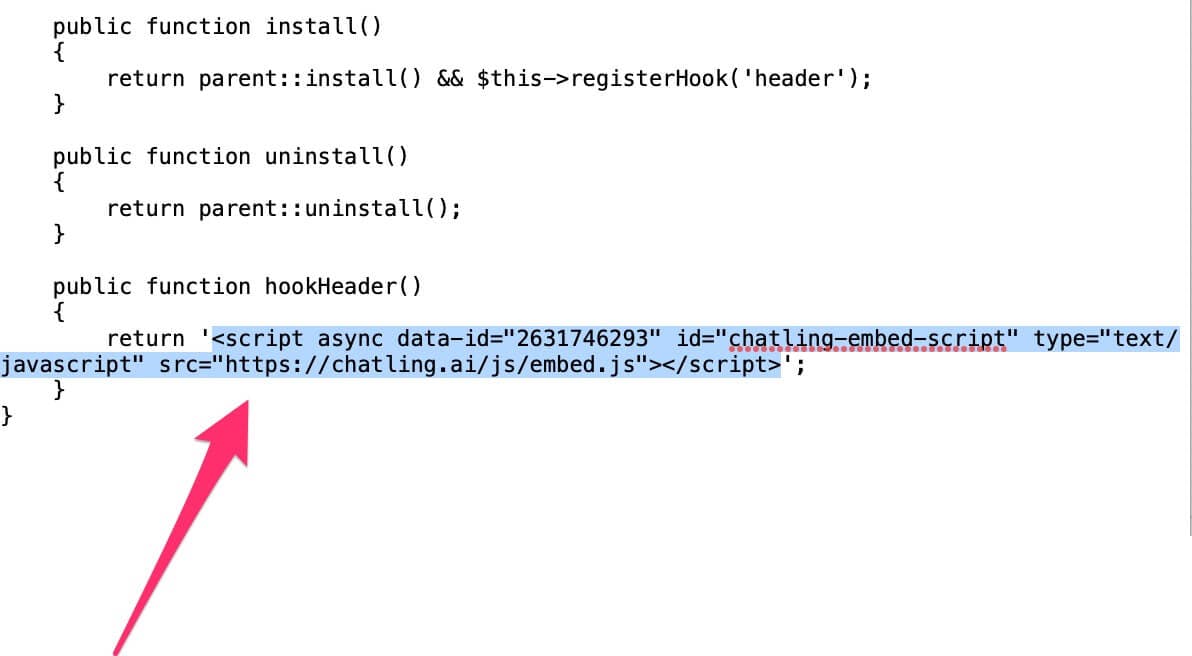 11. Save the file and close it.
12. Zip the `chatling` folder. Do not rename the folder to anything else otherwise the module won't work.
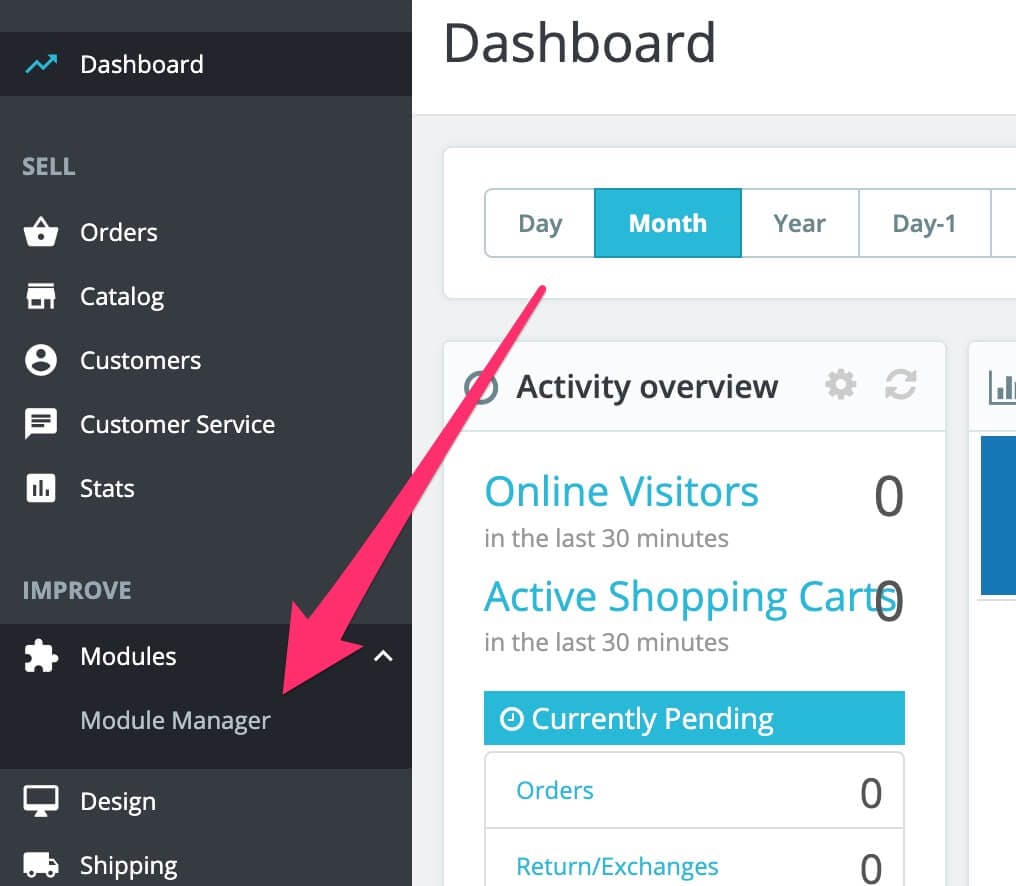
13. Go to your PrestaShop admin panel. From the sidebar menu, click `Module` > `Module Manager`.
11. Save the file and close it.
12. Zip the `chatling` folder. Do not rename the folder to anything else otherwise the module won't work.
13. Go to your PrestaShop admin panel. From the sidebar menu, click `Module` > `Module Manager`.
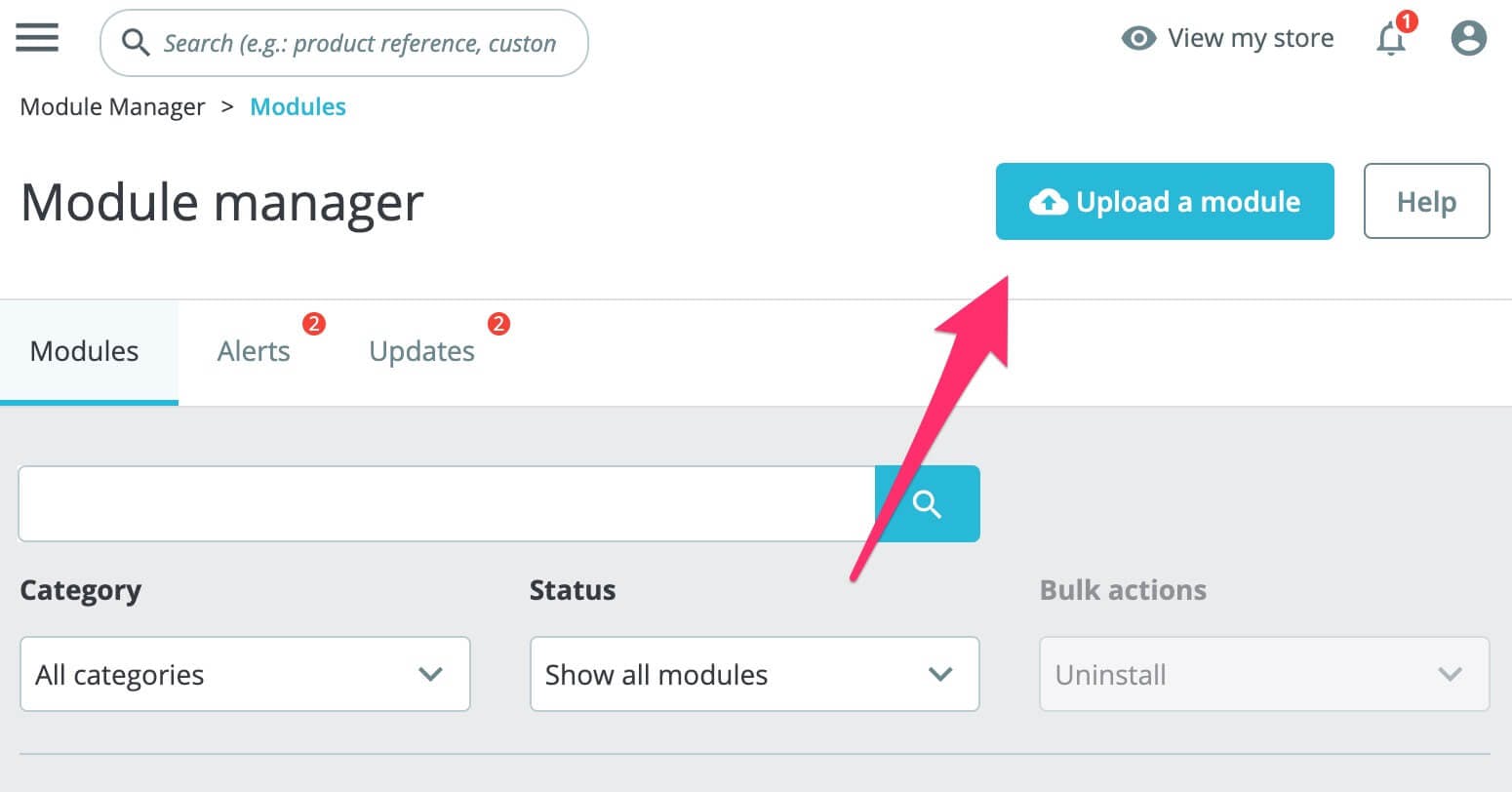
 14. Click the `Upload a module` button in the top right. Browse and select the module's zip file.
 15. Once the module is uploaded, the widget will be live on your website.