> ## Documentation Index
> Fetch the complete documentation index at: https://docs.chatling.ai/llms.txt
> Use this file to discover all available pages before exploring further.
# Google Tag Manager
> Learn how to add Chatling to your website using Google Tag Manager
1. Go to your dashboard.
2. Click `Deploy` button in the sidebar menu.
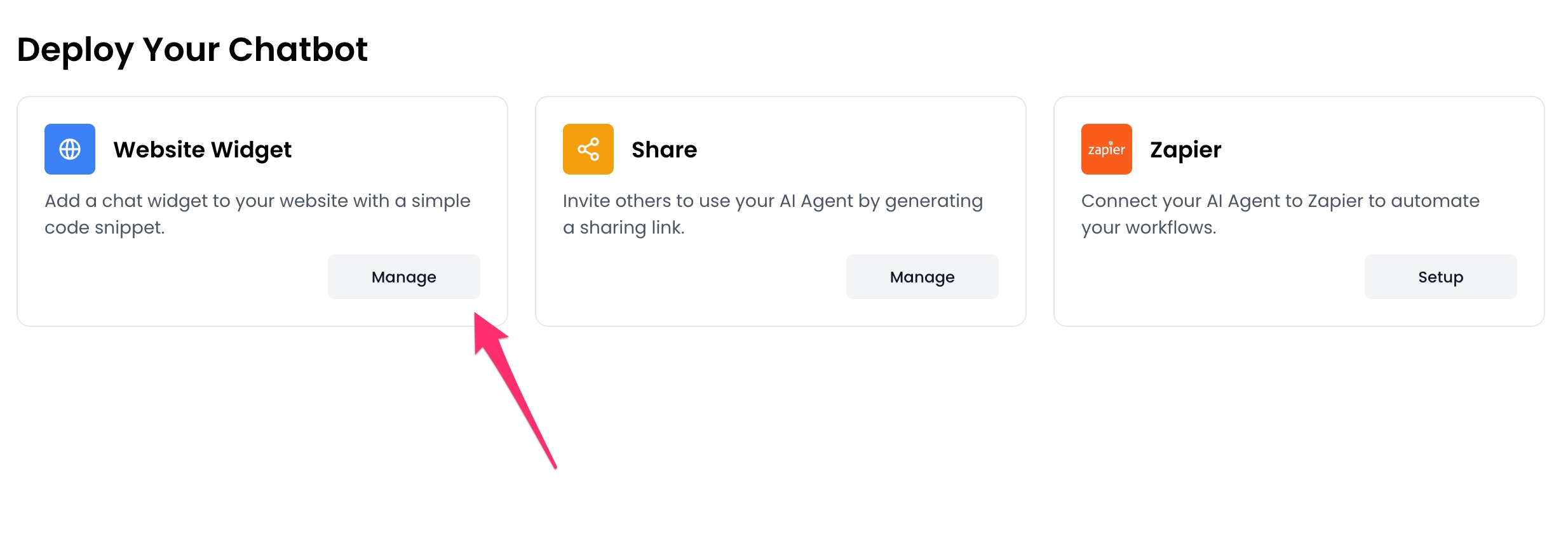
 3. Click the `Manage` button under the `Website Widget` option.
 4. Design the appearance of the widget by clicking the `Open widget designer` button.
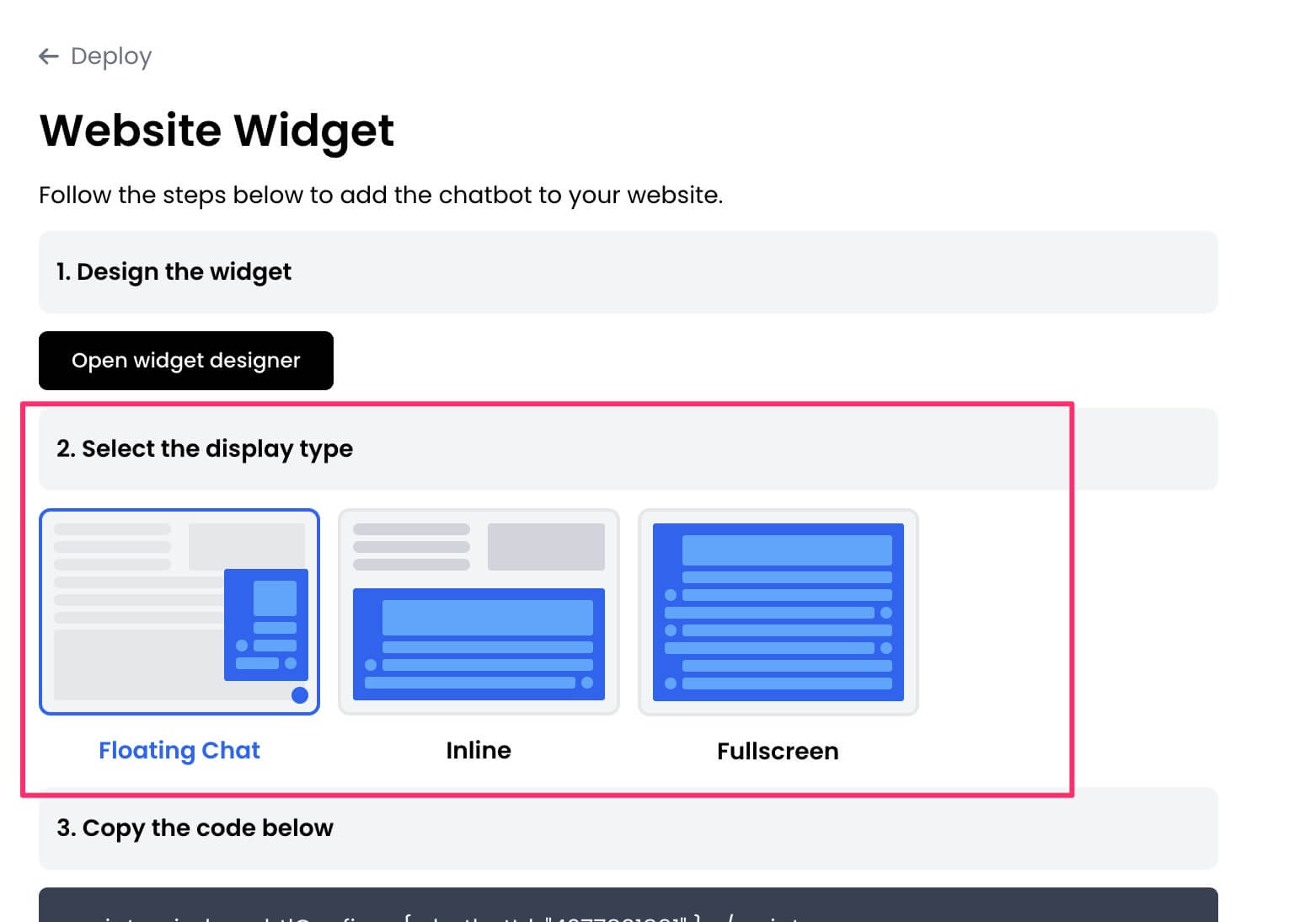
 5. Select the display mode for your chatbot, such as "Floating Chat", "Inline", or "Fullscreen".
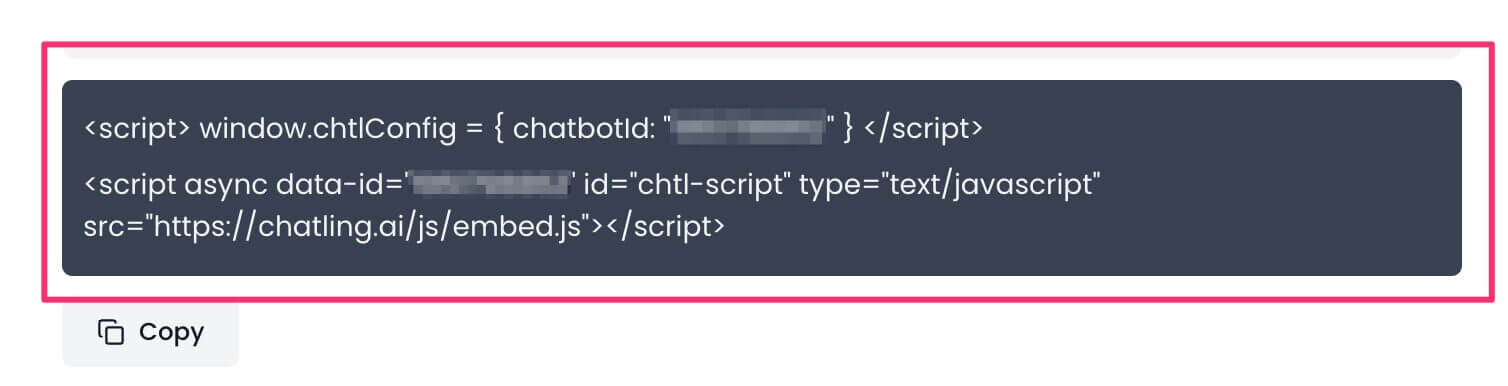
 6. Copy the widget code.
 7. Go to Google Tag Manager and open your website's container.
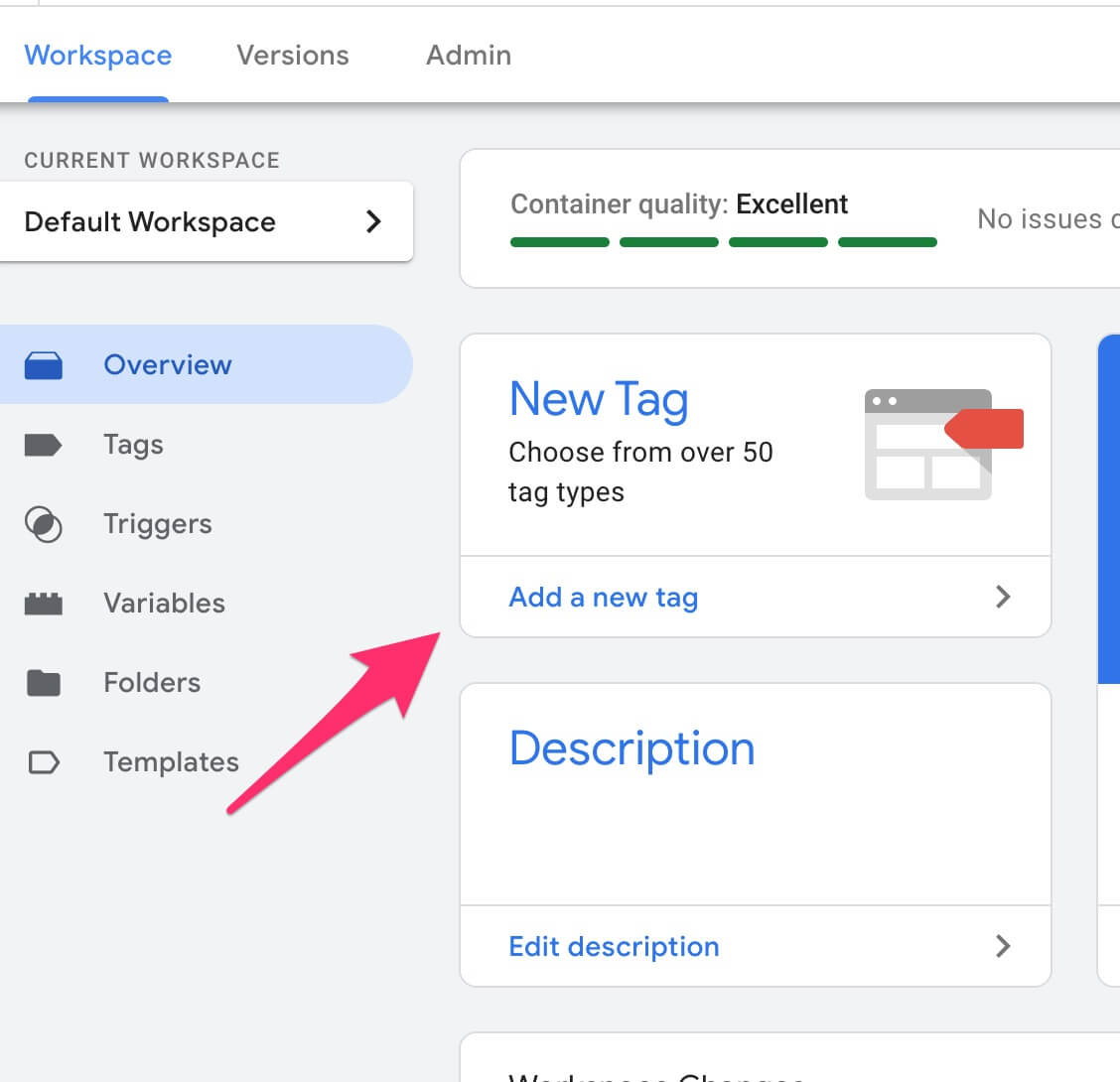
8. Click on `Add a new tag`.
7. Go to Google Tag Manager and open your website's container.
8. Click on `Add a new tag`.
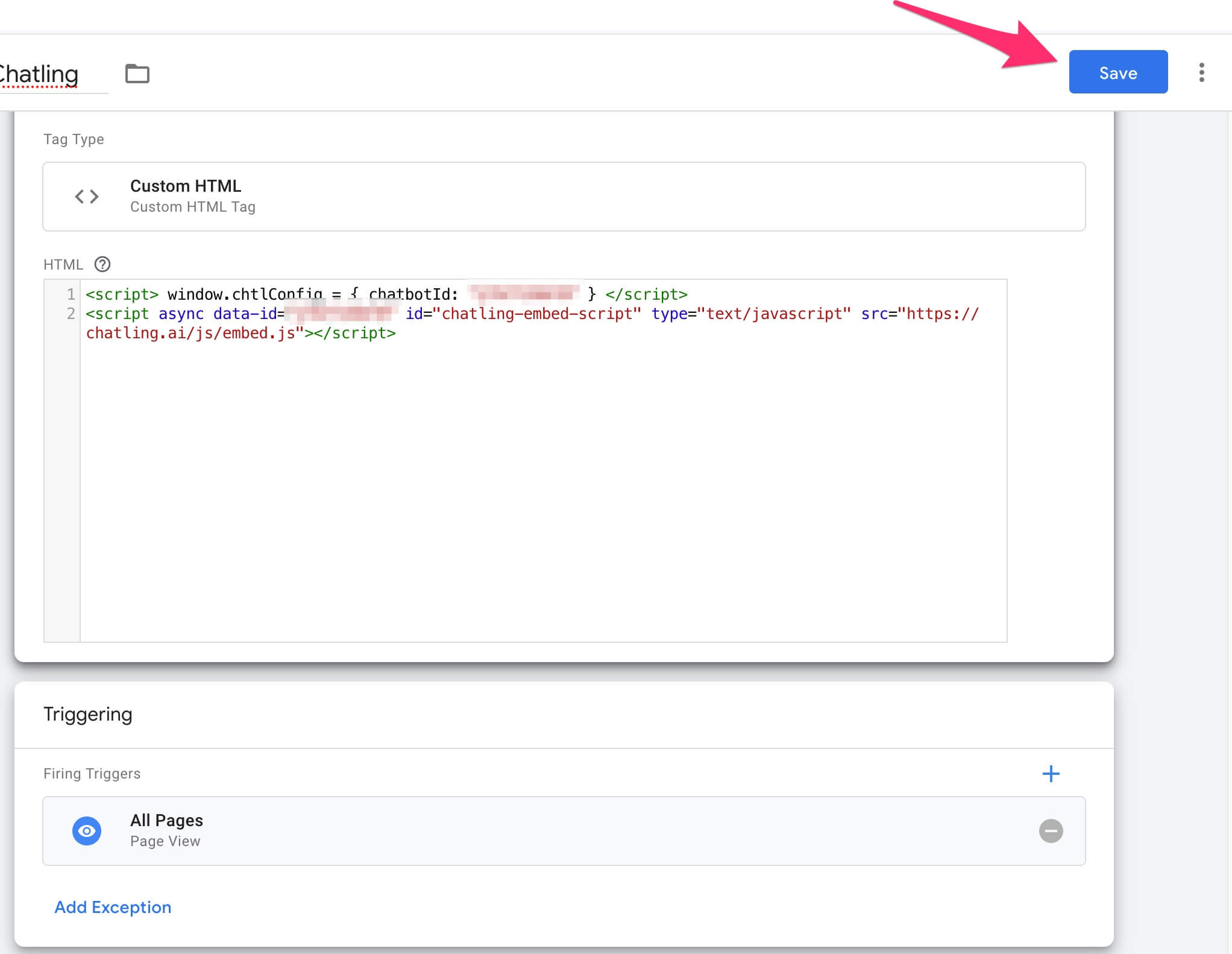
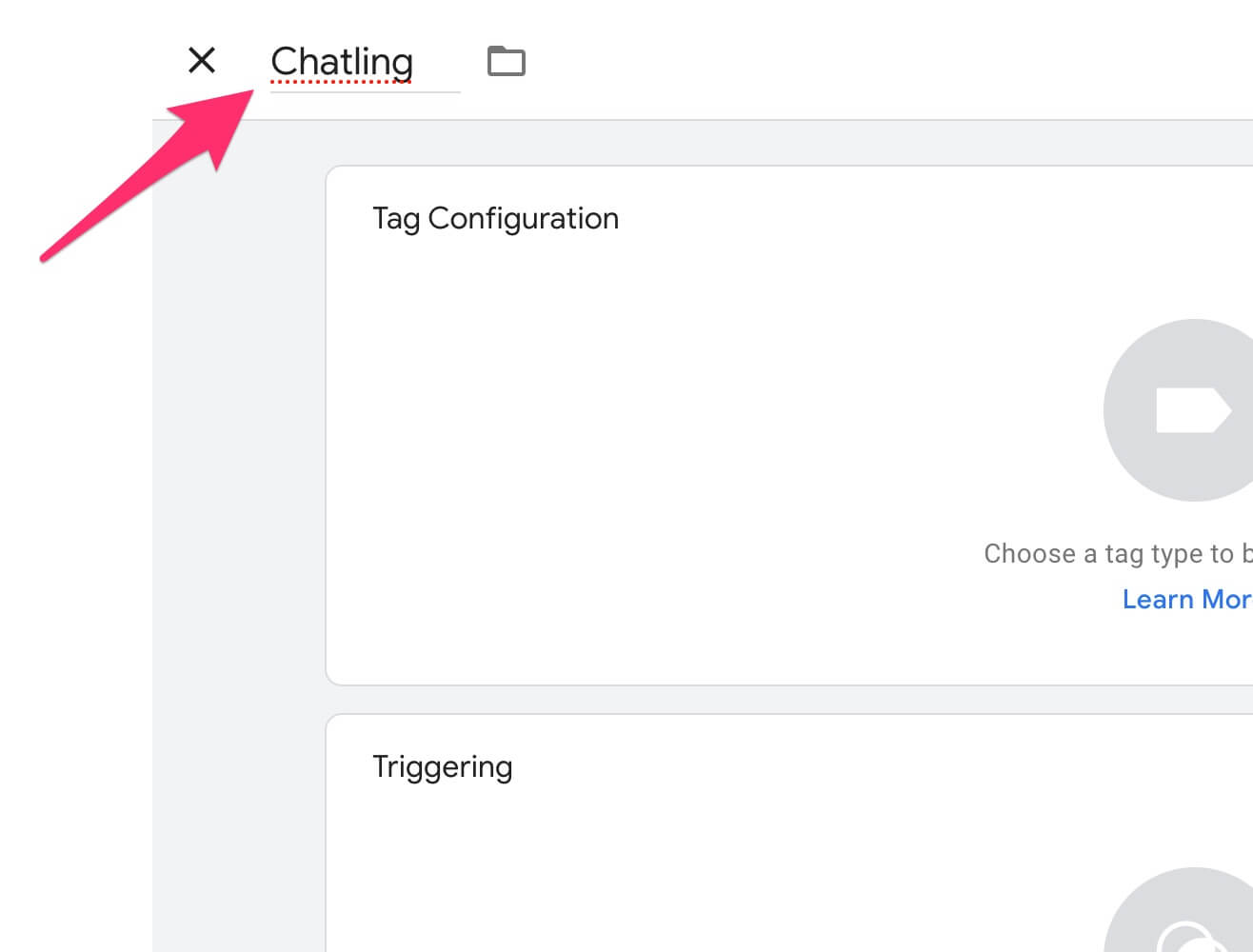
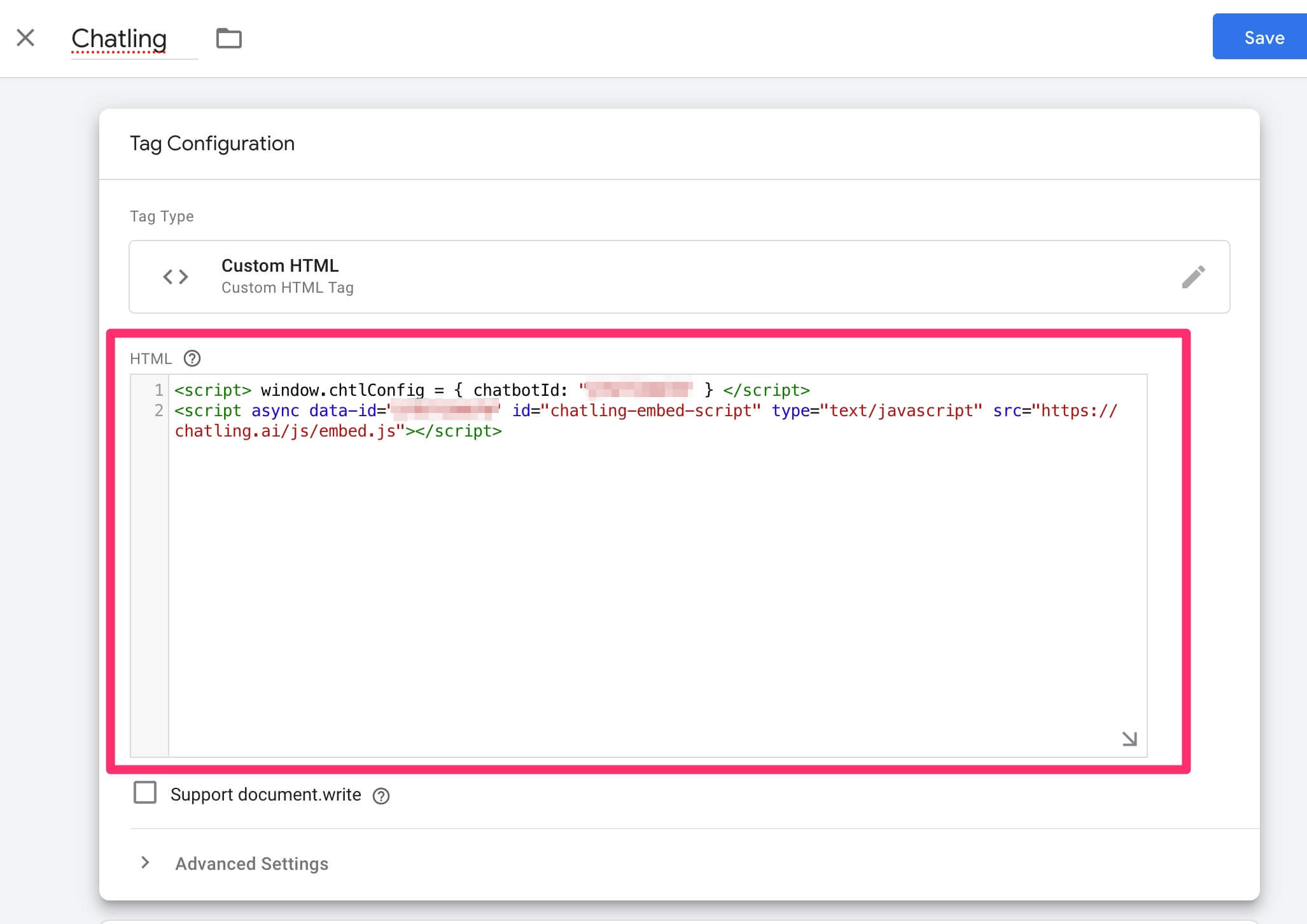
 9. Enter a name for the tag, such as `Chatling`.
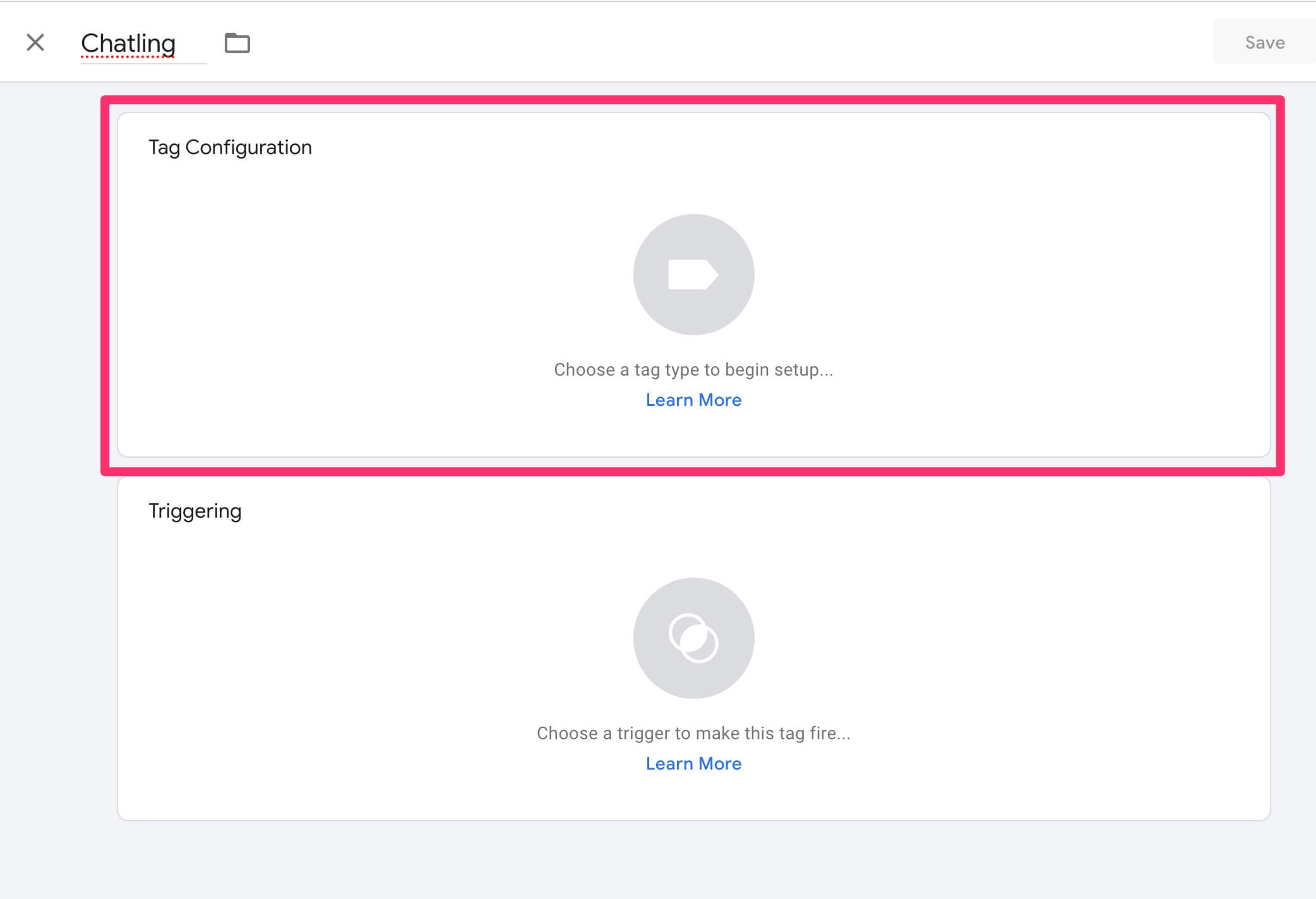
 10. Click on `Tag Configuration`.
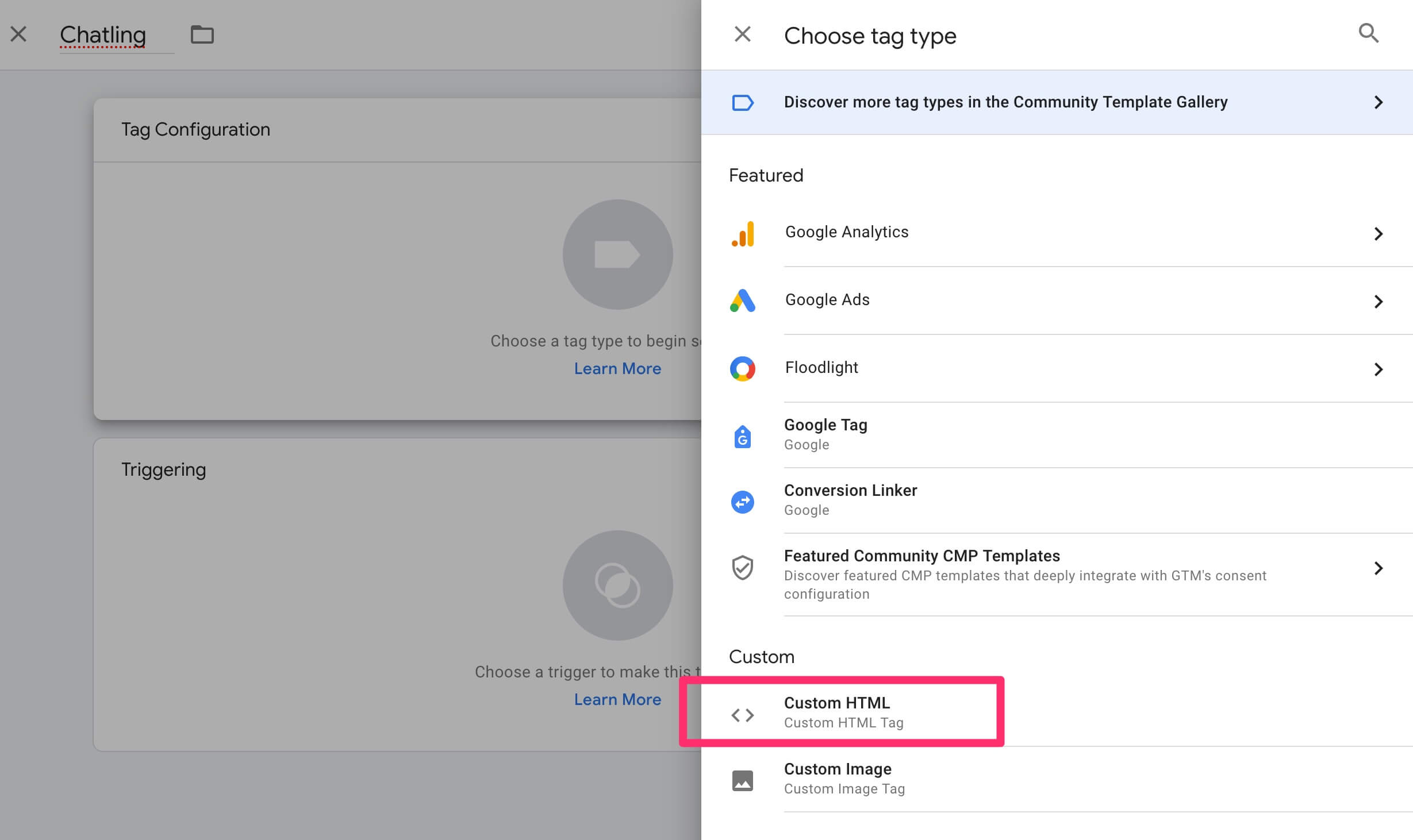
 11. Select `Custom HTML`.
 12. Paste the widget code into the `HTML` field.
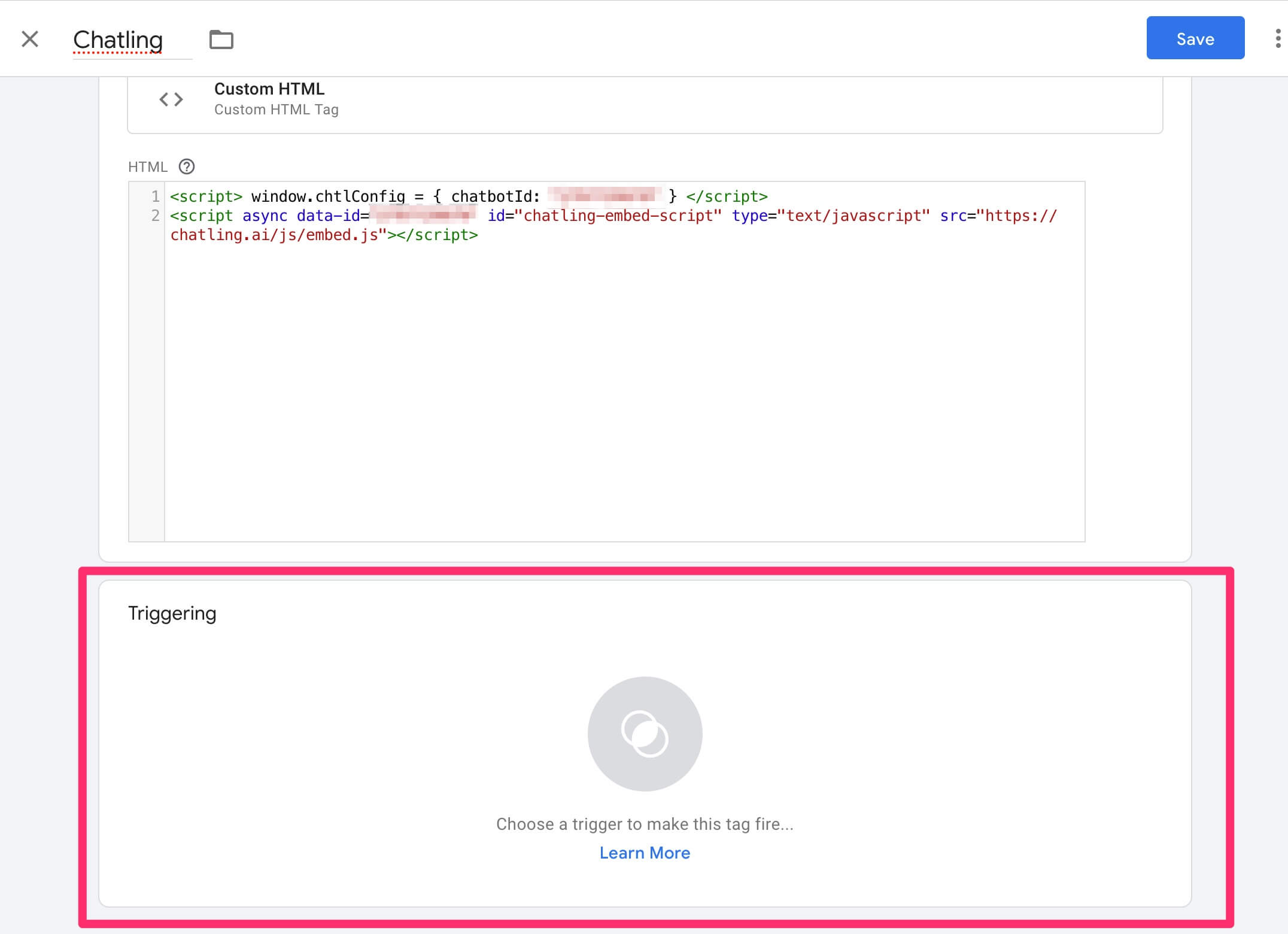
 13. Click on `Triggering`.
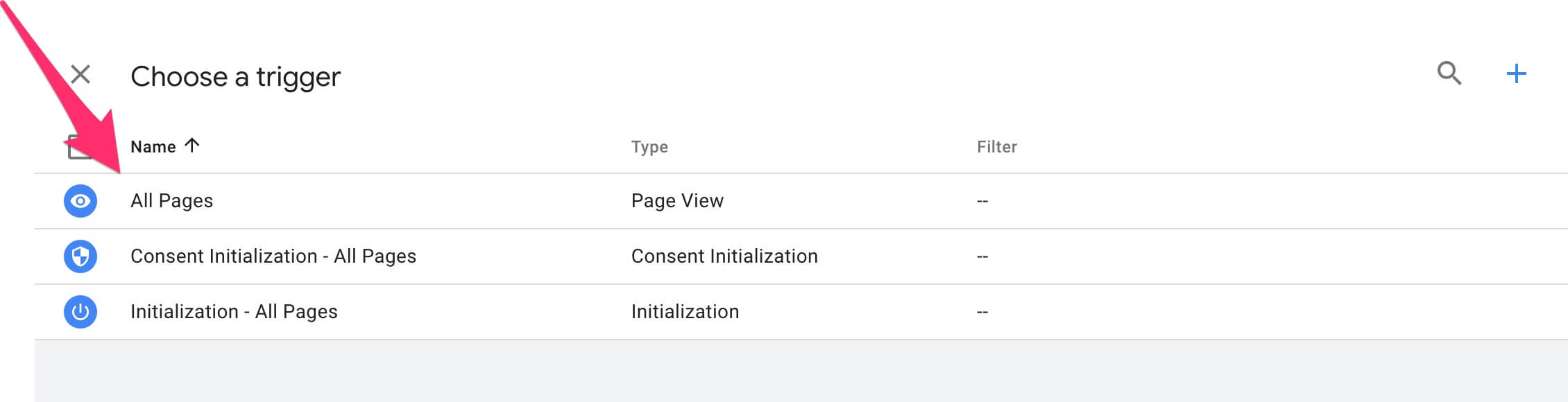
 14. Select `All Pages`.
 15. Click `Save`.