> ## Documentation Index
> Fetch the complete documentation index at: https://docs.chatling.ai/llms.txt
> Use this file to discover all available pages before exploring further.
# Bubble
> Learn how to add Chatling to your Bubble website
1. Go to your dashboard.
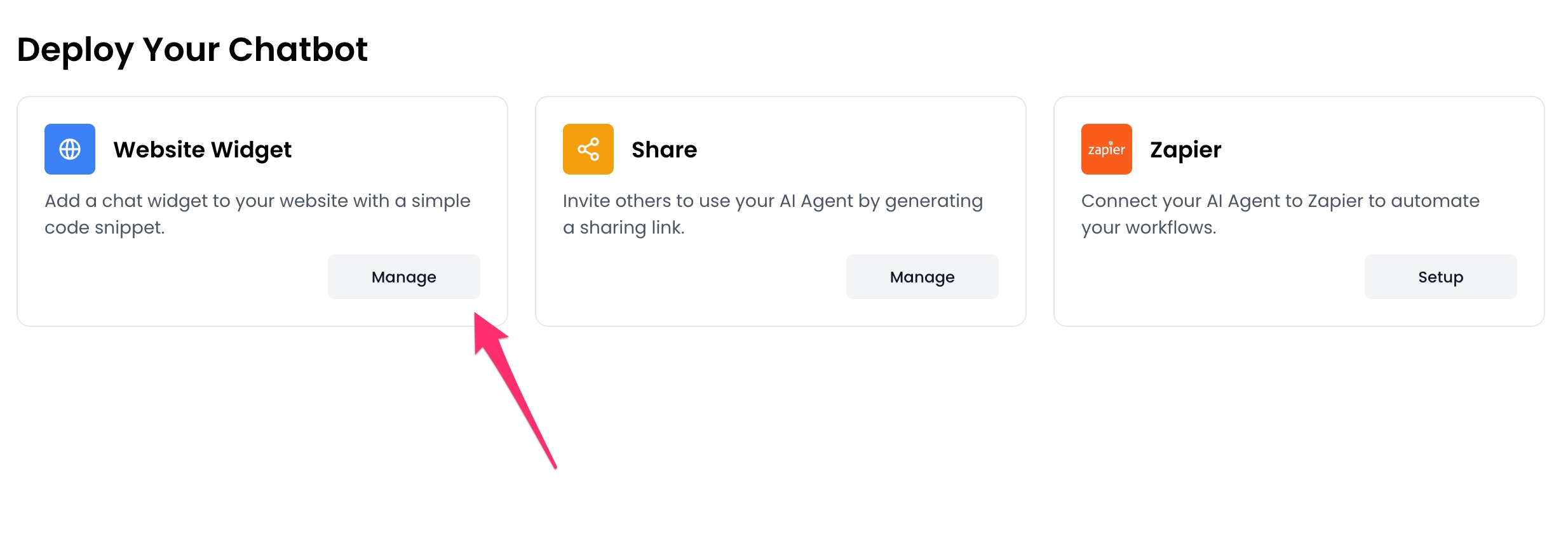
2. Click `Deploy` button in the sidebar menu.
 3. Click the `Manage` button under the `Website Widget` option.
 4. Design the appearance of the widget by clicking the `Open widget designer` button.
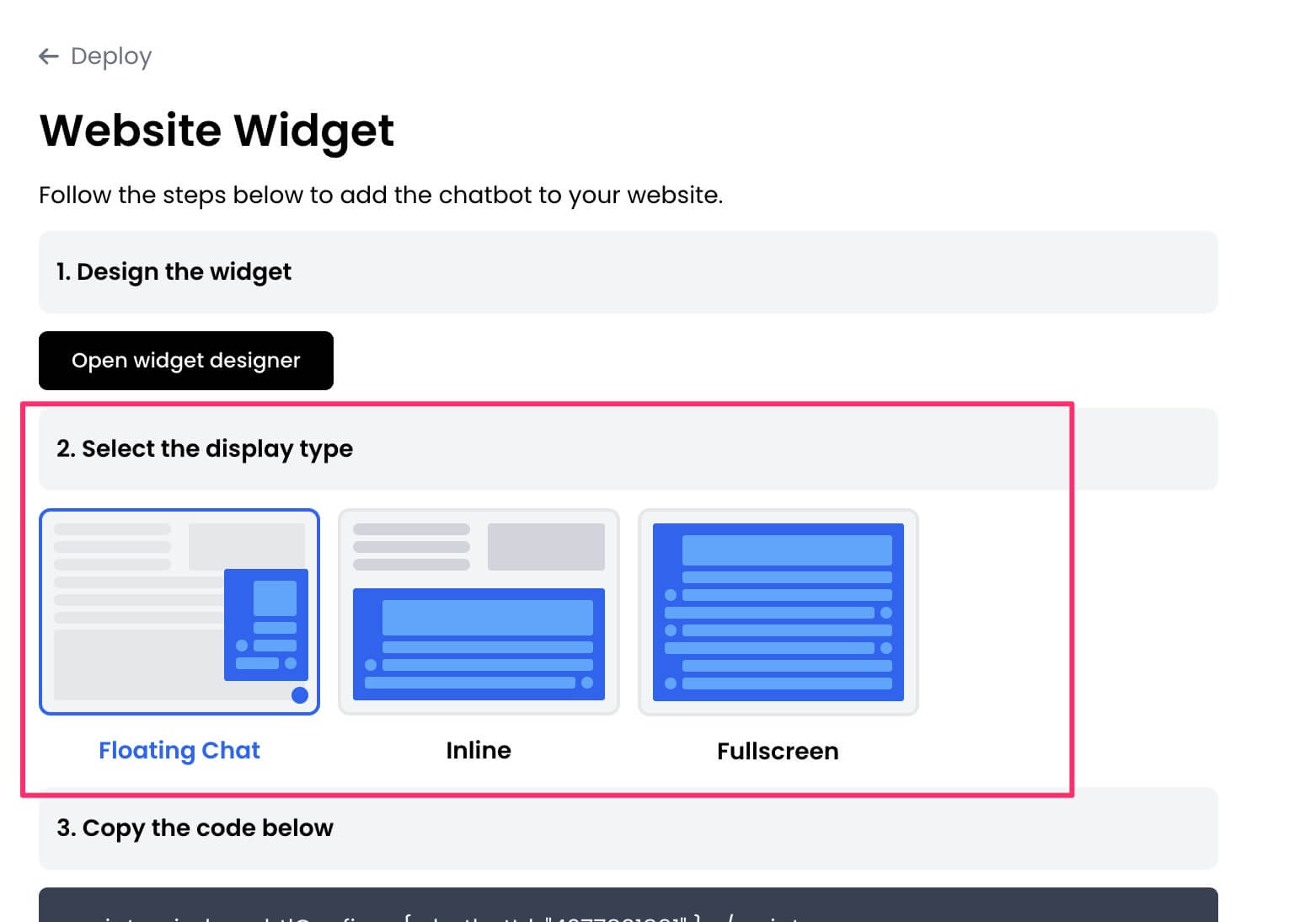
 5. Select the display mode for your chatbot, such as "Floating Chat", "Inline", or "Fullscreen".
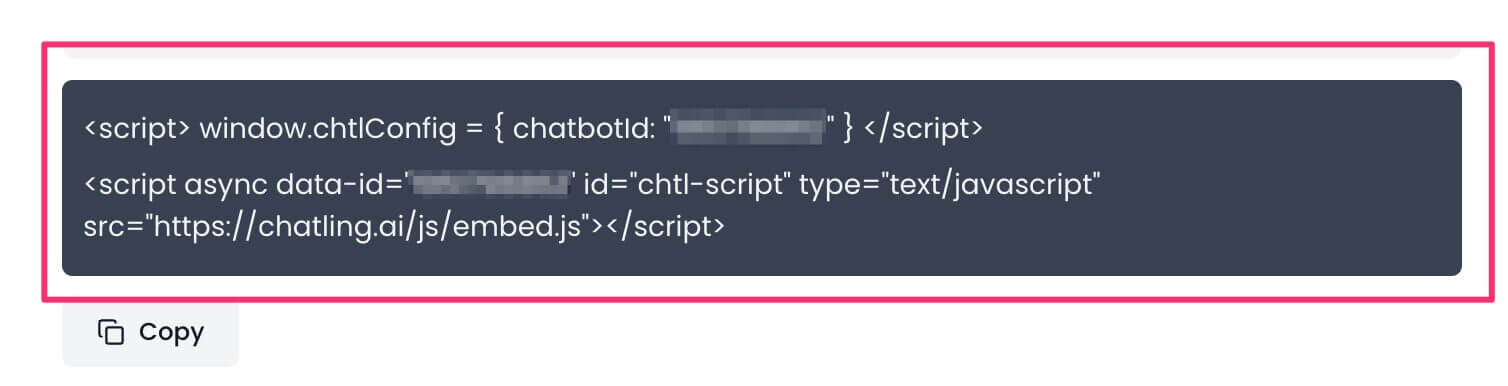
 6. Copy the widget code.
 7. Go to your Bubble account and open the app/website where you want to add the widget.
 8. On the side, click the gear icon to open Settings.
 9. Go to `SEO / metatags`.
 10. Under the `SEO settings` section, paste the widget code in the header or body textbox.
 11. The settings will be saved automatically. Click the Preview icon to confirm that the widget has been added.
* Note that this method only works on paid plans. If you're on a free account, Bubble doesn't load the widget.
11. The settings will be saved automatically. Click the Preview icon to confirm that the widget has been added.
* Note that this method only works on paid plans. If you're on a free account, Bubble doesn't load the widget.
