> ## Documentation Index
> Fetch the complete documentation index at: https://docs.chatling.ai/llms.txt
> Use this file to discover all available pages before exploring further.
# Display AI sources
> Learn how to enable sources for AI responses.
1. Open the widget designer. To learn how to access it, see [this guide](/web-widget/customize#how-to-customize-the-widget).
2. Go to `Configure`.
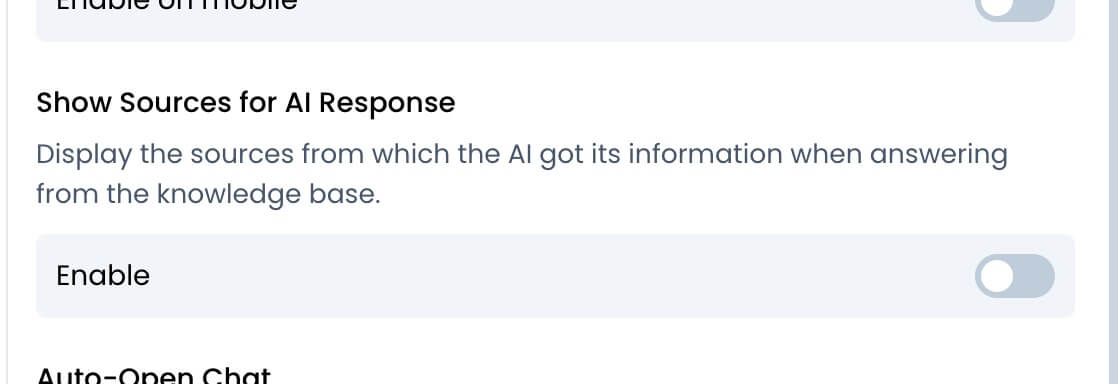
 3. Enable the `Show Sources for AI Response` option. You can customize it by selecting the number and type of sources to display.
 Here's how it appears in the chatbot:
