> ## Documentation Index
> Fetch the complete documentation index at: https://docs.chatling.ai/llms.txt
> Use this file to discover all available pages before exploring further.
# Custom domain
> Learn how to add a custom domain to your chatbot.
You can use a custom subdomain for the chatbot widget and sharing link rather than the default one used by Chatling. This allows you to whitelabel your chatbots to maintain your brand identity or make them look like your team developed them.
## How to set a custom domain
1. Open the chatbot you want to set a custom subdomain for.
2. From the menu, click on `Settings` under the `Chatbot` section.
 3. Go to the `Custom Domain` tab.
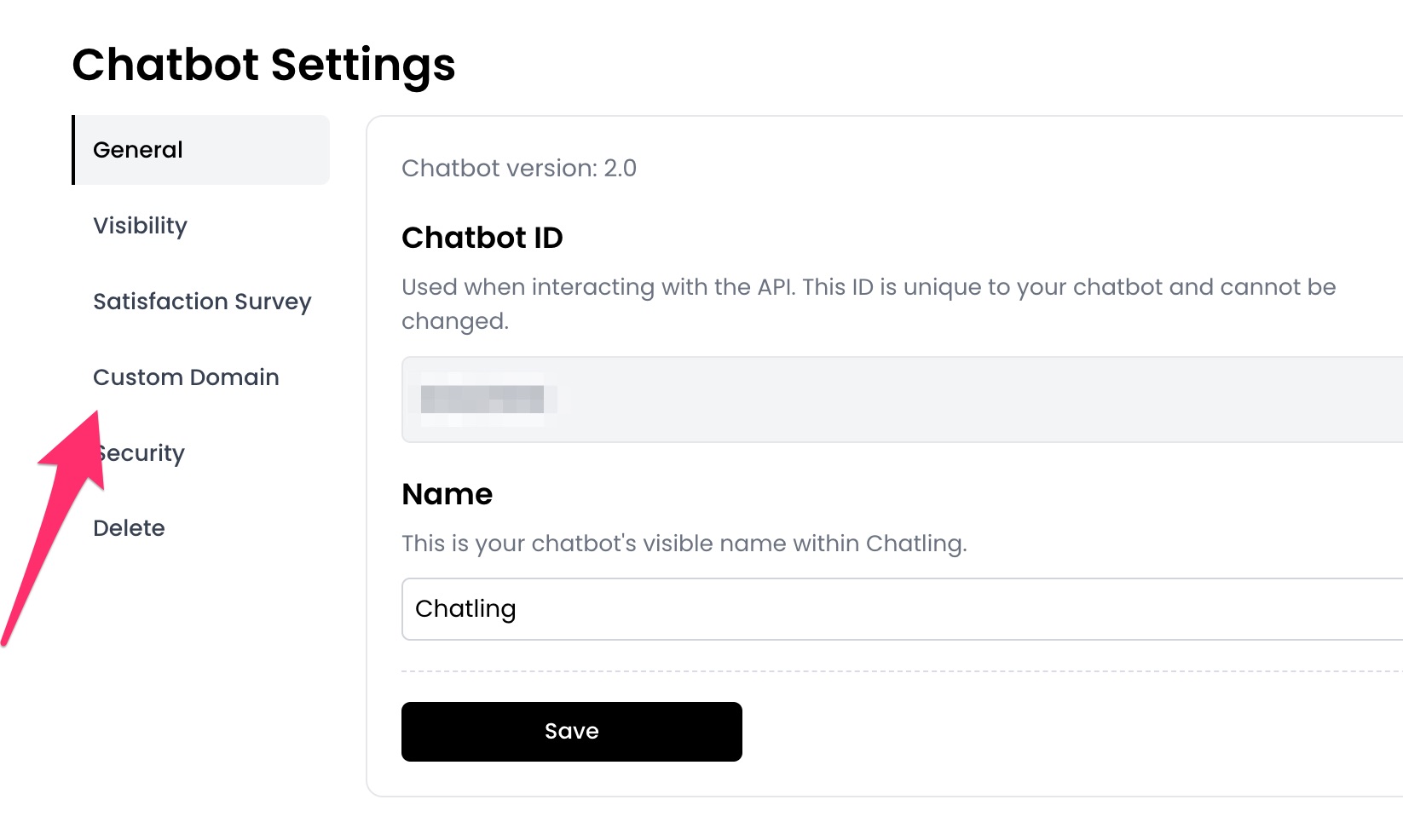 4. Enter the custom domain you want to use for the chatbot, such as `sample.domain.com`, and click the `Save` button.
 5. Add the DNS records displayed on the page to your domain provider to activate the custom domain.
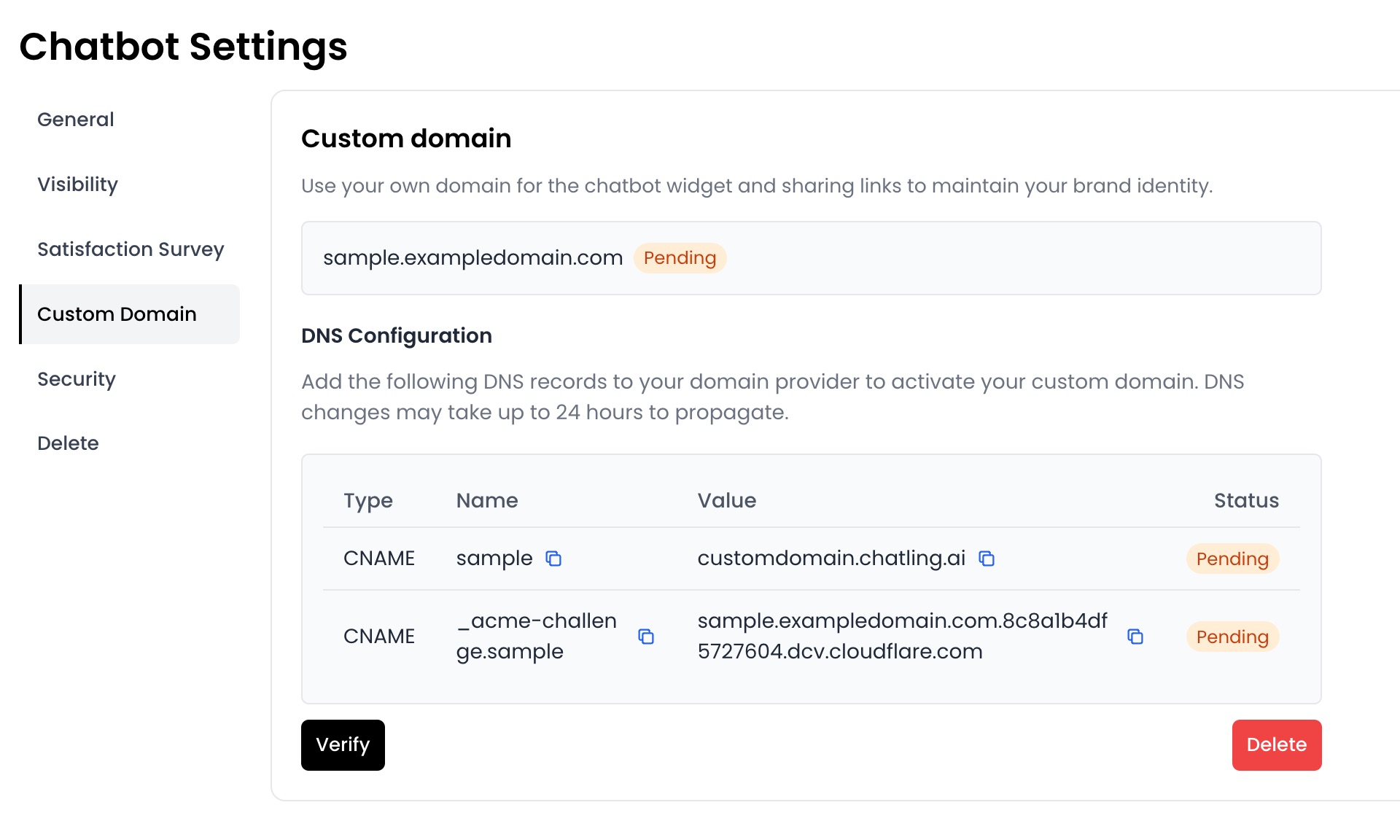 6. Once you add the DNS records, it may take up to 24 hours for the changes to propagate. You can click the `Verify` button to check if the records are active.
7. Once completed and the status is `Active`, the chatbot widget and sharing link will use the custom domain.
6. Once you add the DNS records, it may take up to 24 hours for the changes to propagate. You can click the `Verify` button to check if the records are active.
7. Once completed and the status is `Active`, the chatbot widget and sharing link will use the custom domain.