> ## Documentation Index
> Fetch the complete documentation index at: https://docs.chatling.ai/llms.txt
> Use this file to discover all available pages before exploring further.
# Variable
> Learn how to use the Variable condition block in Chatling
The Variable condition block is used to compare a variable with a value or another variable. You can use it to create conditional logic in your bot based on user inputs, stored values, or system variables.
## Components of a variable condition
 * **Label**: A descriptive label for the condition, which will be displayed in the block on the canvas. This is optional and can be skipped.
* **Variable**: The variable or value that the block will evaluate. The variable can be a user input, a stored value, or a system variable.
* **Comparison operator**: The operator that the block will use to compare the variable with the value you specify. You can choose from a list of comparison operators, such as "equals," "greater than," "contains," etc.
* **Value**: The value that the block will compare with the variable. This can be a static value or a variable for dynamic comparisons.
## Examples
### 1. Real estate bot
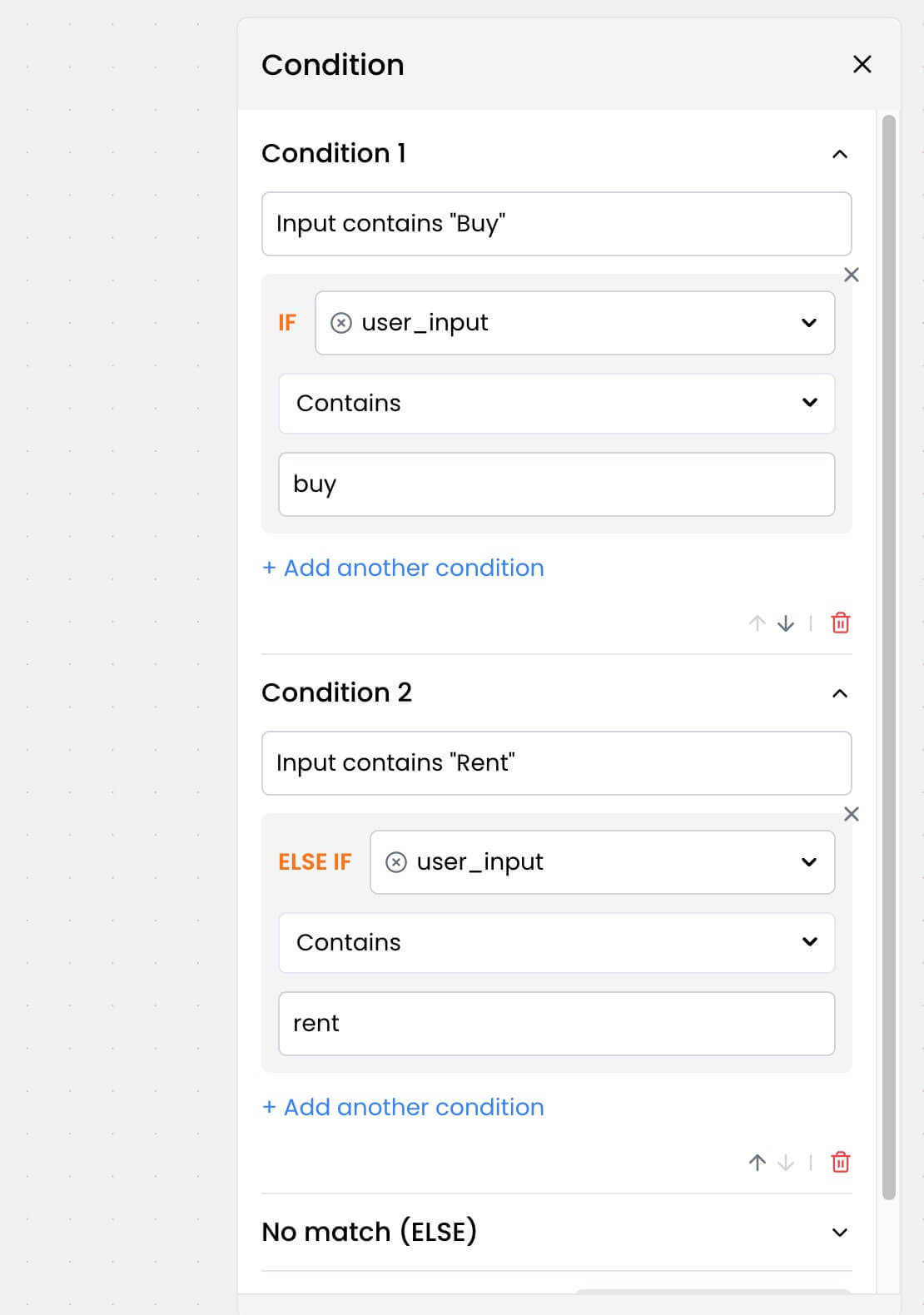
In a real estate bot, you can use conditions to check if the user is looking to buy or rent a property and display properties accordingly.
You can create two conditions:
* Condition 1: User input contains "buy"
* Condition 2: User input contains "rent"
Here's how to set it up in the editor:
* **Label**: A descriptive label for the condition, which will be displayed in the block on the canvas. This is optional and can be skipped.
* **Variable**: The variable or value that the block will evaluate. The variable can be a user input, a stored value, or a system variable.
* **Comparison operator**: The operator that the block will use to compare the variable with the value you specify. You can choose from a list of comparison operators, such as "equals," "greater than," "contains," etc.
* **Value**: The value that the block will compare with the variable. This can be a static value or a variable for dynamic comparisons.
## Examples
### 1. Real estate bot
In a real estate bot, you can use conditions to check if the user is looking to buy or rent a property and display properties accordingly.
You can create two conditions:
* Condition 1: User input contains "buy"
* Condition 2: User input contains "rent"
Here's how to set it up in the editor:
 Once you have set up the conditions, you can define the paths for each condition. Here's an example:
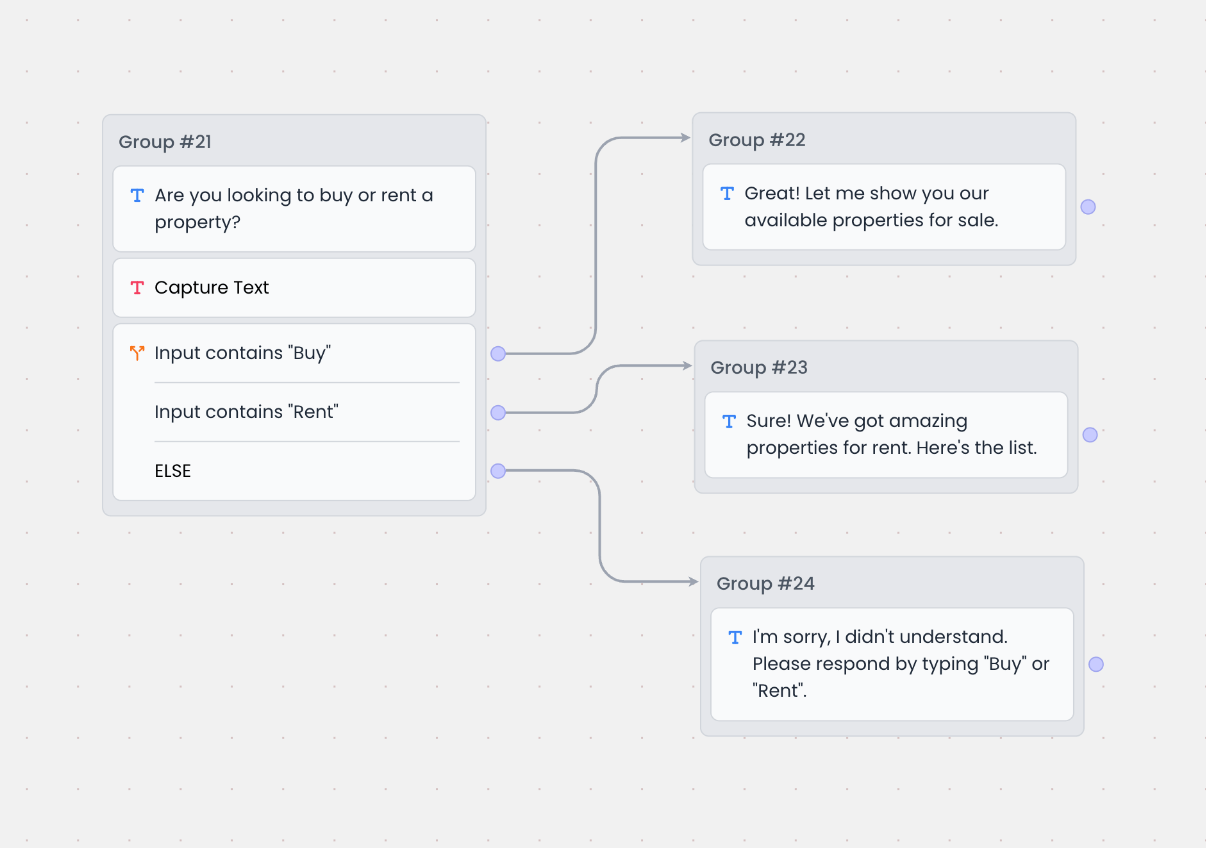 Based on the above, here's how the bot will respond:
* If the user input contains "buy," the bot will respond with `Great! Let me show you our available properties for sale`.
* If the user input contains "rent," the bot will respond with `Sure! We've got amazing properties for rent. Here's the list`.
* Else if none of the conditions are met, the bot will respond with `I'm sorry, I didn't understand. Please respond by typing "Buy" or "Rent"`.
### 2. Filtering job application candidates
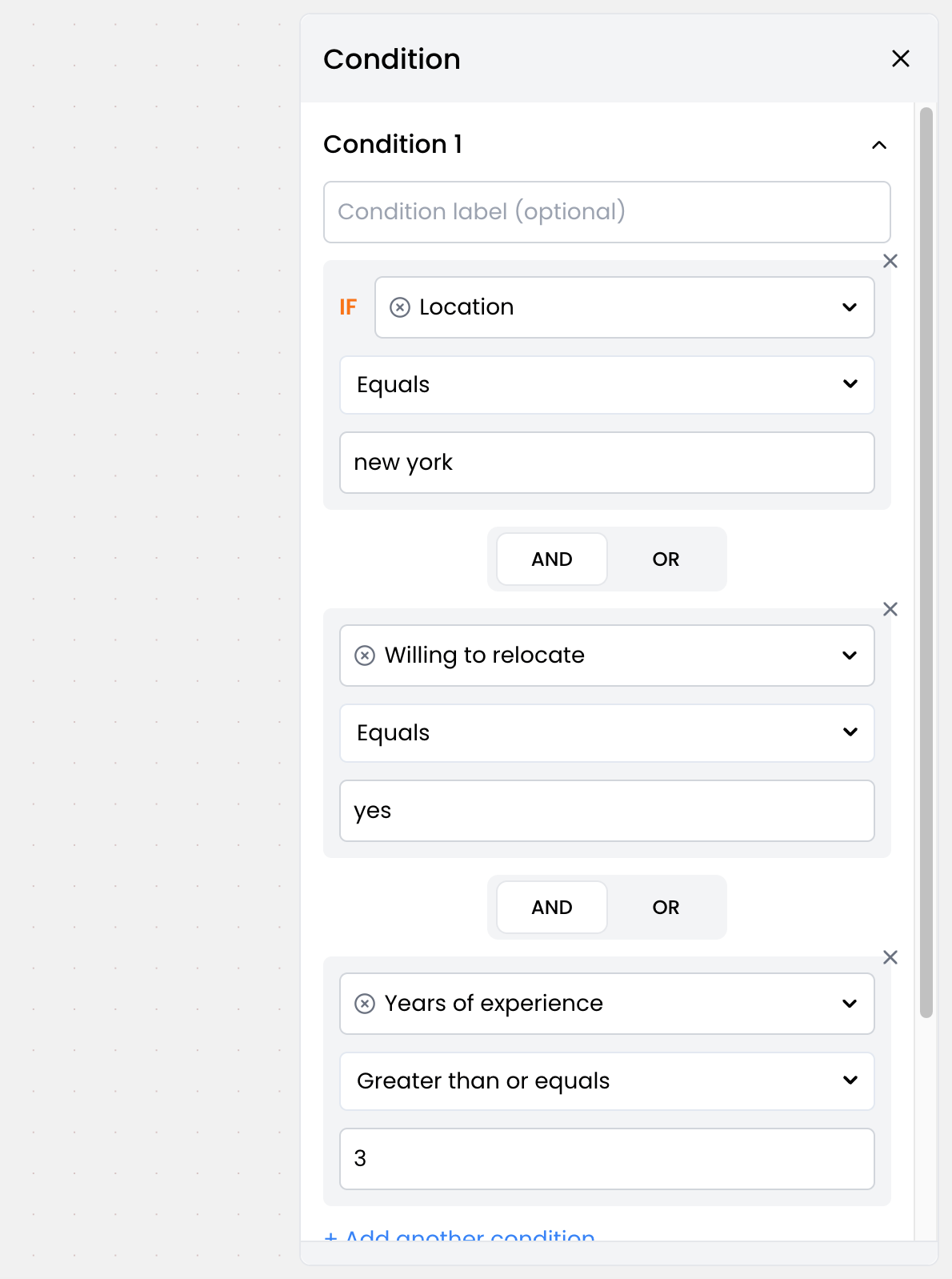
Let's say a candidate is applying for a job through the bot and you want to qualify them based on the following criteria:
* Location: New York
* Willing to relocate: Yes
* Years of experience: 3 or more
You can set up the following conditions:
Based on the above, here's how the bot will respond:
* If the user input contains "buy," the bot will respond with `Great! Let me show you our available properties for sale`.
* If the user input contains "rent," the bot will respond with `Sure! We've got amazing properties for rent. Here's the list`.
* Else if none of the conditions are met, the bot will respond with `I'm sorry, I didn't understand. Please respond by typing "Buy" or "Rent"`.
### 2. Filtering job application candidates
Let's say a candidate is applying for a job through the bot and you want to qualify them based on the following criteria:
* Location: New York
* Willing to relocate: Yes
* Years of experience: 3 or more
You can set up the following conditions:
 Once you have set up the conditions, you can define the paths for each condition. Here's an example:
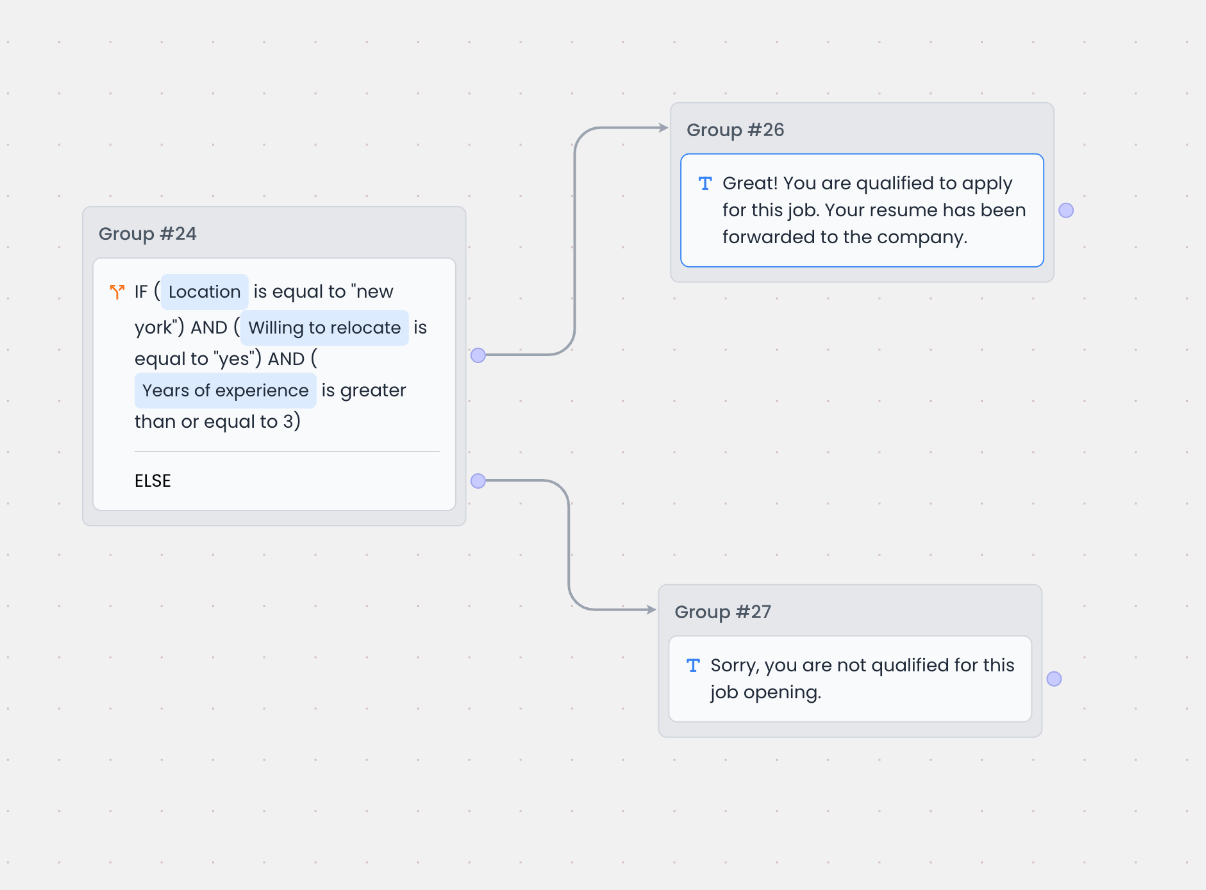 Based on the above, here's how the bot will respond:
* If the candidate is from New York, willing to relocate, and has 3 or more years of experience, the bot will respond with `Congratulations! You've been shortlisted for the next round of interviews`.
* Otherwise, the bot will respond with `Sorry, you are not qualified for this job opening. We'll keep your application on file for future opportunities`.
Based on the above, here's how the bot will respond:
* If the candidate is from New York, willing to relocate, and has 3 or more years of experience, the bot will respond with `Congratulations! You've been shortlisted for the next round of interviews`.
* Otherwise, the bot will respond with `Sorry, you are not qualified for this job opening. We'll keep your application on file for future opportunities`.